Operating Manual Audiology Scanners
Document version: 3.3 04-2020 65
Repeating
Rescanning/hole filling
Cutting
Finish the work, optionally with an export (FTP, ZIP, email).
aural Scan goes into the standby mode by default.
If it doesn’t, select To the standby mode in the menu.
aural Scan saves:
Scan projects in the file path: C:\Scans\Noah
A subfolder per patient (numbered).
Noah saves:
A patient folder (for all scans concerning a patient)
Links to the scan files (under Sessions).
Start the next scan project from Noah.
Starting and finishing
When scanning with Noah, the order of the steps is important:
Start the scan projects from Noah.
Place aural Scan in the standby mode when finishing work.
Quit Noah.
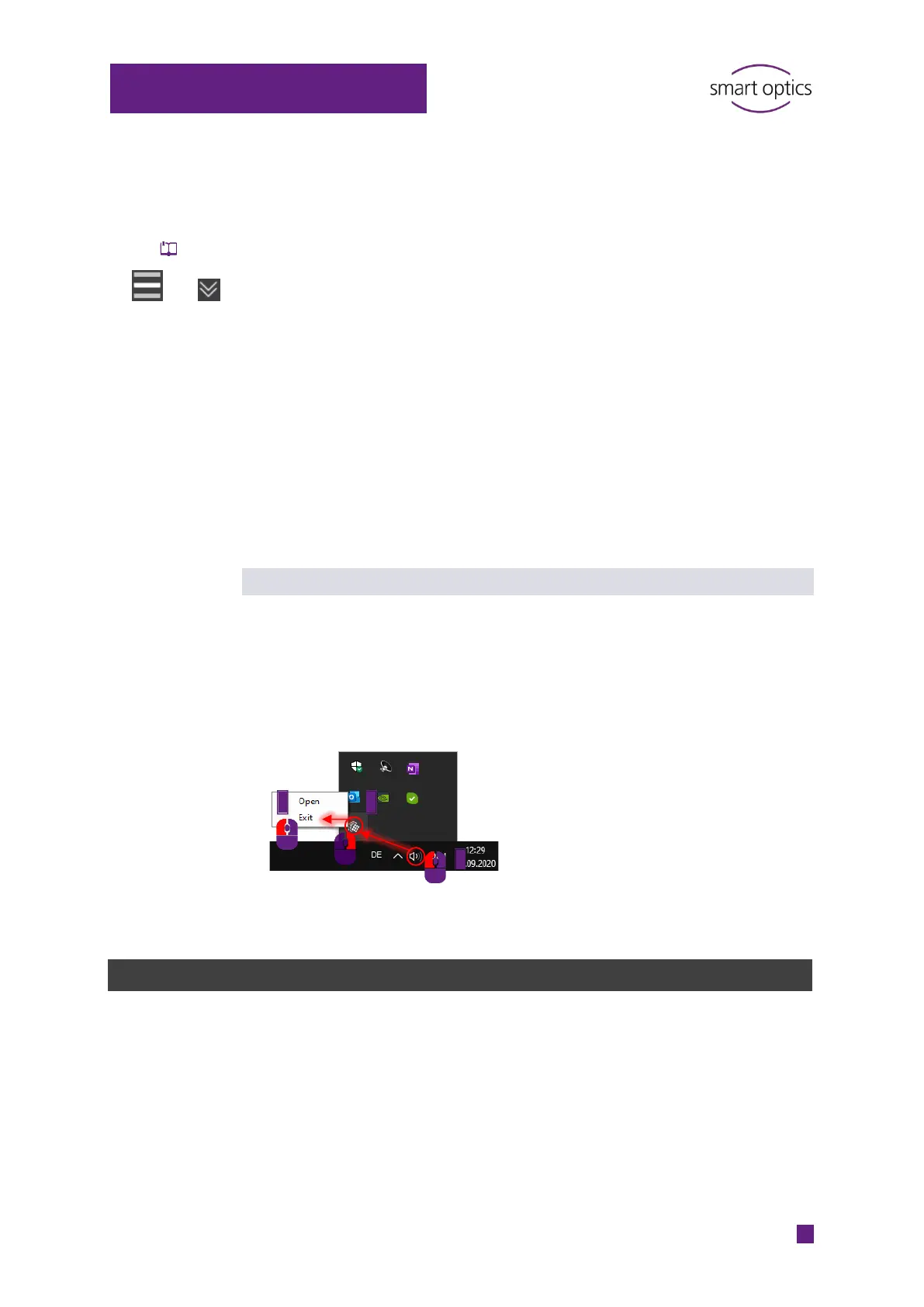
Quit aural Scan in the standby mode:
10.3
Viewing, editing and exporting scans from Noah
From Noah (with and without a scanner) you can:
View and edit scans individually
re-export the scan project.
In Noah’s patient browser (on the left), click on a patient.
The links to the scan files are displayed under Sessions, sorted by creation
date.
3 2


 To Next Page