Servicing CRUs That Do Not Require Server Power-Off 59
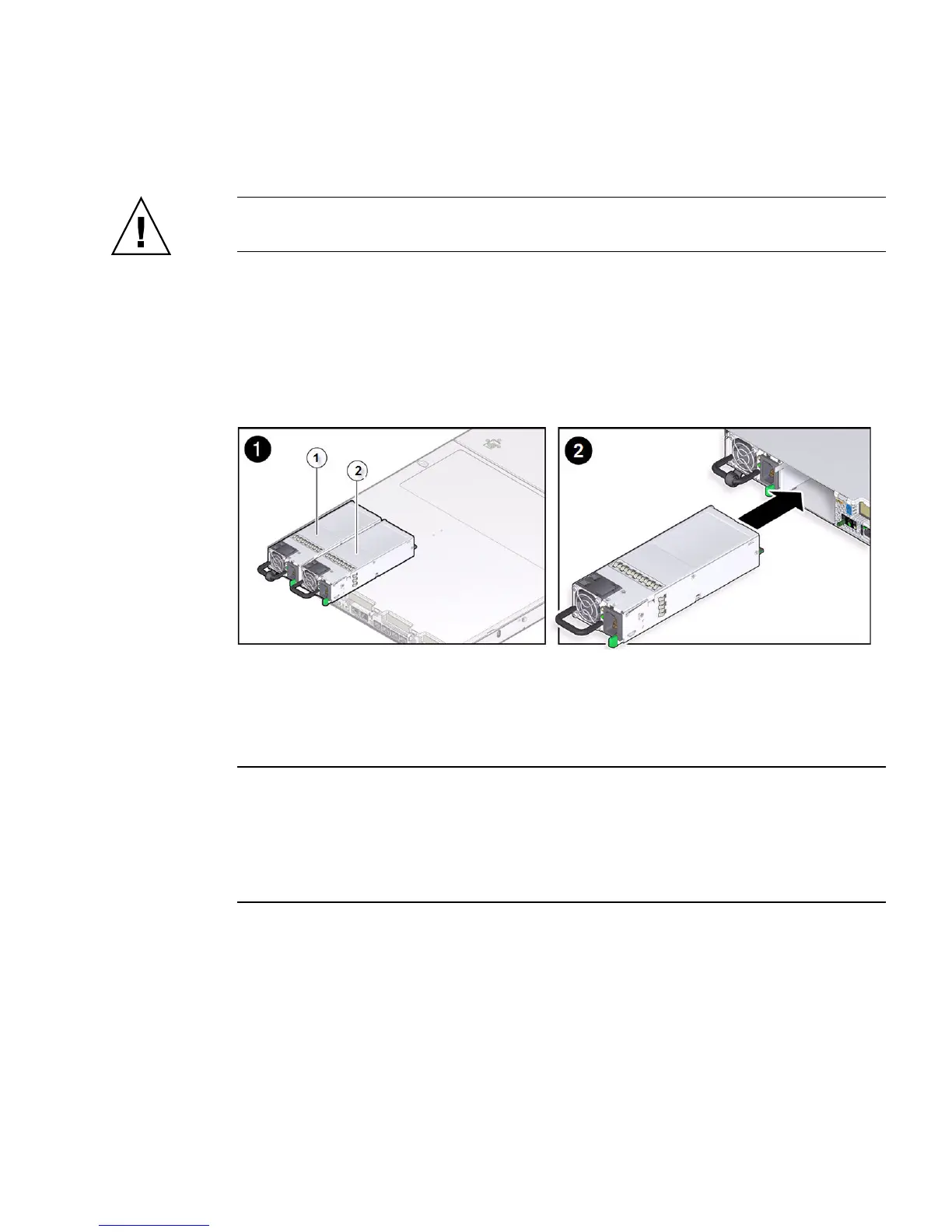
▼ Install a Power Supply
Caution – Always replace a faulty power supply with a power supply of the same
type.
1. Remove the replacement power supply from its packaging and place it on an
antistatic mat.
2. Align the replacement power supply with the empty power supply slot [1].
3. Slide the power supply into the bay until it is fully seated [2].
You will hear an audible click when the power supply fully seats.
4. Reconnect the power cord to the power supply.
5. Verify that the amber LED on the replaced power supply and the Service
Required LEDs are not lit on the front and rear panels.
Note – After you have replaced Power Supply 0, you must reset the Oracle ILOM
service processor (SP) to propagate the FRU top-level indicator (TLI) data to the new
power supply. For instructions on resetting the SP, see the Oracle Integrated Lights
Out Manager (ILOM) 3.1 Configuration and Maintenance Guide at
http://www.oracle.com/goto/ILOM/docs. Power Supply 1 does not contain
FRU TLI data, and therefore does not require an SP reset after replacement.
6. If you disconnected the two CMA left-side connectors, reconnect the connectors.
For instructions for reconnecting the CMA left-side connectors, see Sun Server
X4-2 Installation Guide, “Install the Second-Generation Cable Management Arm”
on page 52 or Sun Server X4-2 Installation Guide, “Install the First-Generation Cable
Management Arm” on page 69 as applicable.


 To Next Page