Chapter 11: Lists
163
11LISTS.DOC TI-86, Chap 11, US English Bob Fedorisko Revised: 02/13/01 2:30 PM Printed: 02/13/01 3:03 PM Page 163 of 1611LISTS.DOC TI-86, Chap 11, US English Bob Fedorisko Revised: 02/13/01 2:30 PM Printed: 02/13/01 3:03 PM Page 163 of 16
Comparing an Attached List with a Regular List
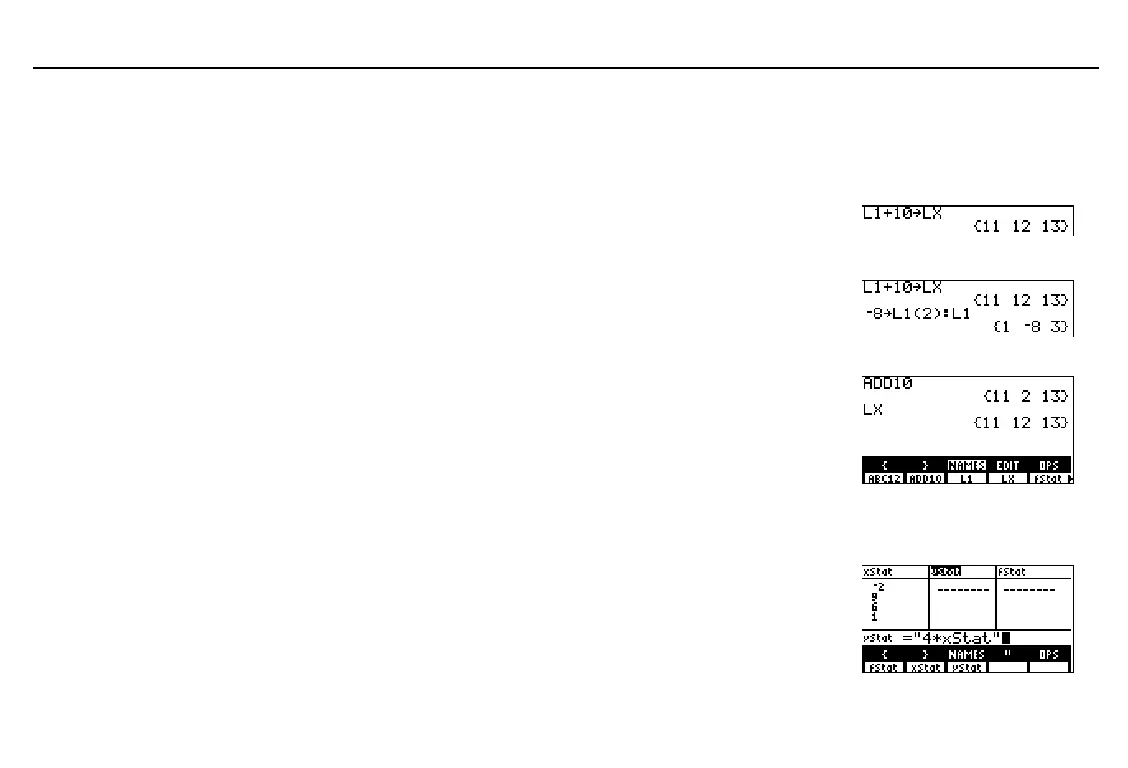
To see the differences between an attached list and a regular list, follow these steps. The
example below builds on the example above for attaching a formula to a list. Notice that the
formula in step 1 below is not attached to
LX
because it is not set off by quotation marks.
Generate a regular list by storing the
expression
L1+10
to the list name
LX
.
1
ã
L
ä
1
\
10
X
ã
L
ä
ã
X
ä
b
Change the second element in
L1
to
L
8
and
display the edited list.
a
8
X
ã
L
ä
1
1
D
2
E
-
1
ã
L
ä
1
b
Compare the elements of the regular list
LX
with
ADD10
, to which the formula
L1+10
is
attached. Notice that element 2 of
LX
is
unchanged. Meanwhile, element 2 of
ADD10
has been recalculated, since element 2 of
L1
has been edited.
-
”
(
'
b
)
b
Using the List Editor to Attach a Formula
Display the list editor.
Highlight the list name to which you want to
attach the formula.
Enter the formula in quotation marks.
-
”
)
$
"
)
4
M
(
'
-
)
If other list names are stored
on the
LIST NAMES
menu,
pressing
&
and
(
may not
paste
ADD10
and
LX
to the
home screen as shown.
In the example, only fStat,
xStat
, and
yStat
are on the
LIST NAMES
menu and
xStat={
L
2,9,6,1,
L
7}
.
The attached formula must
be set off by quotation marks.



 To Next Page