170
Chapter 12: Vectors
12VECTR.DOC TI-86, Chap 12, US English Bob Fedorisko Revised: 02/13/01 2:31 PM Printed: 02/13/01 3:03 PM Page 170 of 1012VECTR.DOC TI-86, Chap 12, US English Bob Fedorisko Revised: 02/13/01 2:31 PM Printed: 02/13/01 3:03 PM Page 170 of 10
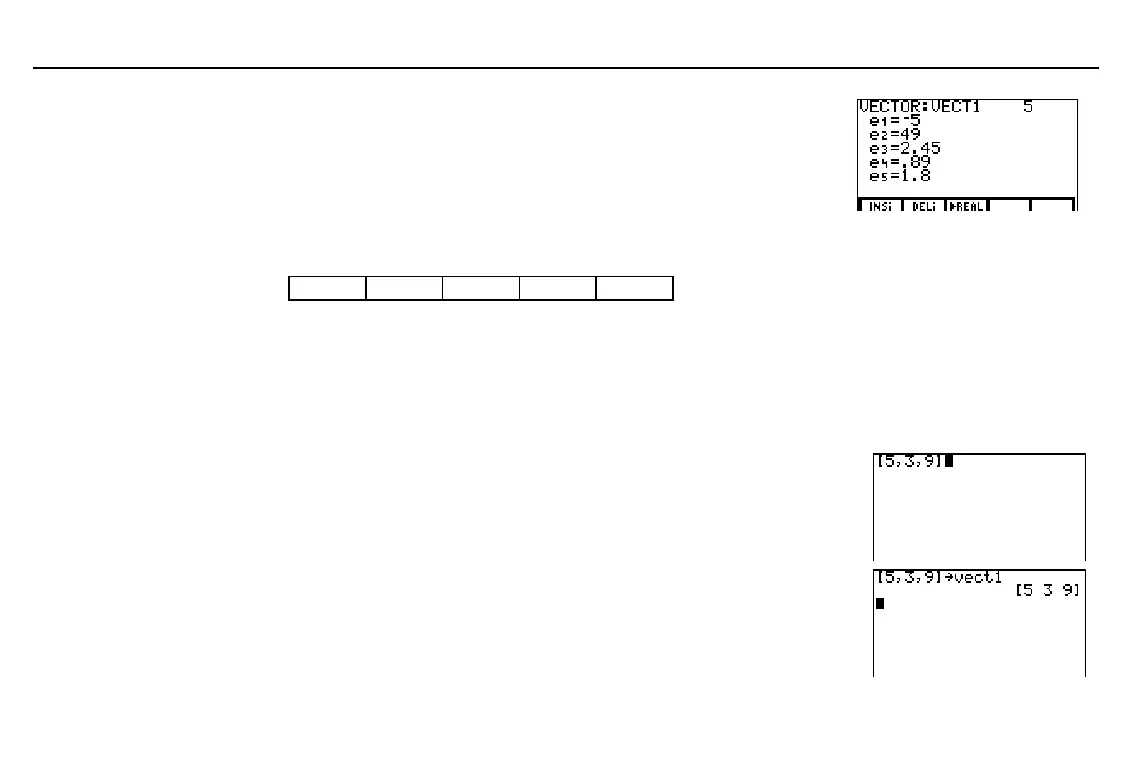
Enter each vector element value at each
vector element prompt. You can enter
expressions. To move to the next prompt,
press b or #. The vector elements are
stored to
VECT1
, which becomes a
VECTR
NAMES
menu item.
a
5
#
49
#
2
`
45
#
`
89
#
1
`
8
The Vector Editor Menu
-
Š
'
vectorName
b
INSi DELi
4
REAL
INSi
Inserts a blank element (
en=
) prompt at the cursor location; shifts current elements down
DELi
Deletes the element from the cursor location and from the vector; shifts elements up
4
REAL
Converts the displayed complex number vector to a real number vector
Creating a Vector on the Home Screen
Define the beginning of the vector with
ã
.
Enter each vector element, separating
each from the next with a comma.
Define the end of the vector with
ä
.
- „
5
P
3
P
9
- …
Store the vector to a vector name from one
to eight characters long, starting with a
letter. The vector is displayed horizontally
and the vector name becomes a
VECTR
NAMES
menu item.
X - n
ã
V
ä
ã
E
ä
ã
C
ä
ã
T
ä
1
1
1
b
You can enter an expression
at a vector element prompt.
To delete a vector name from
memory, use the
MEM
DELETE:VECTR
screen
(Chapter 17).


 To Next Page