3-12 TM-500 User’s Guide
Menus D292144.6.fm
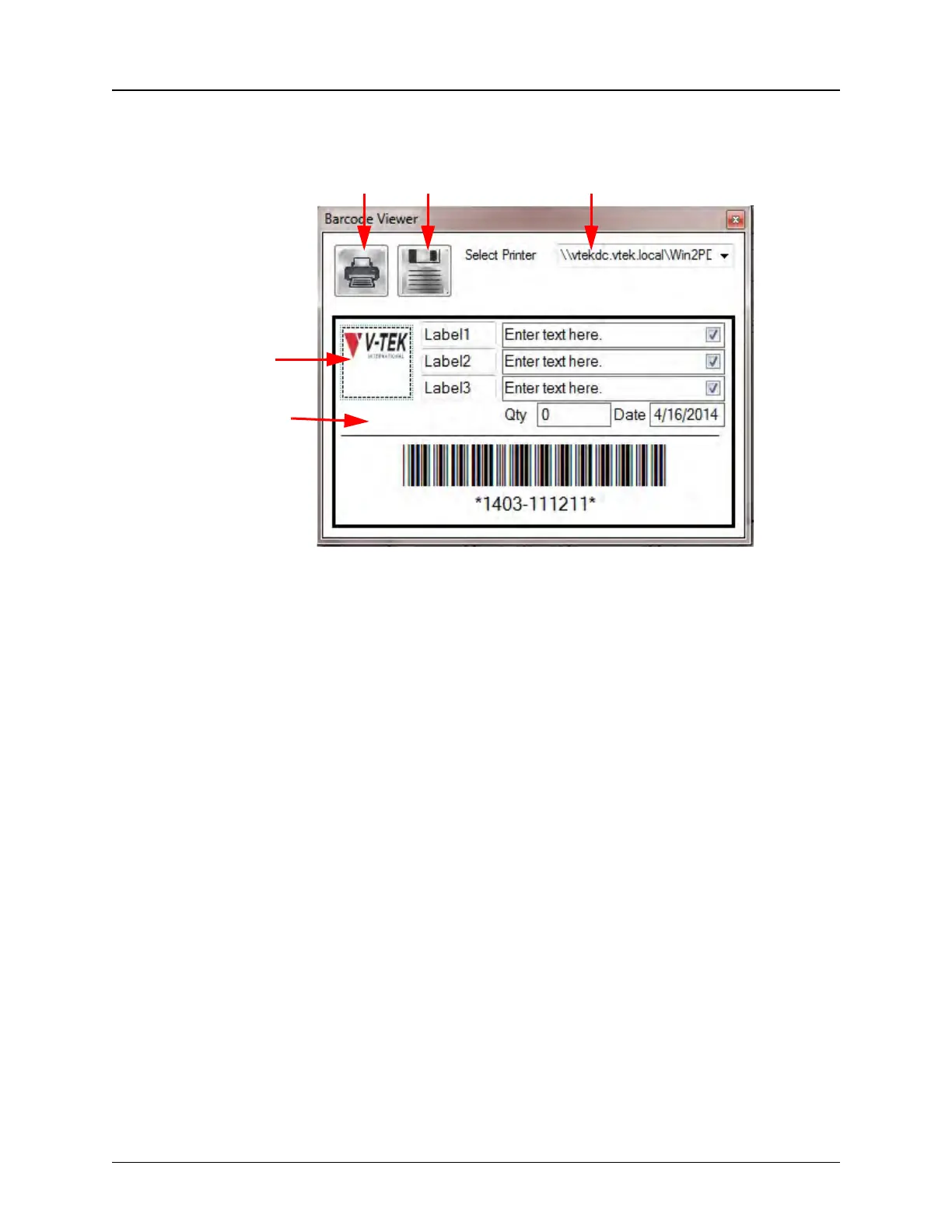
Pressing the Open the Bar Code Viewer button will open the Bar Code Viewer screen. The user
may enter the label information, set a default printer and print labels from this screen.
Selecting a Printer: Select a printer form the drop-down menu, then press Save to save printer
settings for future labels.
Editing Fields: The label fields are fully editable. The field names, with the exception of Qty and
Date, are also editable. To change field contents, click in the field and add text.
Note: Field names are limited to 9 – 10 characters maximum.
The three check boxes on the right of the fields enable/disable the corresponding row. If a box is
unchecked, nothing in that row will print. For example in the label in the image above, if the check
box in the third row is unchecked, everything will print except Group ID, 040381-721-77 and their
rectangular fields.
Customizing Logos: The logos that appear on Job Statistic Reports and on Bar Code Labels
can be can be resized or changed if desired.
• To use a different logo, name the new logo image Logo.jpg and save it under C:\V-
Tek\TM-500\AppData\Statistics Settings replacing the current logo file.
• To resize the report logo, click and stretch the logo until it reaches the desired size.
• Changing the logo image file will change the logo for all printed reports and labels.
Note: All changes to the bar code label need to be saved using the Save icon. Once
saved, this information will then be recalled the next time the user enters the Barcode
Viewer.
Print Save Printer
Default
Template
Logo


 To Next Page