Stratus OCT User Manual PN 2660021134133 A
Data Management
7-7
•Or: Select Visit History from the Patient menu (click Patient > Visit History). The
V
ISIT HISTORY WINDOW appears listing all visits for that patient. To edit one, select it
and click the Edit Current Visit Record button.
3. In either case, you eventually reach the VISIT RECORD WINDOW (Figure 7-5). If
necessary to activate the fields for editing, click the Edit Curr
ent Record button.
4. Add or edit the Visit Notes. Y
ou cannot edit the visit date.
5. After making the desired changes, click the Sa
ve Record button.
• To discard the changes befor
e saving, click the Undo Changes button. You must
confirm your choice in the C
ONFIRM dialog box.
Edit Exam Record Notes
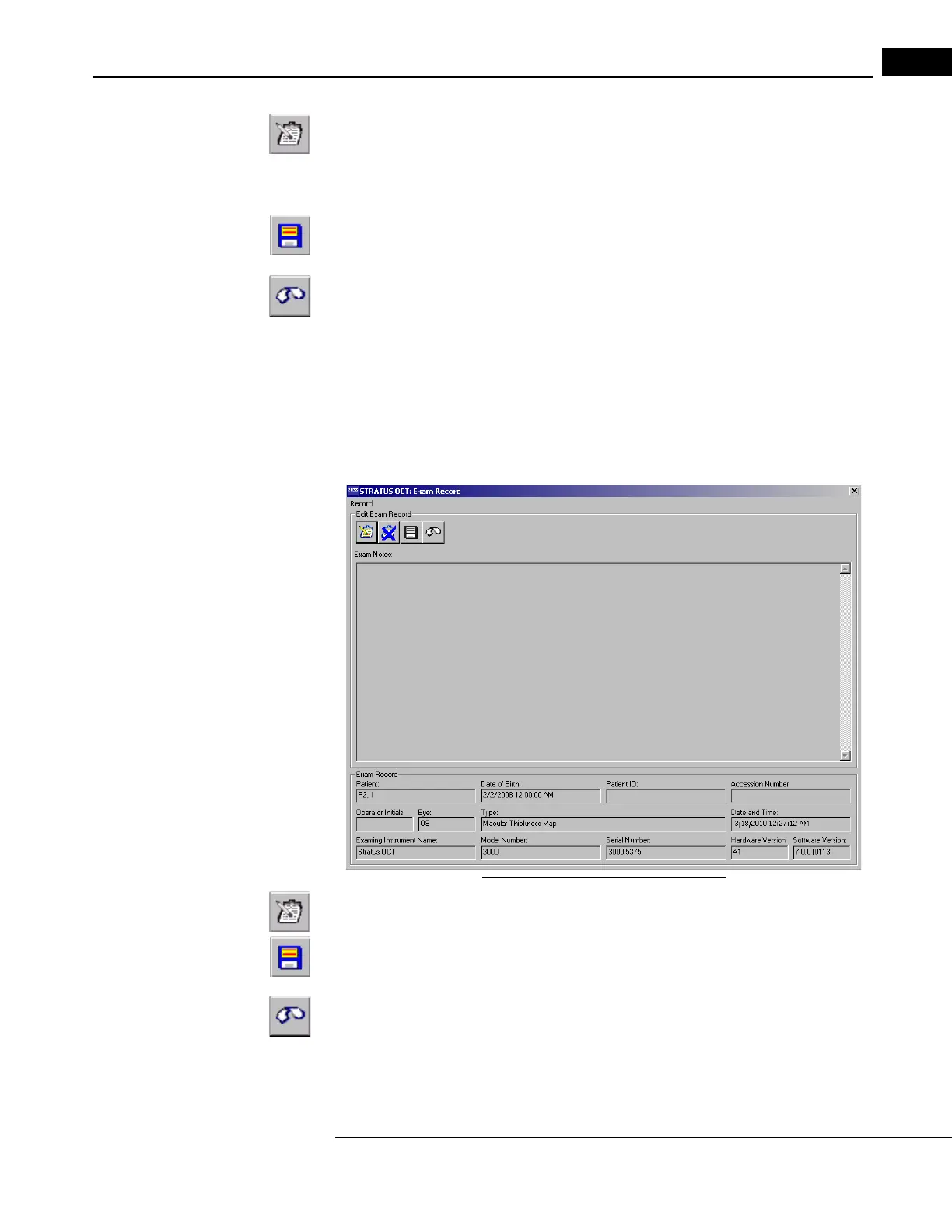
For an exam record, you can edit only the Exam Notes field. This information pertains to
the specific exam. To edit exam notes, follow these steps:
1. In the M
AIN WINDOW, select the specific exam you want to edit and then select Exam
from the Patient menu (click Patient > Exam). The E
XAM RECORD WINDOW appears.
Figure 7-6 The Exam Record Window
2. In the EXAM RECORD WINDOW, if necessary, click the Edit Current Exam Record button.
This activates the Exam Notes field.
3. Add or edit the desired information. When finished, click the
Save Record button.
• To discard the changes before saving, click the Undo Changes button. You must
confirm your choice in the C
ONFIRM dialog box.


 To Next Page