Data Management
Stratus OCT User Manual PN 2660021134133 A
7-2
Advanced Search
Stratus OCT provides an Advanced Search dialog to search for patient records using
additional parameters such as patient category, diagnosis, scan type, insurance company,
doctor, clinical trial ID or subject reading ID, etc. You can access Advanced Search from the
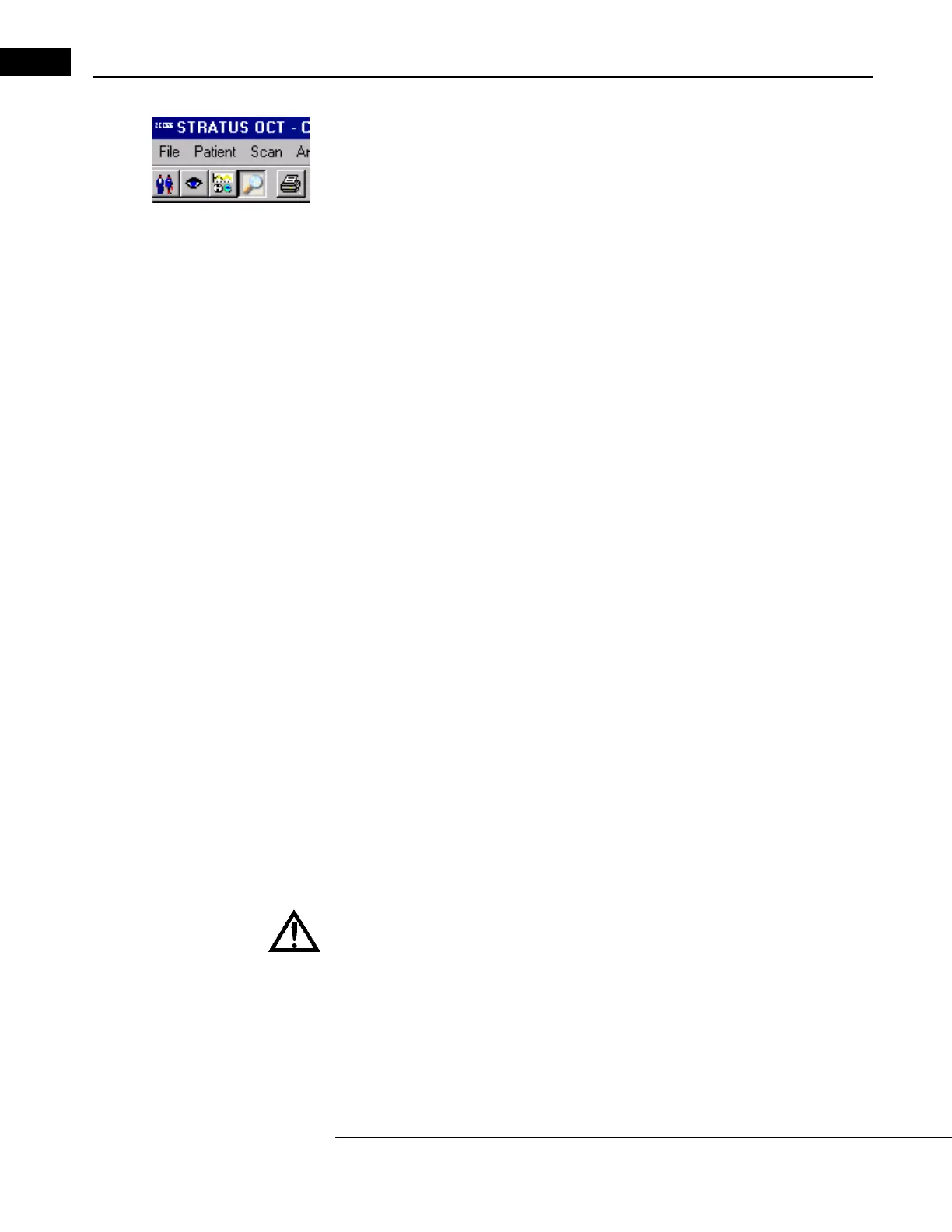
Toolbar.
Using the available fields, enter or select search parameters and click Sear
ch. Search
parameters you type in are not case-sensitive. The search returns all matching patients in
the patient list where you started.
Note: The search returns only the patients that match all search parameters used. If
your search does not return all patients desired, you may want to broaden your
search by using fewer parameters or partial information. Clicking Search without
using any parameters returns all patients in the source database.
Print Patient Data
From the PATIENT RECORD WINDOW (any tab), select Print from the Record menu (click
Record > Print) to get
a printout of patient data for the current patient. The printout
includes information from all tabs of the P
ATIENT RECORD WINDOW except for clinical notes,
which can be printed separately as described next.
Note: Comments printed as part of the patient data printout are taken from the
Comment Tab of the P
ATIENT RECORD WINDOW. These comments do not include scan
comments. Scan comments are a type of clinical notes, and are printed either as part
of the clinical notes printout, or as part of the analysis output (see Print Analysis
Output on page 5-6).
Print Clinical Notes
To print the clinical notes, click the Cli
nical Notes Tab to bring it to the front. Then click
the Print Clinical Notes button at lower right. You will get a printout of all clinical notes,
including all patient comments, visit comments, scan comments and exam comments. (See
Print Analysis Output on page 5-6 for instructions to print individual scan comments
along with analysis printouts.)
Add a New Patient
WARNING: Every patient record has an identifier that consists of the Name
(Last, First, Middle), Date of Birth, Gender and P
atient ID in combination. It is
possible to unintentionally merge patient records by assigning a new patient
record the exact same identifying information. Once this occurs, there is no
way to separate the combined records of the erroneously merged patients.
However, it is possible to Delete Exam Records that do not properly belong
to a patient record (see page 7-17). Make certain that you enter the
identifying patient information correctly.


 To Next Page