Printer Configuration Instructions
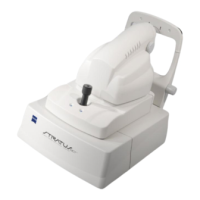
Stratus OCT User Manual PN 2660021134133 A
F-2
WARNING: Do not use the printer or the instrument with an extension cord or
a power strip (multiple portable socket outlet). For additional safety, do not
plug the printer and the instrument into the same wall outlet. Failure to
observe this warning could result in electrical shock to the patient and/or
examiner.
Approved Printers
Please refer to the Stratus OCT Technical Support section of our website
(www.meditec.zeiss.com/stratus) for the current list of approved hardware and software. If
you wish to use a third party printer, seek technical support from your printer manufacturer.
Repairs necessitated by the attempt to use a non-approved printer are not covered under
warranty.
WARNING: If you use a non-approved prin
ter or if you connect it
incorrectly—for example, by plugging the printer into the wall while using a
USB connection, or by using a shielded network (UTP) cable—you could
invalidate the system safety approval. See the general warning regarding
Accessory Equipment below and the warnings regarding USB and network
connections on page F-1 above.
Accessory Equipment
WARNING: Accessory equipment connected to the analog and digital
interfaces must be certified according to the respective IEC standards (e.g.,
IEC
60950 for data processing equipment and IEC 60601-1 for medical
equipment). Furthermore, all configurations shall comply with the system
s t a n d a rd I E C 6 0 6 01-1-1. A n y p e r s o n w h o connects additional equipment to
the signal input part or signal output part configures a medical system, and is
therefore responsible for ensuring that the system complies with the
requirements of the system standard IEC 60601-1-1. If in doubt, consult the
technical service department or your local representative.
Installation Overview
The following three general steps are common to all configurations. These steps are
explained further in the specific sections.
1. Pr
inter hardware setup: Refer to the instructions provided with the printer to unpack
and set up the printer hardware.
2. C
onnect hardware to enable communication between instrument and printer. The
hardware used depends on the type of configuration you select: either a network
cable or a USB cable.
3. Con
figure the instrument software to communicate with the printer, including
installation of necessary printer drivers.


 To Next Page