Prepare To Scan
Stratus OCT User Manual PN 2660021134133 A
2-2
Windows Start menu at lower left. For later models with soft shutdown, this will power
down the whole system. On earlier models, you must flip the computer power switch off to
shut down the whole system.
Soft Shutdown
To prevent abrupt shutdowns of th
e system, later models of Stratus OCT power down only
through the computer software. On these models, pressing the power switch while the
instrument is running will not power down the system.
The Main Menu and Toolbar
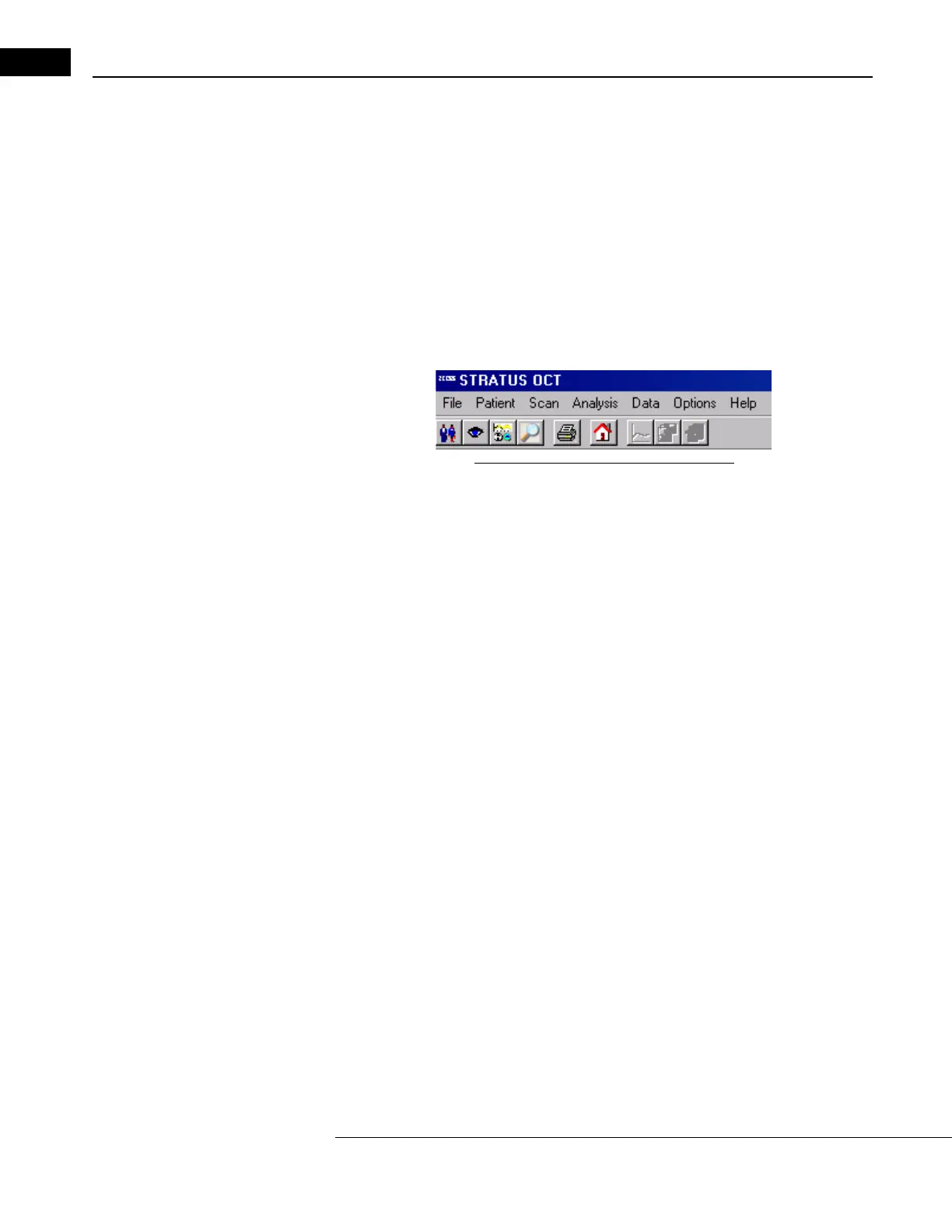
The main menu and toolbar (below) are on nearly every screen.
Figure 2-2 The Main Menu and Toolbar
From left to right, the buttons are Select Patient, Select Acquisition Protocol, Select
Analysis Protocol, Advanced Search, Print, Home, Edit Layers, OCT Image Export and
DICOM Export. The three Select buttons all lead to the M
AIN WINDOW (pictured below). The
Advanced Search button opens a search screen. When active, the Print button prints the
current screen. The Home button returns you to the Stratus OCT S
TART WINDOW. The Edit
Layers button opens the Edit Layer dialog to edit the retinal layer boundaries; it is available
when you have an applicable analysis open. See Edit Layers on page 6-8 for more
information. The OCT Image Ex
port button opens the OCT Image Export Options dialog to
select options and export all OCT scan images for the current patient. See OCT Image
Export on page 9-2 for more information.
Navigate To The Main Window
Clicking any of the first three Select toolbar buttons leads to the MAIN WINDOW. It is the
primary user interface, from which you can initiate all functions.
Stratus OCT Main Window
The M
AIN WINDOW has four functional areas:
•The Pa
tient List with Category and Search fields (upper left)
•The Scan List (ce
nter)
•The Scan an
d Analyze Tabs with Activity radio buttons (right)


 To Next Page