Stratus OCT User Manual PN 2660021134133 A
Archive, Retrieve & Backup
8-11
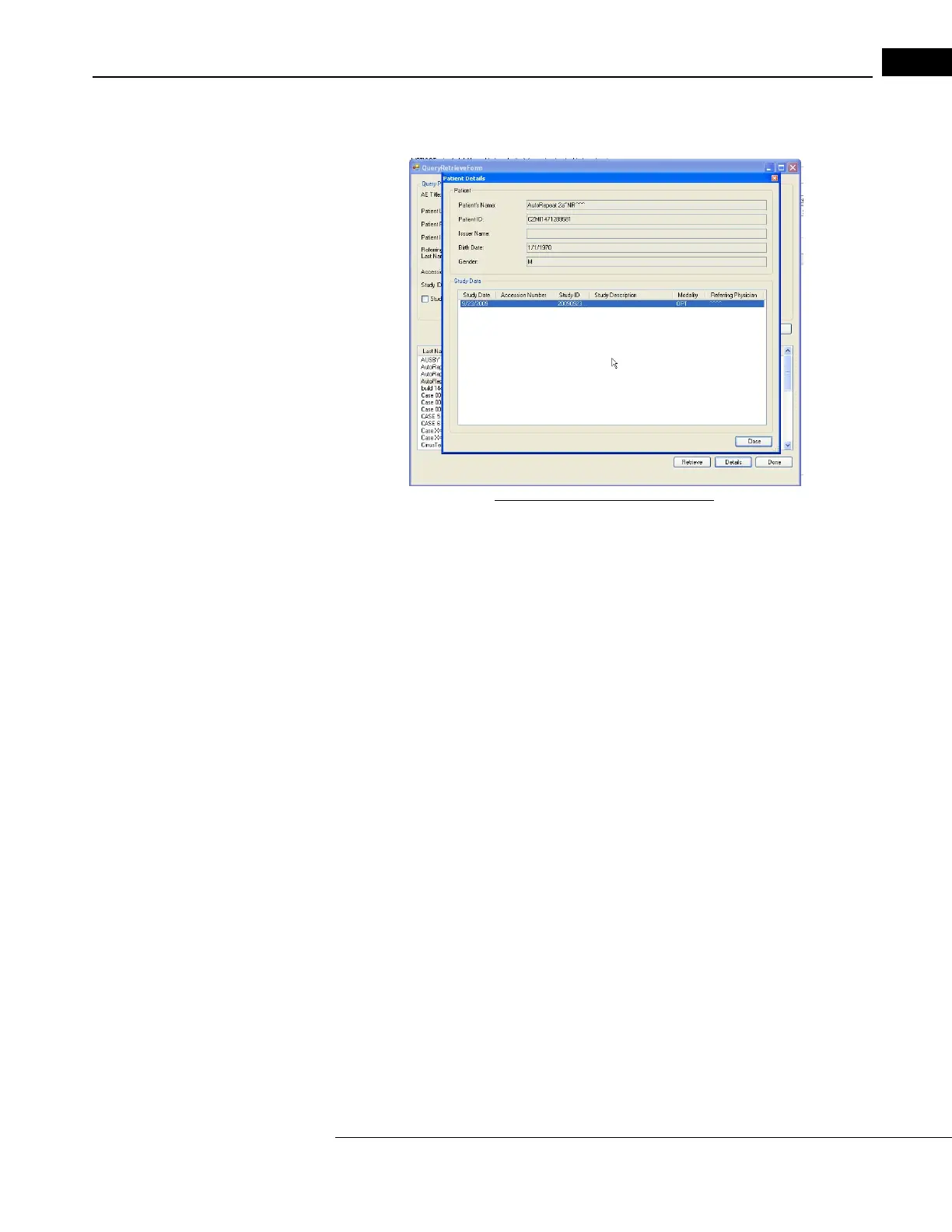
3. If you want to view details of a particular patient, click on the desired patient, and
then click on the Details button. The P
ATIENT DETAILS screen is displayed:
Figure 8-14 Patient Details Screen
4. When finished viewing this information, click on the Close button.
5. If you want to retrieve this patient data, click Re
trieve. You will only be able to select
and retrieve one patient at a time. A progress bar is displayed during the retrieval
process.
6. Once the retrieval is complete, click Do
ne to close the QUERY RETRIEVE FORM. The
application returns to the same tab that was previously selected before DICOM
Retrieve.
Note: Modality for the Stratus OCT instrument is OPT. Other modality options are
provided for searching purposes only. A patient with a modality other than OPT will
not be retrieved on a Status OCT instrument.
Note: If you encounter connectivity issues, follow the instructions on the dialog
message and/or ensure that your DICOM Gateway is currently running and is
properly configured. See the DICOM Gateway 2 User Manual for further information.
Retrieve Scan Data
To retrieve scan data is to copy all scan data from an archive volume—on DVD or the
network file server—to the Stratus OCT hard drive, thereby making it available for viewing
and analysis without connection to the archive volume. You can retrieve archived scan data
made on any Stratus OCT instrument with any OCT software down to version A1.1.
Note: The Stratus OCT instrument and review software require the DVD drive be set
to drive letter D: in order to retrieve data from version 2.0 and 3.0 archives. Ensure
the DVD drive letter is set to D: before retrieving data from version 2.0 and 3.0
archives. (This is the instrument default when shipped from the factory.)


 To Next Page