Stratus OCT User Manual PN 2660021134133 A
Acquire Scans
3-9
Move the Fixation LED
Click and drag works on the fixation LED if it is sufficiently separated from the scan pattern,
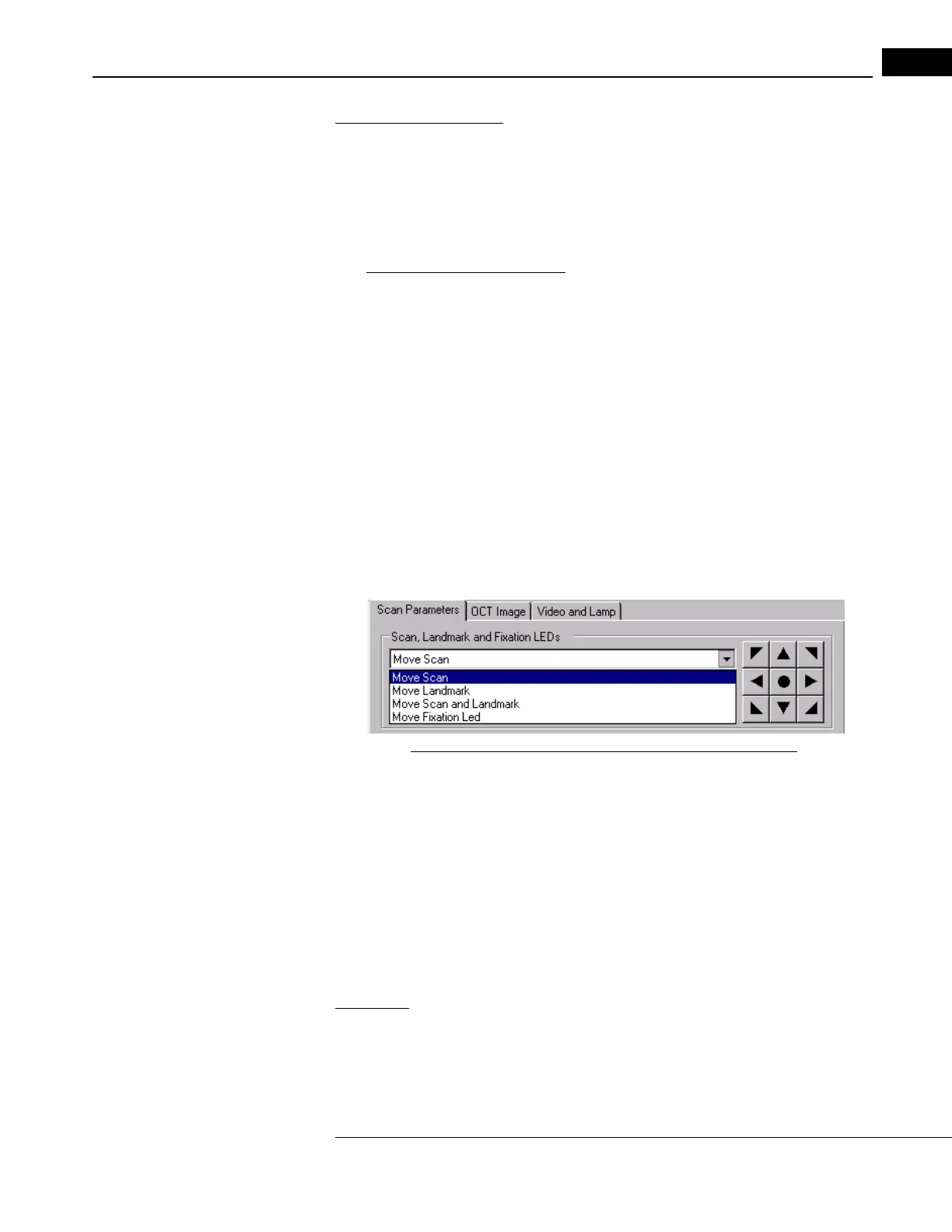
or if you select Move Fixation LED from the drop-down list as illustrated in Figure 3-5
below. After you save the first scan in a related series, you can no longer move the fixation
LED (se
e Which Scan Parameters Can Be Adjusted When, page 4-4, for more
information).
•
Why move the fixation target? Aside from changing between fovea and disc
locations, it may not be clear why one would want to adjust the fixation target
location. The usual reason is to bring another portion of the retina into view or into
the center of view so that the scan pattern may be applied to it. For example, there
may be a particular area of pathology away from the macula or the optic disc.
• When freezing the video image of the macula, you
may observe better contrast
when you move the fixation LED to bring part of the optic disc into view on the
edge of the video image. It may also help in orienting your observations.
Scan, Landmark and Fixation LED Controls
The upper right portion of the Scan P
arameter Tab contains on-screen controls to move
the scan, landmark and internal fixation LED (light-emitting diode). The default position for
the scan and landmark is the center of the video image. The default fixation LED location is
either the center (fovea mode) or 15° nasally (disc mode), depending on the scan protocol.
Figure 3-5 The Scan, Landmark and Fixation LED Controls
• Click the triangle on the drop down list and select what you want to move. The
default is to move the scan.
• The Details Tab in Scan Acquisition Window (pictured on page 3-19) shows
the x and y positions of the scan, landmark and fixation LED, in mm, relative to 0,0 at
th
e center of the video image.
• Click the a
rrow buttons to move the selected feature in the indicated direction. One
click moves the feature 0.1 mm. Click the central circle button to return it to the
default position.
Landmark
The landmark is a pulsating point of light that appears in the video monitor in addition to
the scan pattern. You can move it independently or together with the scan pattern. To
move the landmark, use the menu options on the Scan Parameter Tab.


 To Next Page