Stratus OCT User Manual PN 2660021134133 A
Analyze Scans
5-7
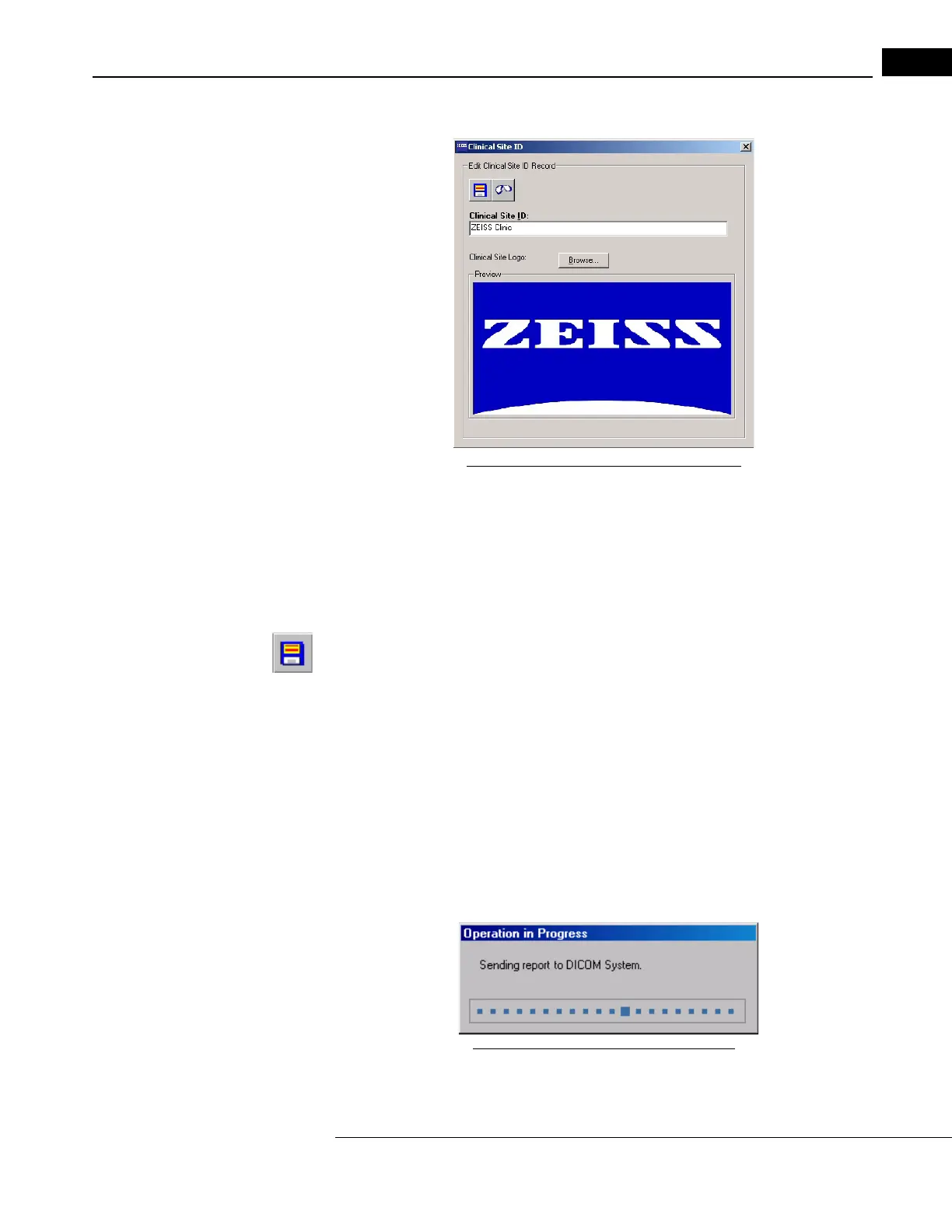
1. Click Options > Register > Clinical Site ID. The Clinical Site ID dialog box appears.
Figure 5-5 The Clinical Site ID Dialog Box
2. To enter the clinic name, type up to 64 characters, including spaces, in the Clinical
Site ID field.
3. To select a clinic logo for display on printouts, click the Br
owse button. Use the
Browse dialog box to find the logo graphic file on the hard drive or the inserted
removable media.
4. Select the logo graphic file and click OK.
The graphic file is copied to the database file
for the Stratus OCT. Back in the Clinical Site ID dialog box, the Preview pane displays
the selected logo. Click the
Save button when finished.
Note: The logo is resized to fit the entire Preview pane. When printed, the logo is
resized to fit in a small square area of fixed size. This can affect the appearance of
the logo on printouts, especially if it is rectangular
Export to DICOM
You can export any report to the DICOM system by following these steps:
1. From any analysis screen, click on the Expo
rt to DICOM toolbar button, or click on
Export to DICOM in the Data menu. You will see a dialog showing that the report is
being exported to the DICOM system.
Figure 5-6 Exporting to DICOM Archive


 To Next Page