Stratus OCT User Manual PN 2660021134133 A
Data Transfer Using CDs and DVDs
D-3
General Steps
Specific format options for each media type are explained after these general steps, which
ar
e common to all media types.
1. Install the CD or DVD into the Stratus OCT DVD Multi-Drive. Wait approximately 30
sec
onds for the drive to recognize the media type. If you attempt the next step before
the drive is ready, you will get an error message, “There is no disk.”
2.
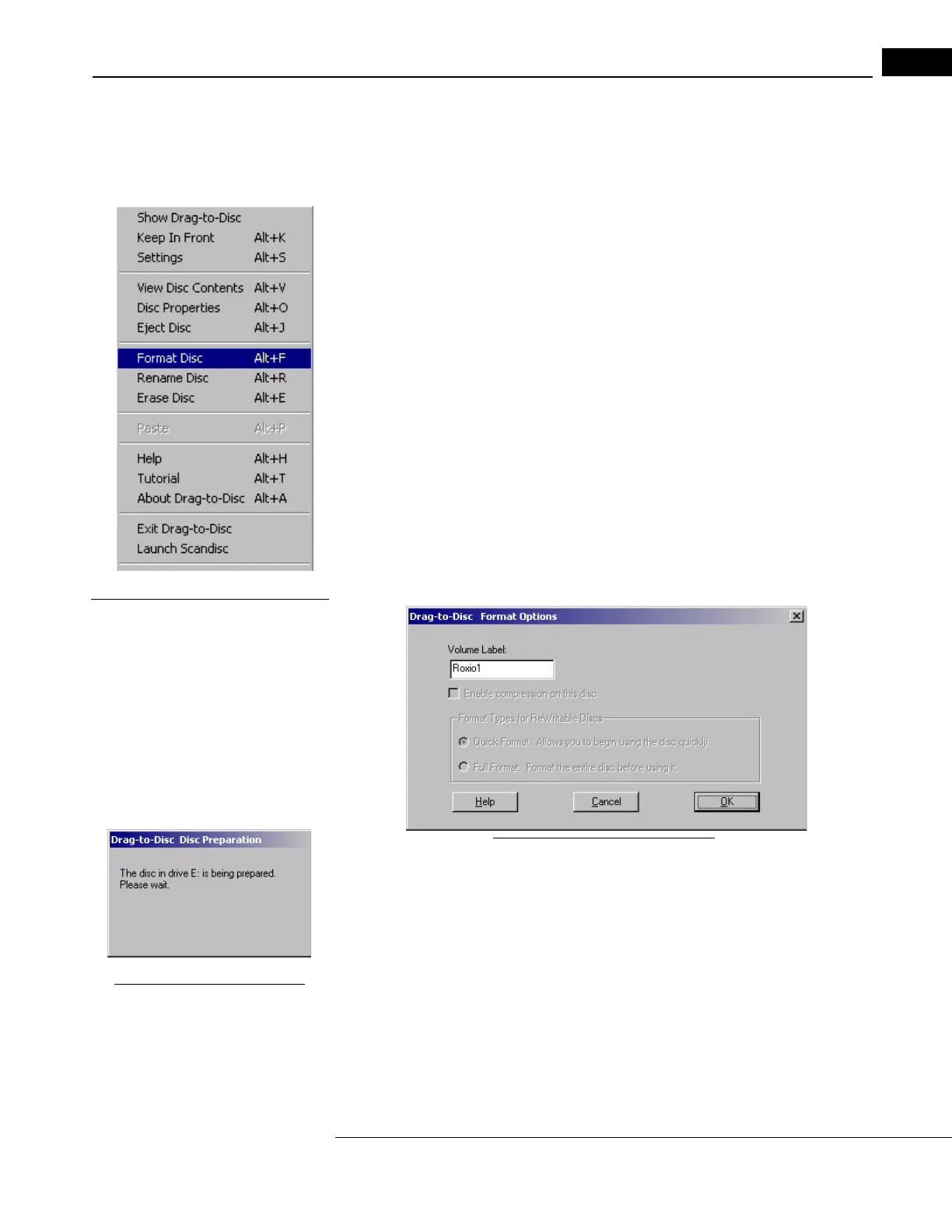
Figure D-1 Drag-to-Disc Right-Click
To access the Roxio Drag-to-Disc software, you do not have to close the Stratus OCT
software. Using your mouse, bring the screen p
ointer down to the bottom of the
screen. This will cause the Windows Task Bar to appear along the bottom. Notice the
icons in the System Tray at bottom right. (When you mouse-over an icon, its name
appears.) Right-click the Roxio Drag-to-Disc icon and select Format Disc. The
Drag-to-Disc Format Options dialog appears.
• You can also access Roxio Drag-to-Disc
through the Windows Start menu: Start >
Programs > Roxio Easy CD and DVD Creator 6 > Drag-to-Disc.
Note: The first time you use Roxio software, you will be prompted to accept the
te
rms of the End User License Agreement. You must accept the terms to use the
software.
The available format options depend on the installed media type, as explained next.
CD–R and DVD–R Format Options
Figure D-2 CD-R Format Options
No format options are available for CD–R and DVD–R disks. If desired, type a name in the
Volume Label field. Click OK to begin formatting. A Drag-to-Disc Preparation dialog
appears during formatting
Figure D-3 Read-only Media
(as at left). Formatting is brief. The dialog disappears when it is
complete. Once formatted, you
cannot format CD–R and DVD–R disks again, nor can you
erase them. You can write repeatedly to the disk, but each write operation uses disk space.
Less disk space will be available for each successive write operation.


 To Next Page