Commissioning
LITECOM, Commissioning and maintenance instructions 17.0 | 04.2024 | en 46
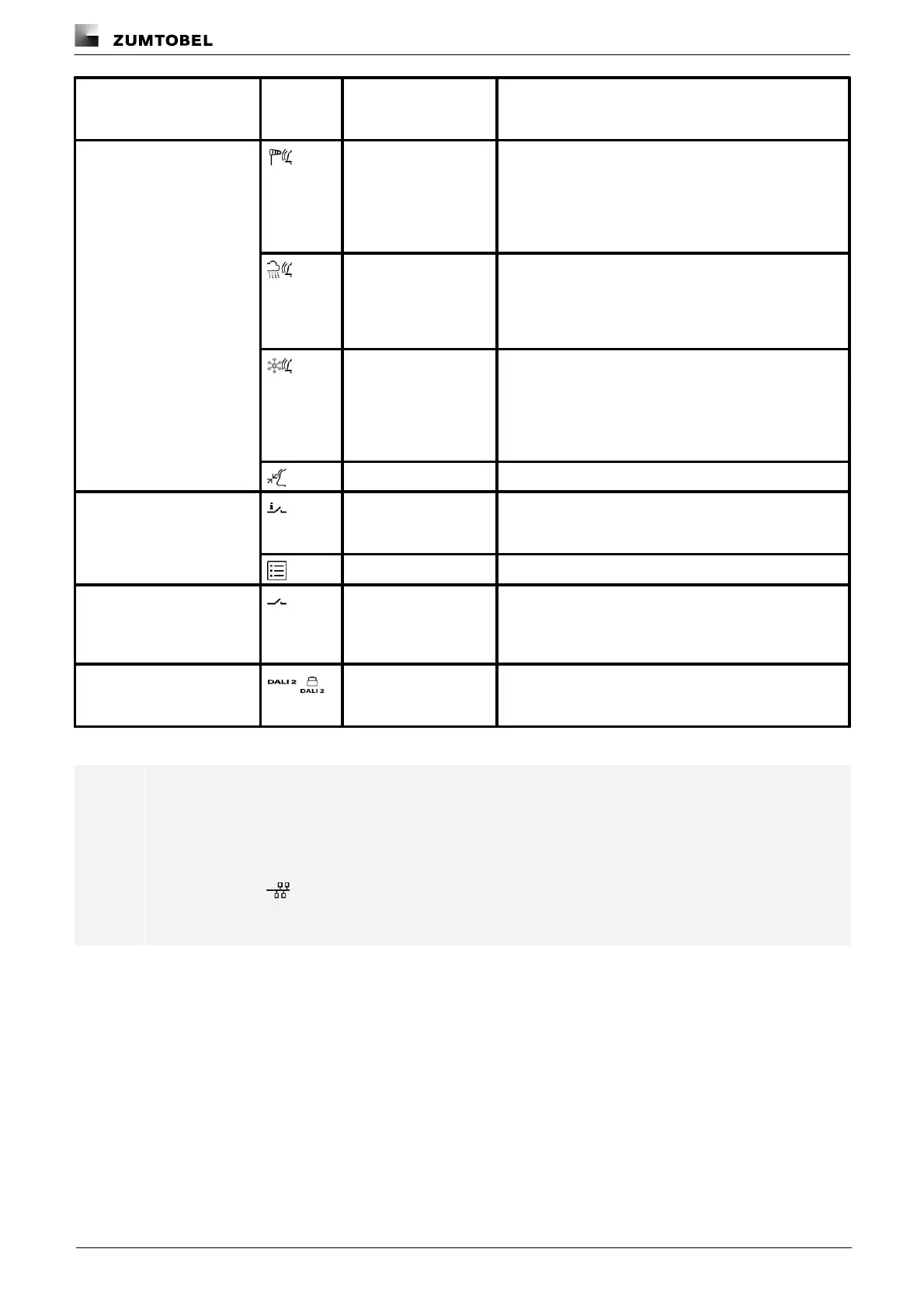
Input devices – input
contacts
Input contacts used to trigger a wind alarm. The wind
alarm should stop blinds from moving when wind
speeds are high, for example, preventing them from
being damaged. It is triggered after a wind speed sensor
determines that a defined wind speed has been
exceeded during a specified delay time.
Input contacts used to trigger a rain alarm. The rain
alarm should prevent blinds (such as awnings) from
being damaged by rain. It is triggered after a rain sensor
determines that a defined precipitation level has been
exceeded during a specified delay time.
Input contacts used to trigger an ice alarm. The ice
alarm should stop blinds from moving when ice has
formed on them, preventing them from being damaged.
It is triggered when the outdoor temperature drops
below a certain threshold and a rain sensor has
detected precipitation.
Input contacts used to implement a general alarm.
Signalling contacts (e.g. LM-4RUKS); the signalling
contact can thus only be used for the emergency lighting
function as an alarm output.
Remote display ONLITE BRI
Contacts (e.g. LM-4RUKS), which can be opened and
closed and can also be configured by the user via a
web application or a scene recall. Examples of general
contacts are fans in lavatories, radios and projectors.
DALI-2-compliant input
devices
DALI-2 master
(generic and
MSensorG3)
The following DALI-2-compliant input devices are
supported since software version 2.16.0: momentary-
action switches, presence detectors and light sensors.
Table 18: Device types
Note
In order to display the instances of a DALI-compliant input device in the system image, proceed as
follows:
1. Open App overview > System image.
2. Tap the icon to display the RGA address.
ÜInstances are also displayed.



 To Next Page