Configuration
LITECOM, Commissioning and maintenance instructions 17.0 | 04.2024 | en 55
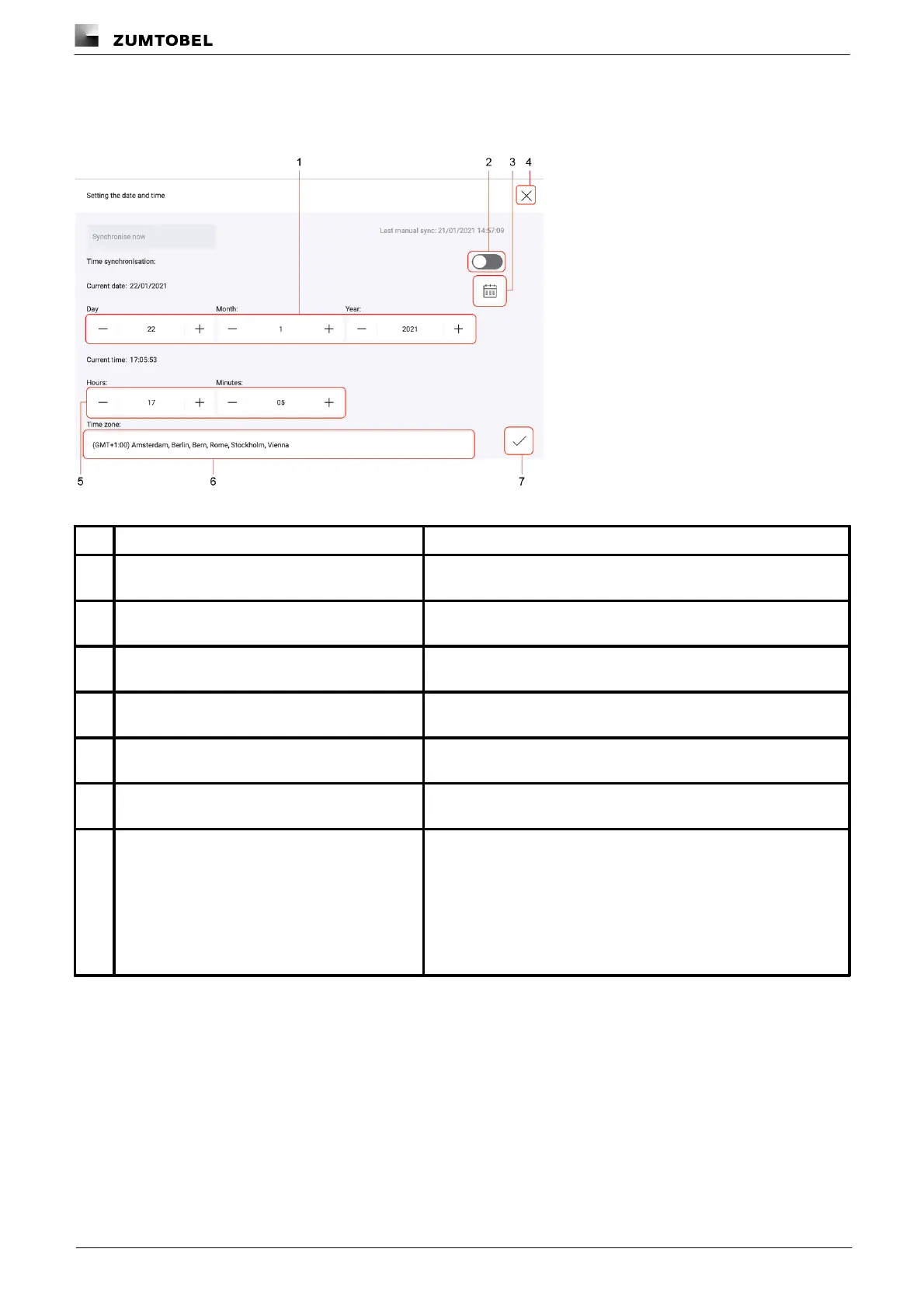
The following contains an overview of the functions in the Date and time app.
Functions when time synchronisation is disabled:
Figure 11: View of the “Date and time” app when time synchronisation is disabled
The plus and minus buttons can be used to set the desired date
(day, month, year).
Enable time synchronisation
Enabling this button switches on automatic time synchronisation via
the NTP server.
Select a date from the calendar
The Select date view can be accessed via this button. You can
select the desired date from the calendar here.
As soon as you tap the cross, the changes are rejected and the
Basic settings view is displayed.
The plus and minus buttons can be used to manually set the desired
time (hours, minutes).
The Select time zone view can be accessed via this button. You can
select the desired time zone from the list here.
Tap the tick mark to save the changes.
Ü If only the date and time have been changed, or the time
synchronisation enabled, the Basic settings view appears.
– or –
Ü If the date, time and time zone, or the time zone alone has been
changed, the LITECOM CCD control device is restarted. This
process may take several minutes. The start page is then
displayed.
Table 20: Functions in the “Date and time” app when time synchronisation is disabled



 To Next Page