Configuration
LITECOM, Commissioning and maintenance instructions 17.0 | 04.2024 | en 56
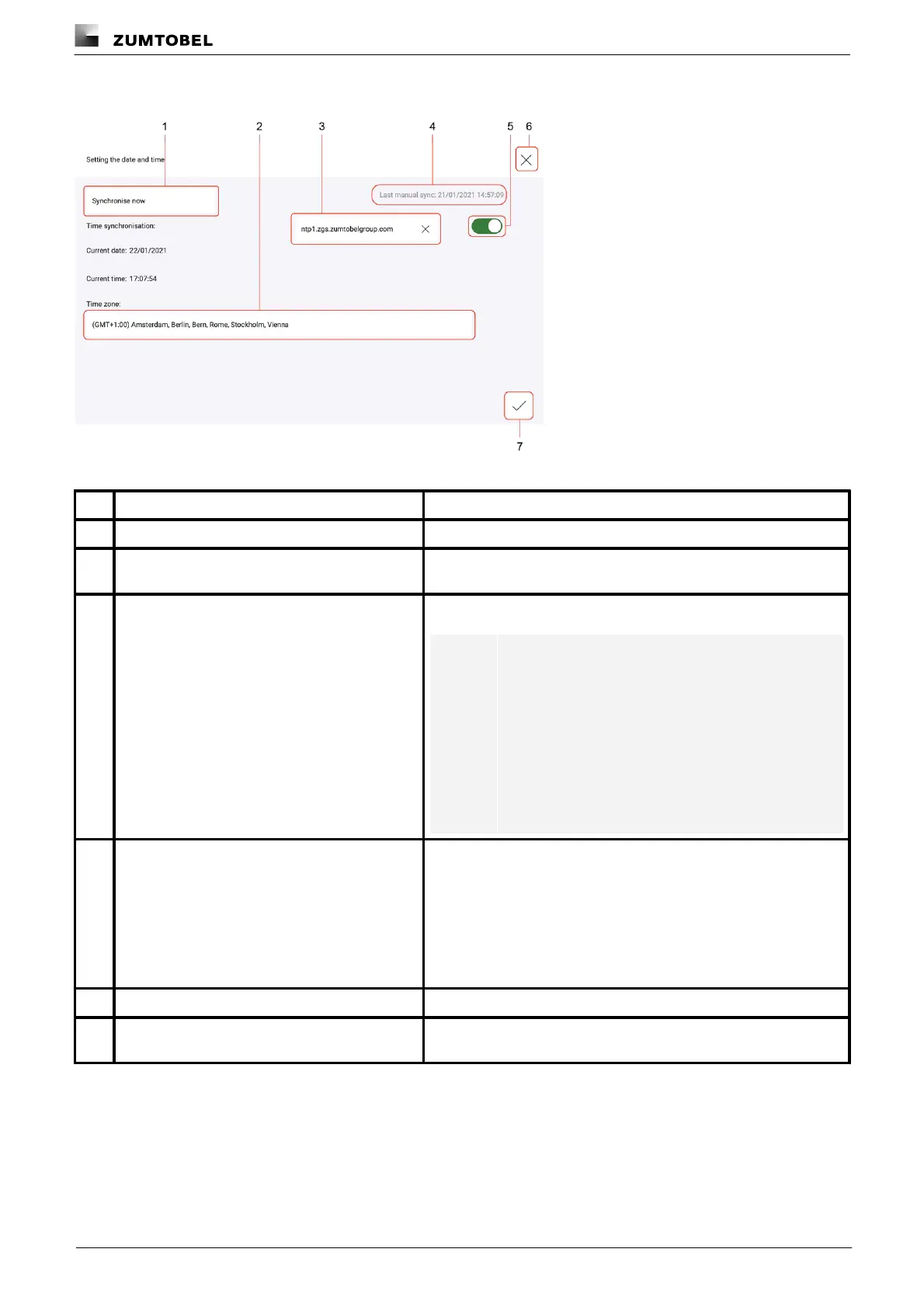
Functions when time synchronisation is enabled:
Figure 12: Functions in the “Date and time” app when time synchronisation is enabled
Synchronise time manually via NTP
Tap this button to synchronise the time manually via the NTP server.
The Select time zone view can be accessed via this button. You can
select the desired time zone from the list here.
Name of the NTP server used to automatically synchronise the time.
Note
The name of the NTP server is specified as standard:
the server ntp1.zgs.zumtobelgroup.com is always
preset, but this can be changed.
The DNS server, which is used to find the IP address
of the NTP server, must additionally be configured in
order for time synchronisation to be performed.
Alternatively the IP address of the server can be
entered directly.
Status display for manual time synchronisation
Status of the last manual time synchronisation performed. The
statuses are:
· n.a.: this status is displayed when no manual time synchronisation
has been performed yet.
· Date and time [DD/MM/YYYY, hh:mm]: indicates when the last
manual time synchronisation was performed without errors.
· Error: displayed when manual time synchronisation could not be
performed.
Disable time synchronisation
Tap this button to switch off time synchronisation again.
As soon as you tap the cross, the changes are rejected and the
Basic settings view is displayed.



 To Next Page