Configuration
LITECOM, Commissioning and maintenance instructions 17.0 | 04.2024 | en 60
Using a static IP address
Note
The new IP address must be within the same IP address range for the web application to
automatically be redirected to the new IP address. Example:
· Old IP address: 10.10.40.254
· New IP address: 10.10.40.201
Path: App overview > Basic settings > Network settings
1. Navigate to the path.
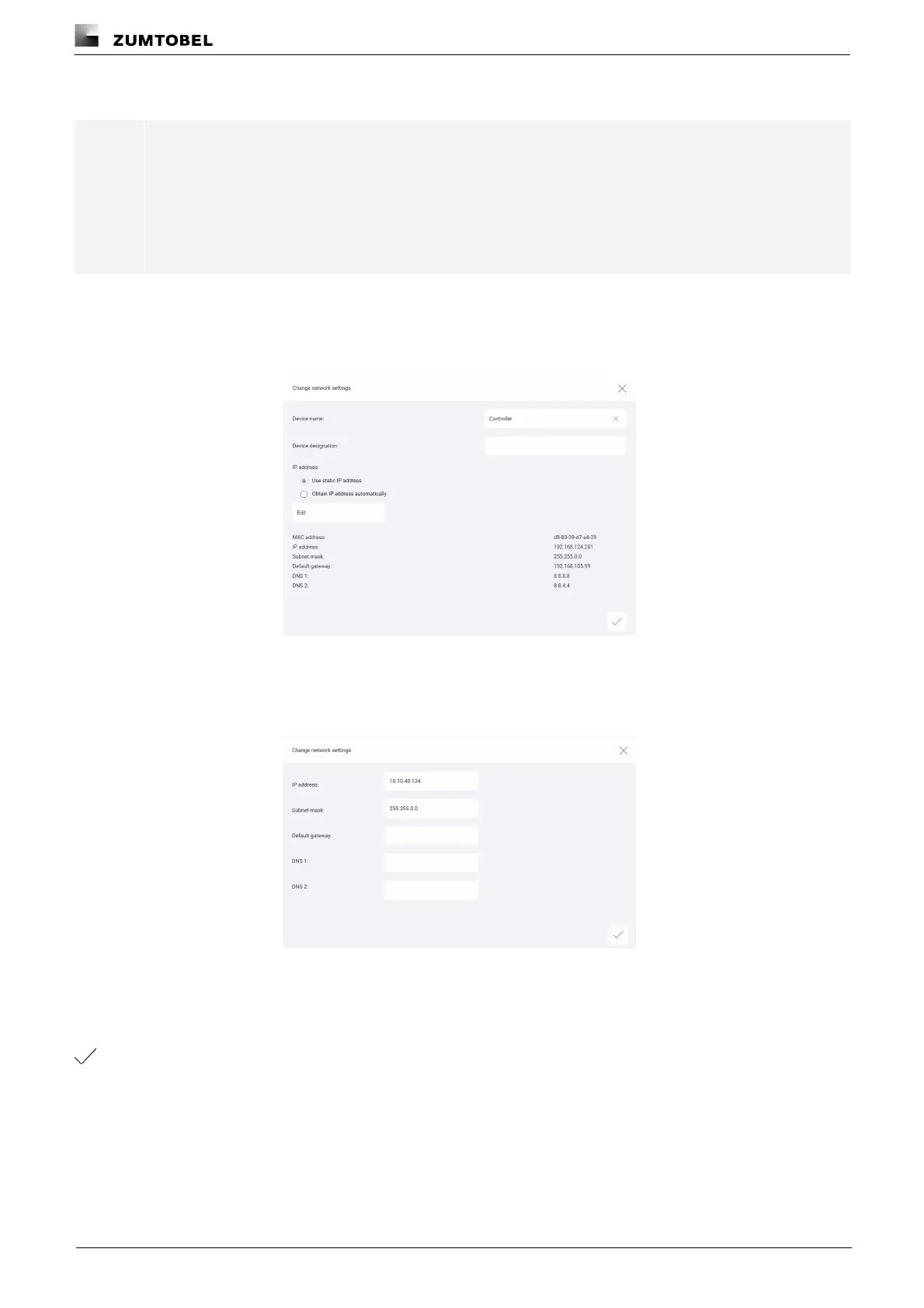
ÜThe Change network settings view is displayed.
ÜThe Use static IP address option is active.
ÜThe MAC address, IP address and subnet mask are displayed at the bottom.
2. Tap the Edit button.
ÜThe Change network settings view is displayed.
3. Select the corresponding button to change a value.
4. Change the value.
5. Note down the new IP address if it is located in a different IP address range.
6. Tap the tick mark.
ÜThe Change network settings view is displayed.



 To Next Page