Configuration
LITECOM, Commissioning and maintenance instructions 17.0 | 04.2024 | en 91
Define additional settings for start page
For each effective range (group/room/zone), you can define the
following additional settings for recalling a scene via the start page:
· Presence scene (on/off key): scene recalled using the on/off key;
alternates with the absence scene.
· Fade time (absence > presence): The time it takes to change
from one value (scene, presence value) to the absence scene.
· Fade time (presence > absence): The time it takes to change
from one value (scene, presence value) to the absence scene.
· Fade time (different scene): time it takes to change from one
scene to another.
Table 46: Functions in the “Scenes” view
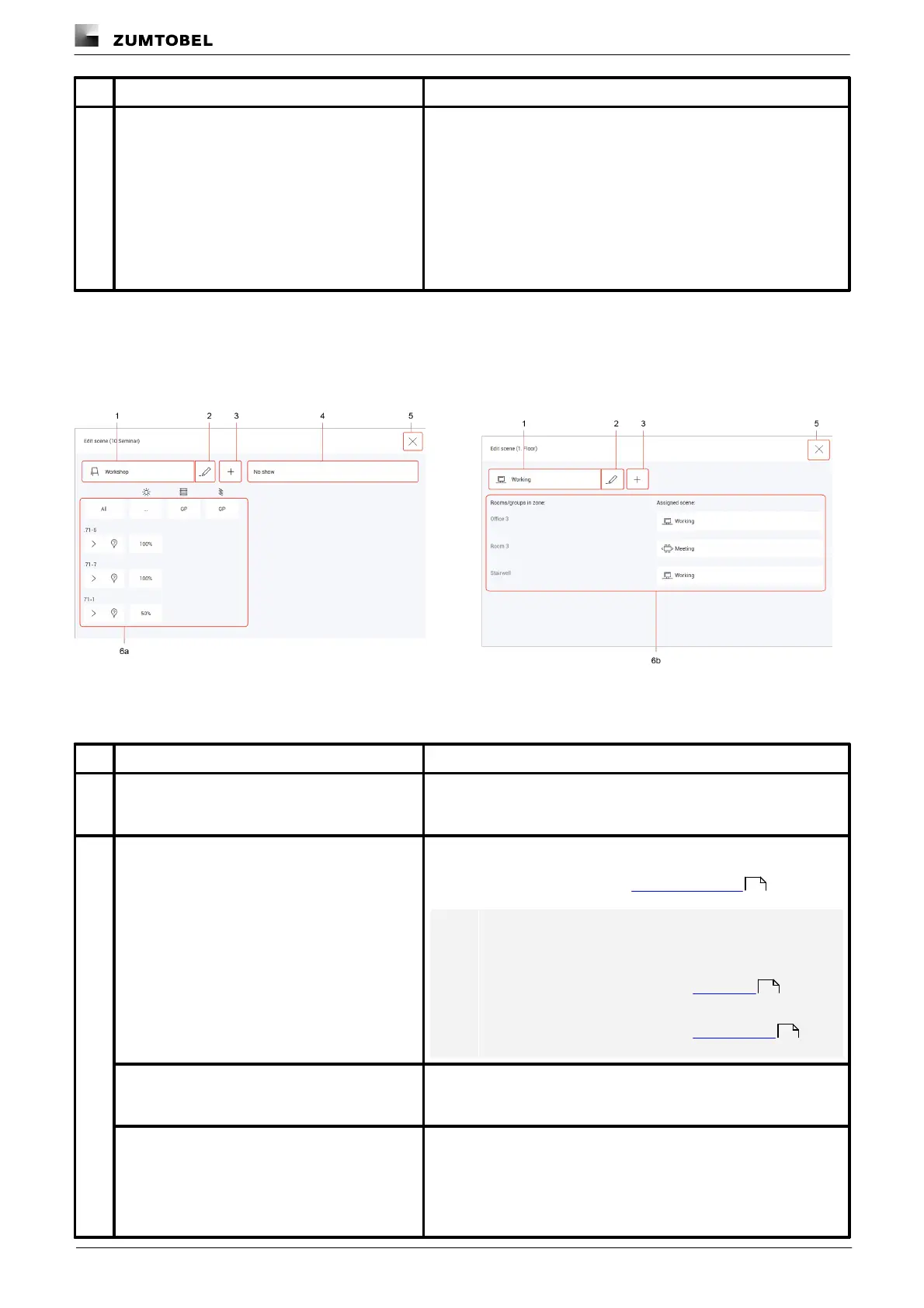
The following contains an overview of the general functions in the Edit scene view.
Path: App overview > Scenes > Edit
Figure 14: “Edit scene” view > effective range: room
Figure 15: “Edit scene” view > effective range: zone
Select an existing scene to configure it. As soon as a room or zone is
created in your LITECOM system, five standard scenes are enabled
in the room/zone.
Rename scene and change scene icon and
scene image
Change the name, scene icon and scene image of an existing scene.
The scene images are edited using the “Manage pictures” button.
For more information see Section Managing pictures
Note
The scene icon is only displayed on the default start
page.
For more information see Section Start page
The scene image is only displayed on Pix.
For more information see Section Pix start page
To create a scene that is only slightly different from an existing scene
in this room, the existing scene can be copied. All settings are
applied in this case. The copied scene can then be configured.
When a scene is deleted all settings for the scene are deleted. The
Absence and Working scenes cannot be deleted.
100
16
19



 To Next Page