88 XFC G4 2103335 Rev AB
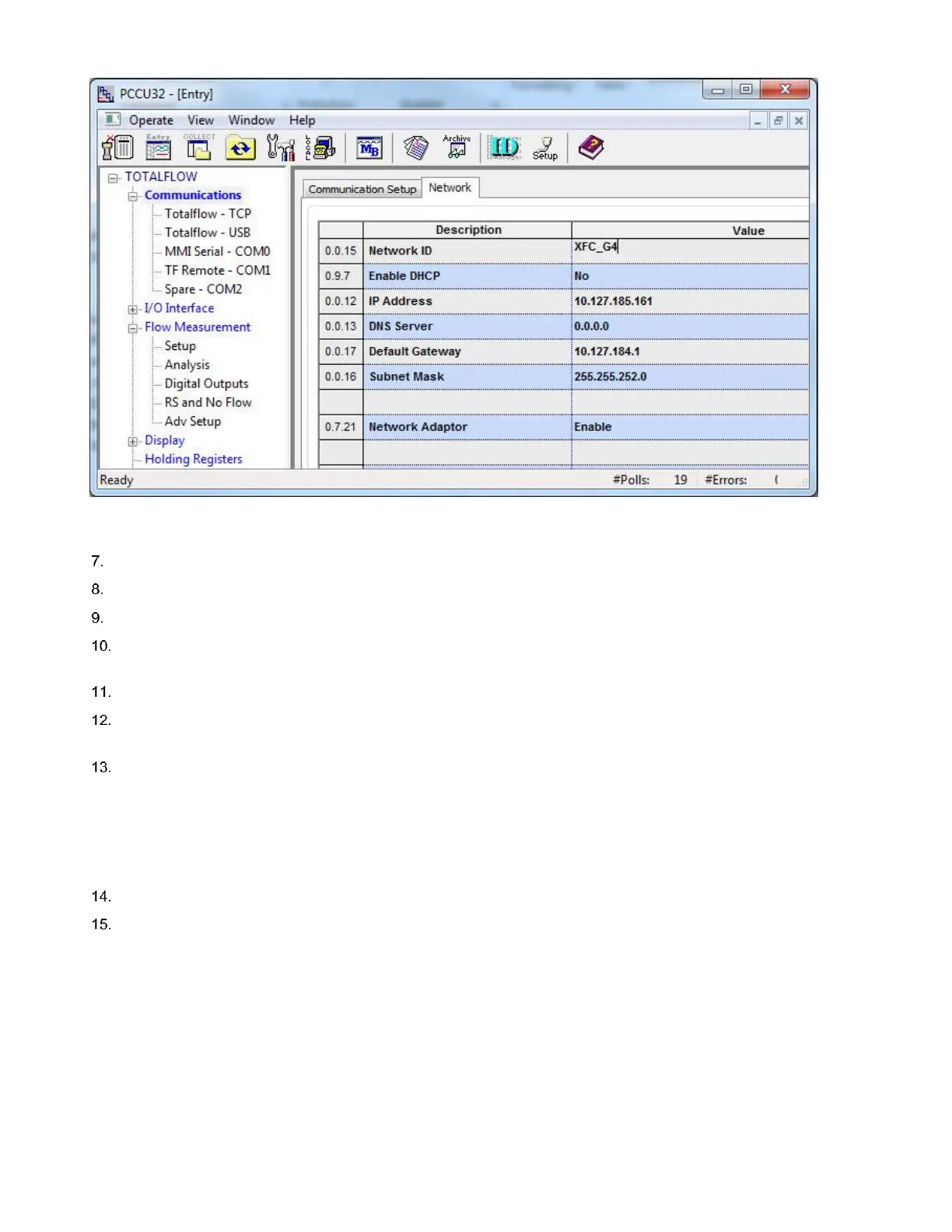
Figure 68 Network Tab: Configure static IP address
Click Send to save configuration.
Click OK to confirm the changes.
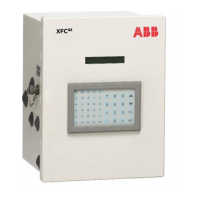
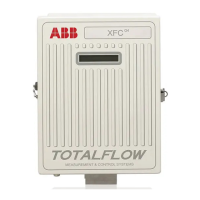
Open the door to the flow computer.
Press the Reset button on the board. This restarts the XFC with the Ethernet port enabled. The current PCCU
connection to the device will terminate as the XFC restarts.
When the XFC completes its startup sequence, restart PCCU and select the Entry icon to connect again.
If DHCP is enabled verify that the IP parameters display (the fields should have auto-populated). Take note of the IP
address assigned to the XFC.
If the parameters do not display, the XFC was not able to obtain the parameters from the DHCP server:
a. Verify that the Ethernet cable is plugged correctly to the network equipment.
b. Ensure that the connection to the corporate network is active.
c. Contact the IT administrator to verify that the DHCP server on the corporate network is running and available.
d. If unable to use DHCP, obtain IP addresses and configure the XFC manually.
Click Close to terminate the connection over the serial or USB port.
Connect to the XFC over the network as described next in section 5.4.4, Establish network connection over Ethernet.
5.4.4 Establish network connection over Ethernet (using default TCP port)
This procedure assumes that the host (PC or laptop) has a valid IP configuration, is connected to the corporate network, and the
connection is established remotely.



 To Next Page