89 XFC G4 2103335 Rev AB
IMPORTANT NOTE: If establishing this connection on site (able to connect both the XFC and the PC to a local
Ethernet switch), make sure that the laptop has a compatible IP configuration. Both, the IP address of the PC and
the XFC must be on the same IP subnet for communication to work.
For additional details on the IP addressing setup for the PC or laptop, click Help from the Network screen.
To establish a network connection:
Make sure the XFC is connected to the network equipment (switch).
Start PCCU.
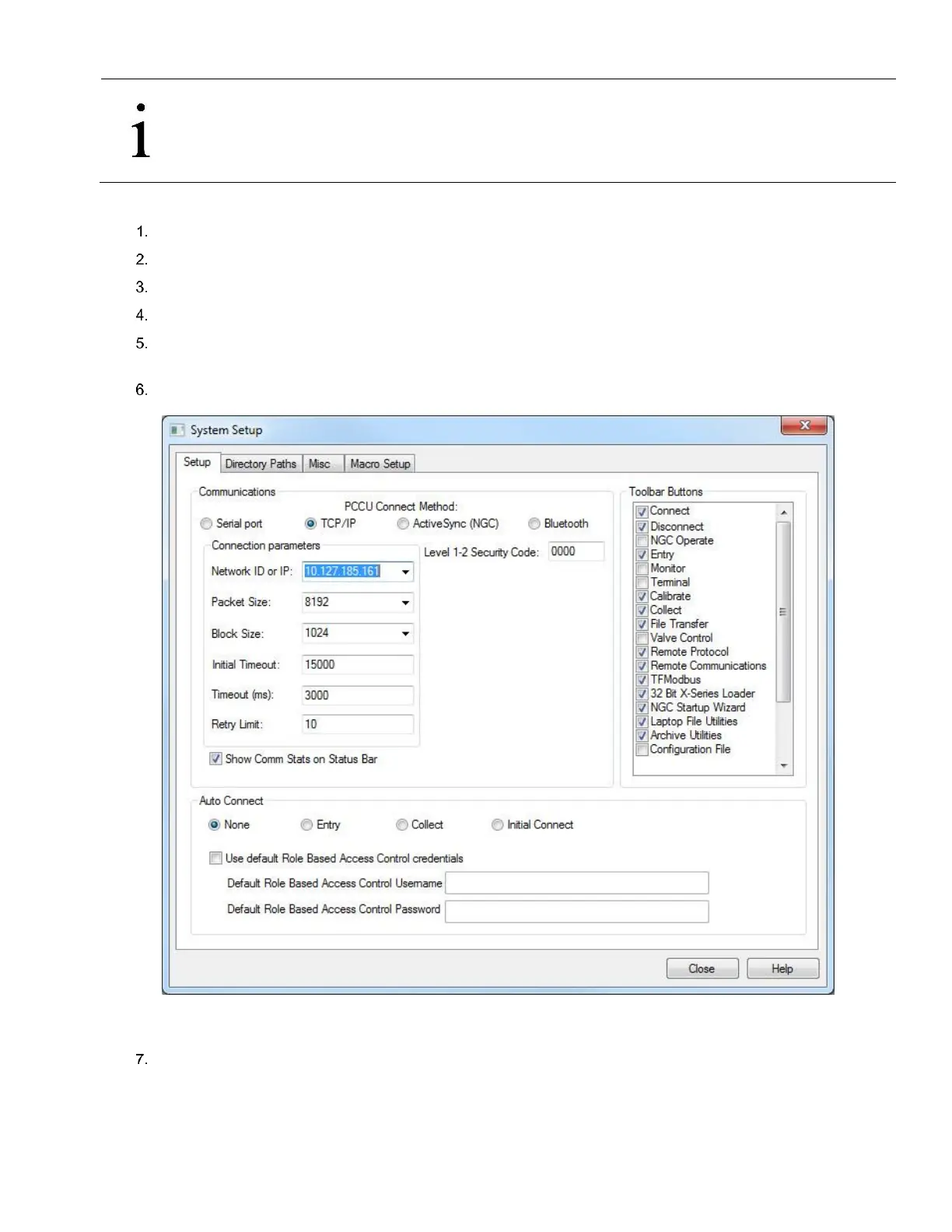
Click Setup from the toolbar. The Setup screen for communication displays (Figure 66).
Under Communications, select TCP/IP as the PCCU connect method.
In the Network ID field type either the Network ID or the IP address of the device. Use the static address manually
configured or the address obtained by DHCP.
Click Close to exit setup and return to the PCCU main screen.
Figure 69 Setup of network connection over Ethernet
Click Entry from the toolbar. When the Entry screen displays, the Ethernet connection over the network is successful.
5.4.5 Add and configure additional communication instances for Ethernet
The default Ethernet port configuration supports connections on TCP port 9999. This port value is read-only. To support
connections using another TCP port, add a new communication instance for Ethernet and configure the desired port number.



 To Next Page