100 XFC G4 2103335 Rev AB
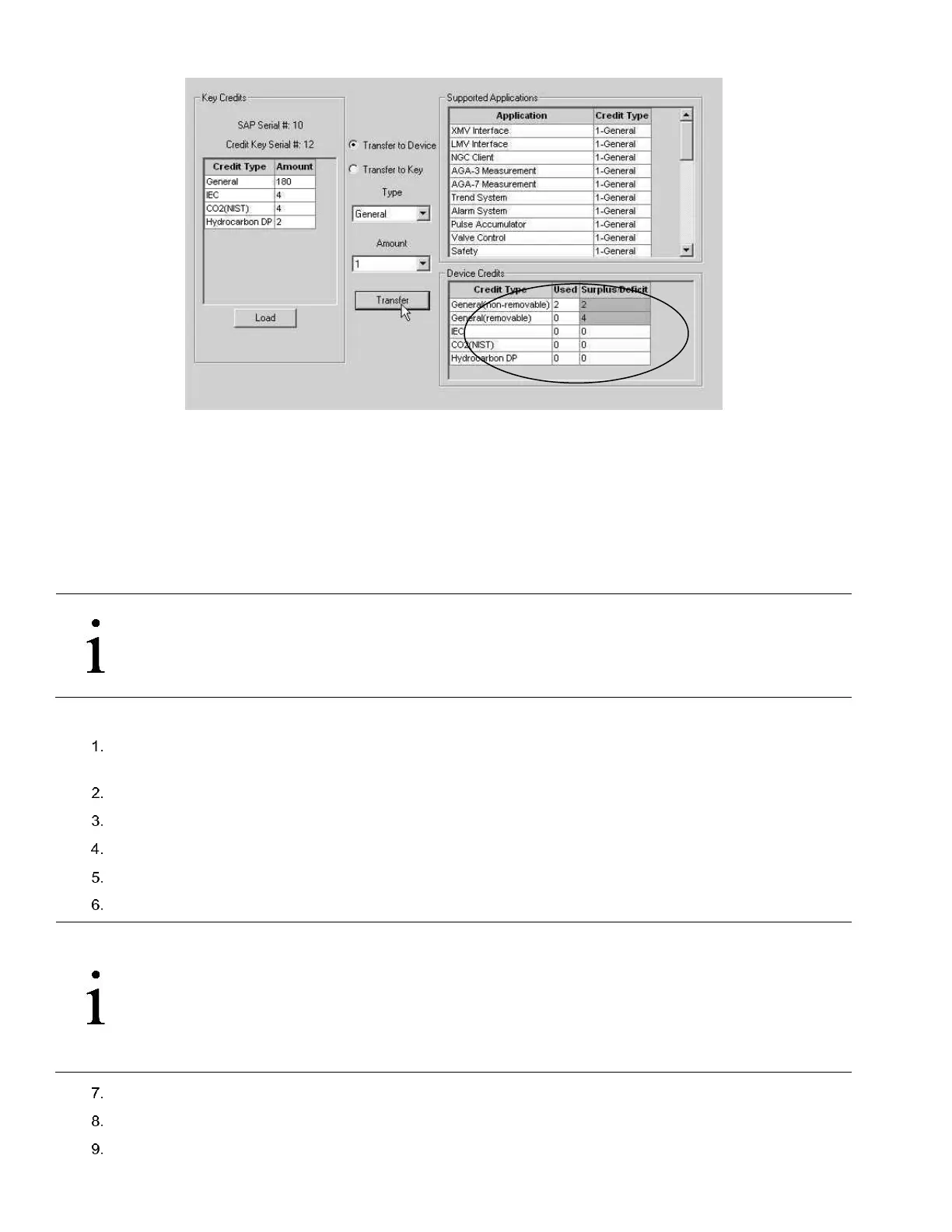
Figure 80 Transferred to Device Application Credits
The application credits are now transferred to the flow computer.
5.6.5 Transferring Credits to the Credit Key from G4 Device
Excess credits (credits beyond what would be required to be fully licensed) can be taken from the flow computer and returned to
the credit key to be used on other flow computers. The user determines the type of credit and the amount of those credits to be
transferred.
IMPORTANT NOTE: If the flow computer has a surplus of credits, these credits can be transferred to the credit key
to be used on other flow computers.
If a flow computer requires additional credits, these credits can be transferred from the credit key. See section
4.5.4, Transferring Credits to the G4 Device from Credit Key page 81.
To transfer application credits to the flow computer:
Connect the PC running PCCU32 to the flow computer with either an MMI cable (RS-232), a USB cable or an
Ethernet cable.
Open PCCU.
Click on the Entry button from the toolbar
Select Station ID>Application Licensing tab.
Install the credit key in an available USB port.
Click Load to view available credits.
IMPORTANT NOTE: This screen allows for the licensing status of the flow computer as well as the available
credits on the credit key. The left pane shows the type and amount of the available credits on your credit key. The
upper-right pane is for information only. It shows the various applications available and the type/amount of credit
necessary to run the application. The standard credits (and four general credits) come free with the purchase of the
flow computer. The lower-right pane displays the licensing status of the flow computer. It shows what credits are in
the machine, what credits are being used and any surplus or deficit of credits. A surplus of credits is highlighted in
green. A deficit of credits is highlighted in red.
Select Transfer to Key, located in the center of the screen (see Figure 81).
Select the Type using the drop down menu.
Select the number of credits to transfer.



 To Next Page