Using the APP Recorder 6-41
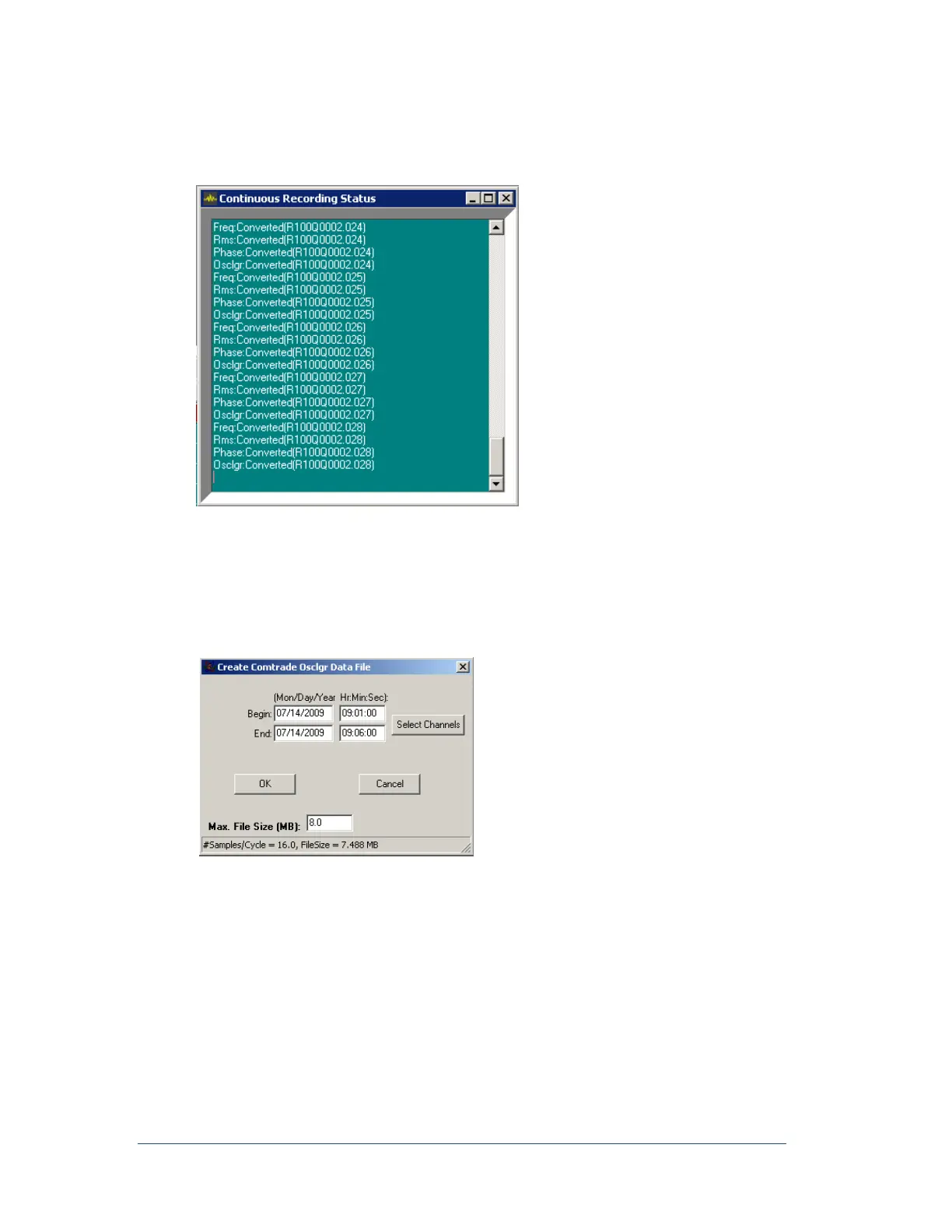
To View the Continuous Recording Status Window
In the APP Recorder window, from the Continuous Recording menu, click Show Status Window.
The following window appears.
Figure 44: Continuous Recording Status Window
6.12.2 Saving Oscillograph Data
You can save a time slice of data to a file. You can open and view the file with the APP ClearView
program. In the APP Recorder window, from the Continuous Recording menu, point to
Oscillograph and then click “Save Oscillograph Data…”. The following window appears.
Figure 45: Time Slice Entry Window
To Save Frequency Data
1. In the APP Recorder window, from the Continuous Recording menu, point to Frequency and
then click Save Freq. Data.
MAX File Size, Enter the file size in Megabytes for the file size you wish to allow. Typically, you
want to make the file size large enough to capture full record resolution. The continuous
oscillography in normally recorded at 16 samples per cycle. So increase the file size until the
“#samples/cycle = 16” (see bottom of the window in Error! Reference source not found.). The
ame is true for the other continuous recording types. If the file size entered results in a number of
samples/cycle less than full resolution, then data samples will be reduced equally throughout the
record length. This may result in an unusual looking wave form.
2. Complete the fields and click OK.



 To Next Page