Using the APP Recorder 6-42
6.12.3 Saving Frequency Data
You can save a time slice of data to a file. You can open and view the file with the APP ClearView
program.
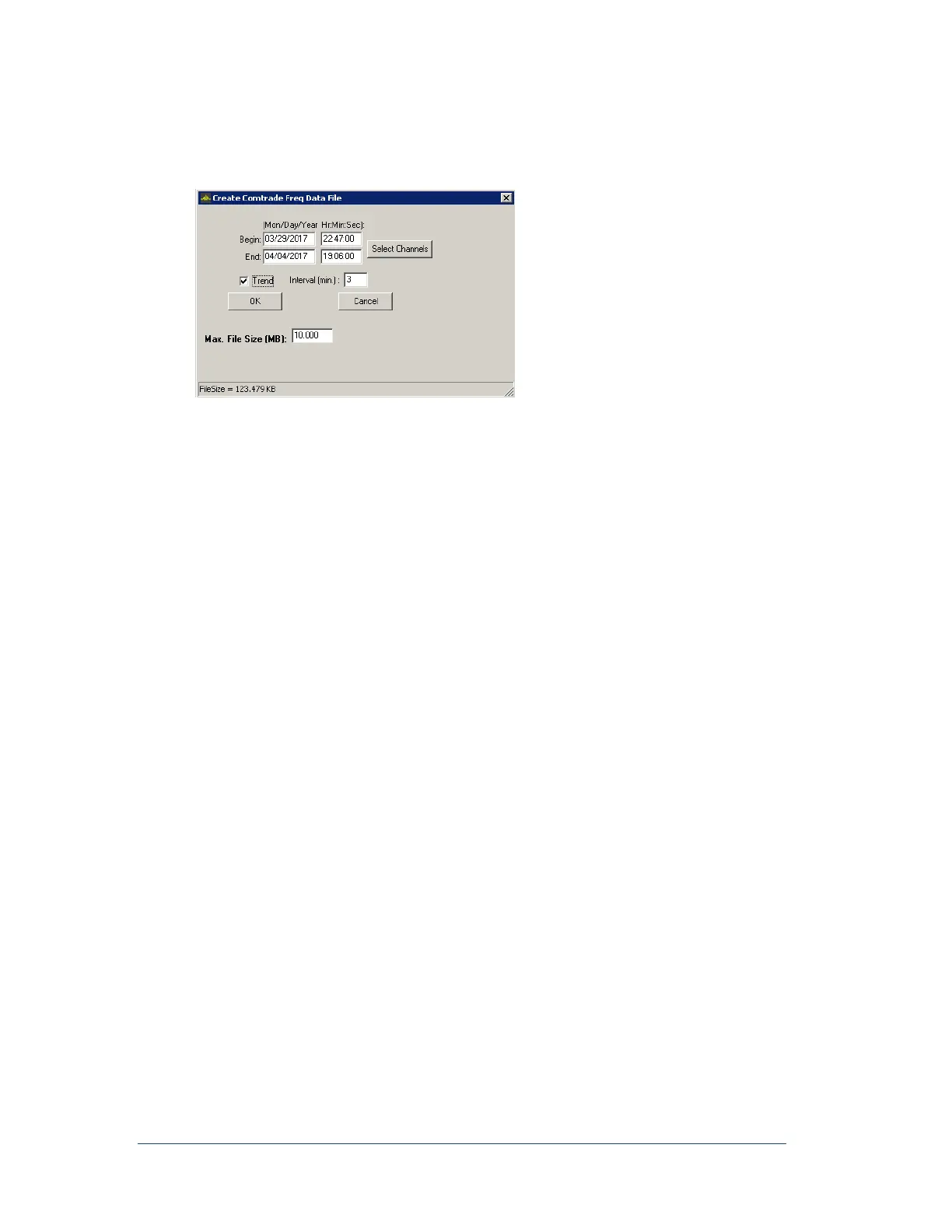
Figure 46: Save Freq Data File
Continuous frequency is calculated using a sliding window. A single frequency data point is calculated
using 5000 data samples (total cycles/time). At a recording rate of 600Hz it will take 8 seconds to obtain
the first data point. Thereafter, a point is calculated every X cycles (X is the user entered cycles/point value,
see Point Assignment Record) but still using 5000 data points.
To Save Frequency Data
1. In the APP Recorder window, from the Continuous Recording menu, point to Frequency and
then click Save Freq. Data.
2. Complete the entry fields
3. Trend Check Box, checking the Trend box will create a Frequency Comtrade file for all
channels or specified channels, including a Maximum, Minimum, and Average Voltage value for
each interval over the period indicated.
Do you want to capture frequency data over a period of time, contingent on the number of days set
in the PAR General Settings tab, Continuous Recording Freq + RMS + Phase, # of Days, , and
maintain a manageable file size?
If yes, click the Trend check box and enter an interval in minutes typically 1 minute is used. At
the bottom of the window, you can see the expected file size and the effect of interval minutes
selected.
If no, then skip to the next step
4. Click OK.



 To Next Page