Using the APP Recorder 6-30
To Configure the Recorder Password
1. Open the Recorder Configuration window and open the Automatic Tasks tab.
2. Click the Recorder Password button.
The Recorder Password window appears.
3. Type the new APP Recorder password.
Note: The password is case-sensitive.
4. Click the OK button.
6.7.17 Ping Master Every 5 minutes
Ping Master every 5 minutes will continually test the connection between the DFR and the Master
Computer. The Master has to be set up in the Master Phone list, Call Master has to be set to “Yes”. If a
failure occurs, it will cause a Master Comm Error. You must map that alarm in the Point Assignment
Record, General Settings, Recorder Setup tab to have a hard alarm displayed.
6.7.18 Configuring Allowed IPs
The APP Recorder includes a security feature that will limit remote connections to the APP Recorder. Only
specified IP addresses will be permitted remote access to the APP Recorder.
Note: If you specify no IP addresses, then all IP address will be allowed access to the APP
Recorder.
To Configure Allowed IPs
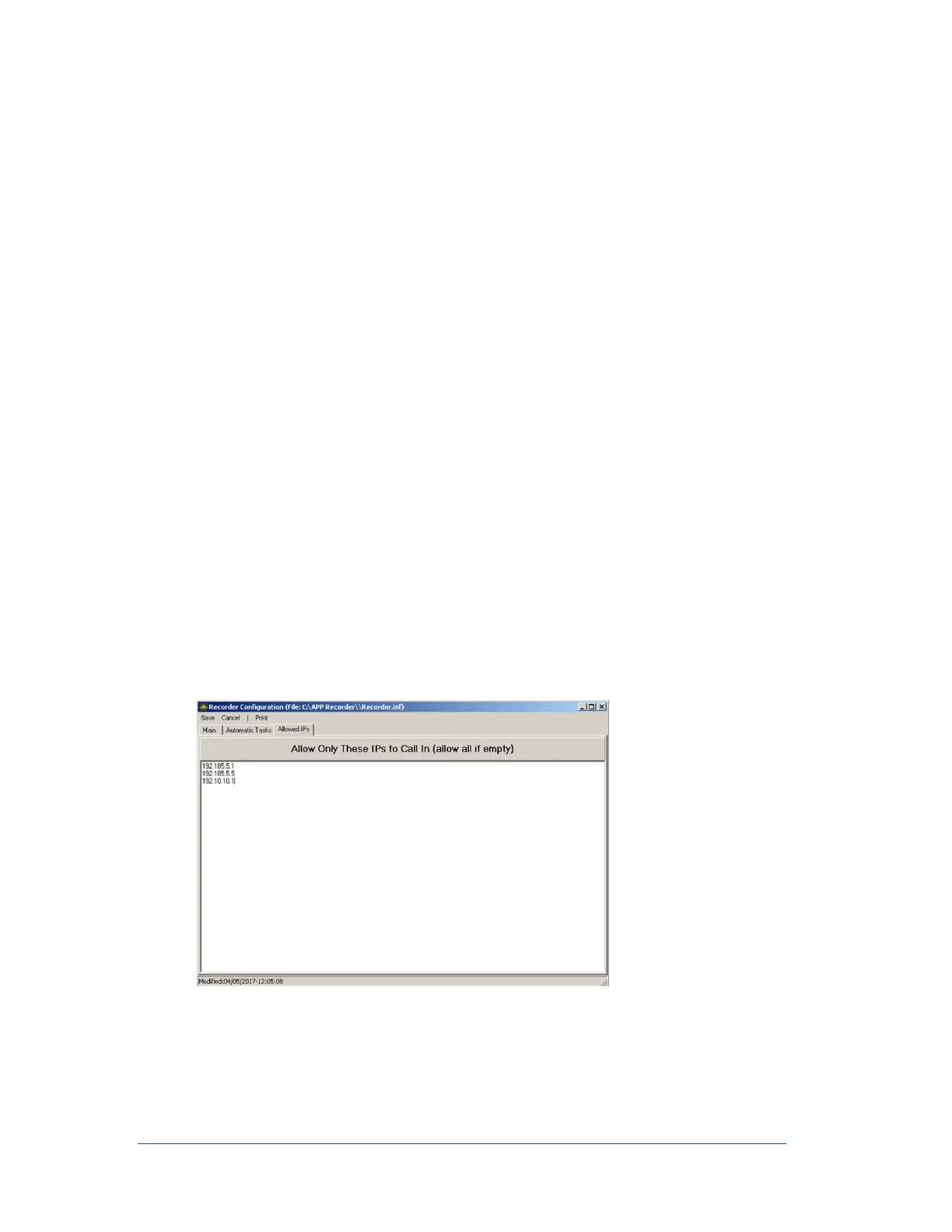
1. Open the Recorder Configuration window and open the Allowed IPs tab.
The Allowed IPs tab appears, as shown in the following figure.
Figure 37: Allowable IPs Entry Window (Security Feature)



 To Next Page