Using the APP Recorder 6-29
To Configure the Master Phone List
1. Open the Recorder Configuration window and open the Automatic Tasks tab.
2. Click the Master Phone List button.
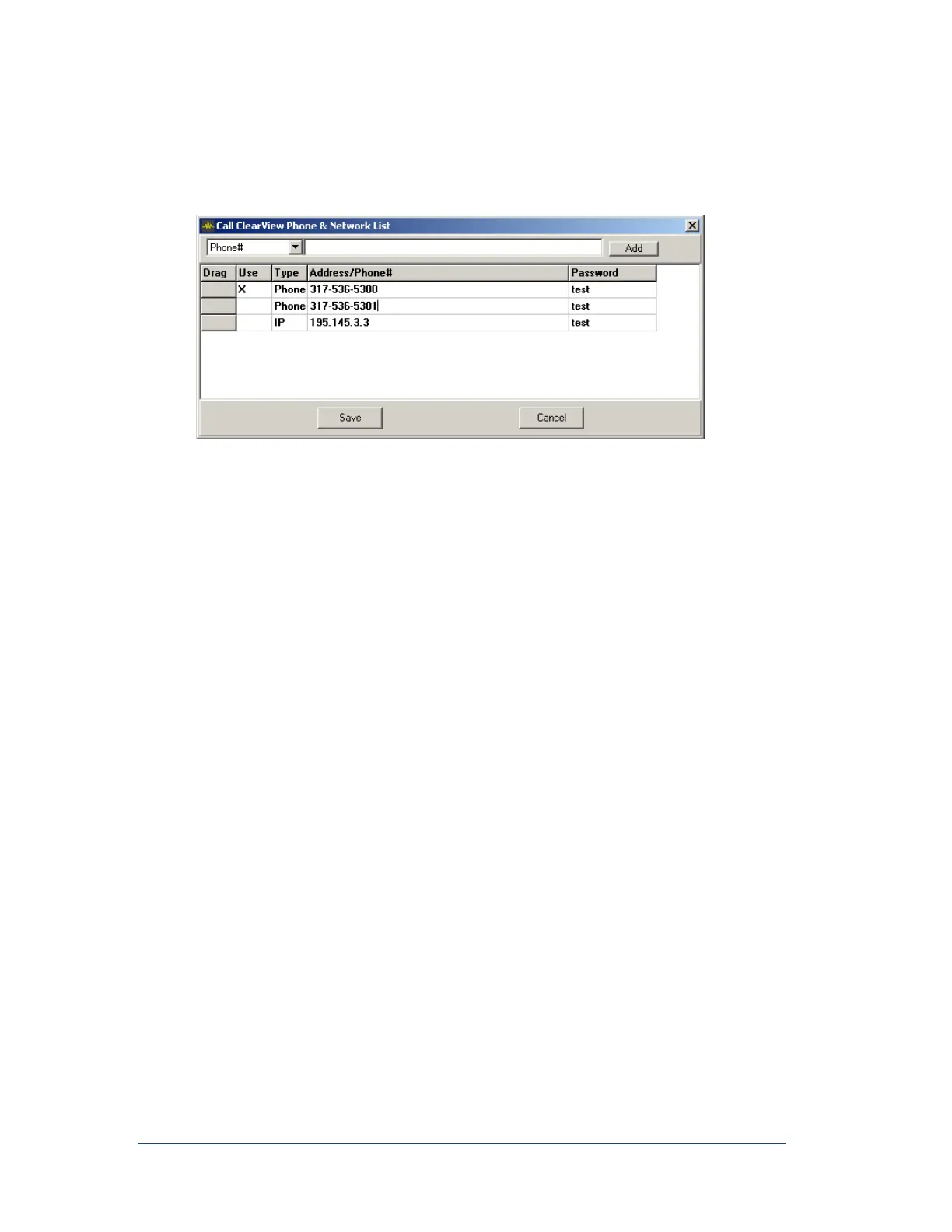
The Master Phone & Network List window appears, as shown in the following figure.
Figure 36: Master Phone & Network List Window
3. Do you want to add a new IP address or phone number?
If yes, then do one of the following:
If the APP Recorder is connected to a phone, then from the list, select Phone#. Then in
the corresponding box, type the phone number. You can use any standard Windows
format. Click the Add button.
If the APP Recorder is connected to an IP address, then from the list select IP Addr.
Then in the corresponding box, type the IP address. You can use any standard Windows
format. Click the Add button. For information on configuring DialNet, see Setting Up
Dial-up Networking.
If no, skip to the next step.
4. By default, the first entry that you make is selected, as indicated by the X in the Use column. The
entry with the “X” is the number that APP ClearView will call when it connects to or calls the
APP Recorder. You can activate multiple phone numbers and/or IP addresses.
Do you want to activate or de-activate a phone number or IP address?
If yes, then in the Use column, click the box next to the entry. An X appears when the entry is
activated; it disappears when the entry is deactivated.
If no, skip to the next step.
5. Do you want to delete a number?
If yes, then right-click the number and then click Delete.
If no, skip to the next step.
6. Do you want to reorder entries?
If yes, then under the Drag column, click the gray box that corresponds to the entry you want
to move and then move it to its new position.
If no, skip to the next step.
7. Click Save.



 To Next Page