Using the OScope 8-2
8.1 Introduction to the OScope
The OScope window is very useful when setting up the APP Recorder for the first time. It allows you to
view real-time analog signals, analog trigger status, event status, and to perform analog channel calibration.
8.2 Viewing the OScope (Oscilloscope) Window
When you open the OScope window, the APP Recorder automatically
goes offline. Also, remember to exit the OScope function when you
are finished using it. It will not automatically shut down and the APP
Recorder will remain offline for as long as the OScope window is
open.
To View the OScope Window
1. Do one of the following:
From the APP Recorder window, from the File menu, click Show OScope.
From the APP Driver window, from the menu bar, click OScope.
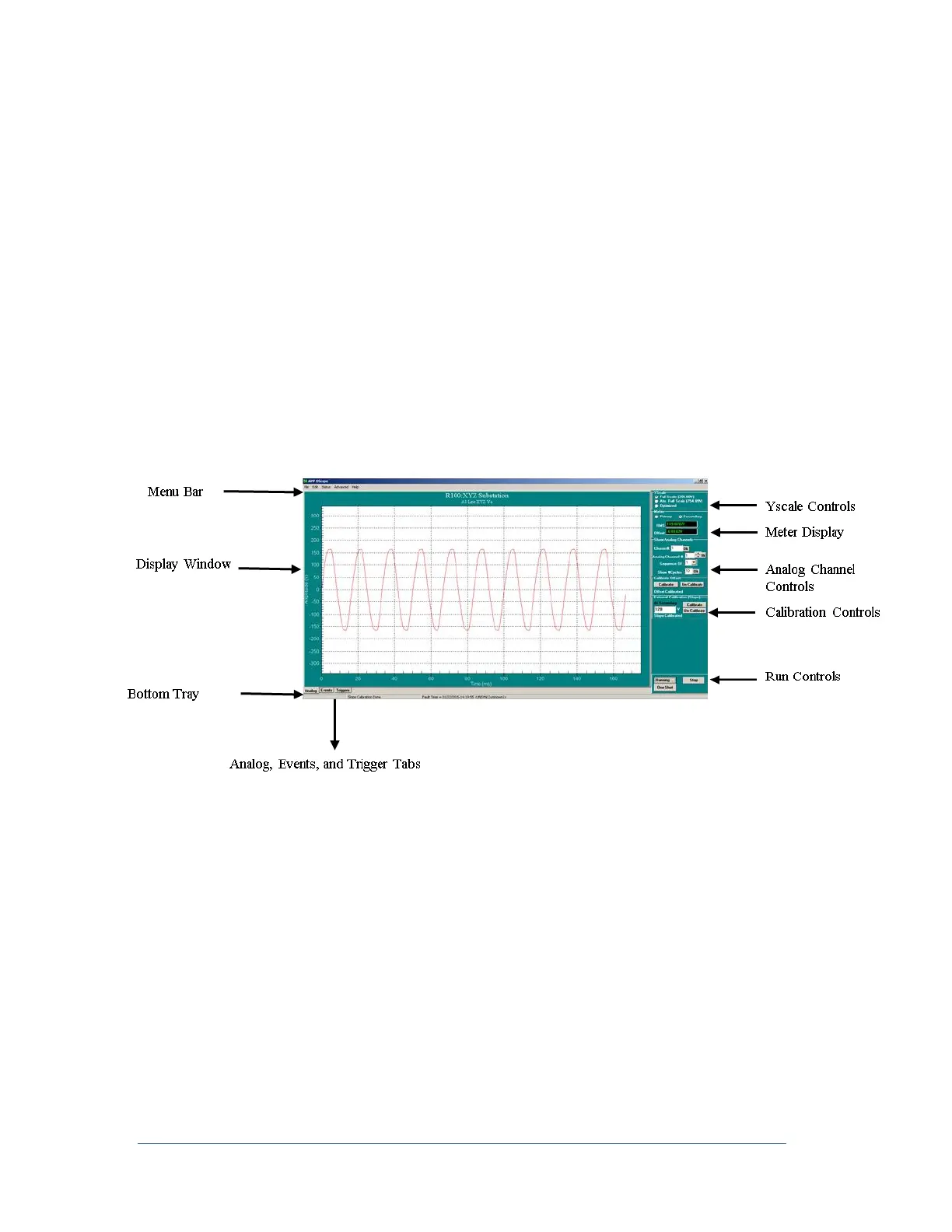
The APP OScope window appears.
Figure 58: OScope Window, Analog Tab
8.2.1 Analog Tab
You can view DC or AC analog signals in the Analog tab (see Figure 58: OScope Window, Analog Tab).
The X-axis is defined by signal frequency and the desired number of cycles to be displayed. Enter
the number of cycles in the Show #Cycles feild.
The Y-axis is determined by the Channel Full Scale setting in the Point Assignment Record, and
the Y-scale setting in the upper right hand corner of the OScope window. For more information on
these settings, see Yscale Controls .below



 To Next Page