Using the APP Recorder 6-5
Table 9: Values on the SER Report Tab
There is an open contact.
There is a closed contact.
The channel is currently in an abnormal state.
The channel is currently in a normal state.
There is an unsynchronized time.
There is a synchronized time.
If an SER channel is stopped, the word “Stopped” appears at the beginning of the channel description. The
letter “M” or “A” also appears with the stop message:
“M” indicates that the channel has been stopped manually via the Point Assignment Record.
“A” indicates that the channel stopped automatically.
Note: If an SER channel frequently changes its state, you can configure the Point Assignment
Record to automatically address the issue. On the General Settings tab in the Point
Assignment Record, you can specify the threshold of time for allowable state changes (in
other words, the acceptable amount of time between state changes). If the SER channel
changes its state more frequently than the acceptable amount, you can configure it to
automatically shut down and then to restart itself after the period of time that you define.
Fault Location Tab
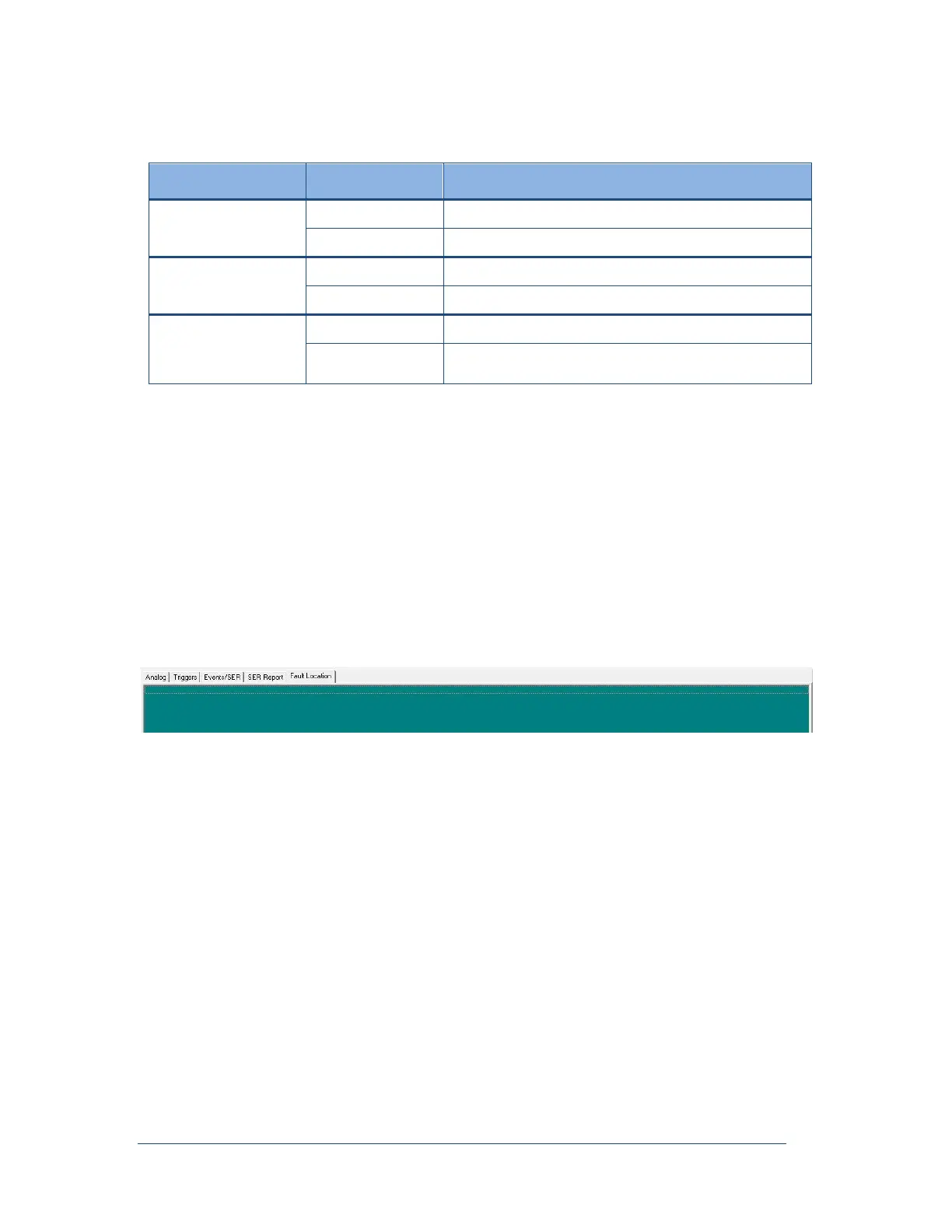
Figure 25: Fault Location Tab
This tab shows the fault location, if any fault exists. Most of the time it will be empty since faults don’t
occur often.
6.4 Setting the Administrator Password
You can optionally set an administrator password to restrict access to administrative features. If you set an
administrator password, then only the people who know the password will be able to perform the following
functions:
Changing passwords
Configuring the APP Recorder software
Modifying the Point Assignment Record
Modifying the Line Group Record
Exiting the APP Recorder software



 To Next Page