Using the APP Recorder 6-17
6.7.9 Configuring the Format of Printed Reports
To Configure the Format of Printed Reports
1. Open the Recorder Configuration window and open the Automatic Tasks tab.
2. Click the Printing Format button.
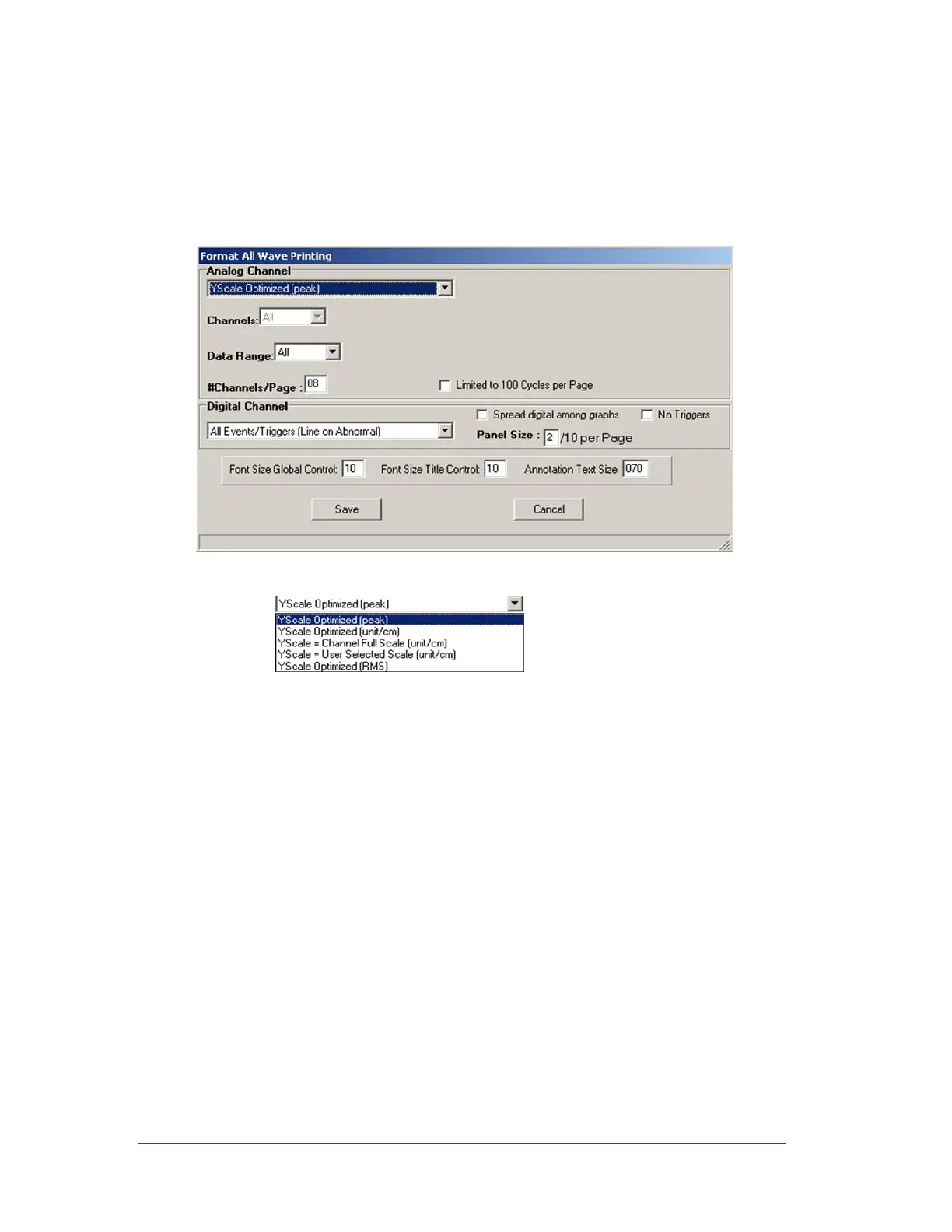
The Format All Wave Printing window appears.
Figure 28: Printing Format Window
3. From the Analog Channel Format list, select the appropriate format:
YScale Optimized (peak)
Prints the highest peak value measured to the right-hand side of each oscillogram printed.
YScale Optimized (unit/cm)
Prints a volts/cm or amps/cm scale to the right-hand side of each oscillogram printed.
YScale = Channel Full Scale Optimized (unit/cm)
Prints a volts/cm or amps/cm scale to the right-hand side of each oscillogram printed. The
value is based on the full scale setting in the Point Assignment Record and the number of
oscillograms printed on the page.
Yscale = User Select Scale (unit/cm)
If selected, a user programmable Yscale field appears. The user can enter their desired
volts/cm or amps/cm scale. Prints a volts/cm or amps/cm scale to the right-hand side of each
oscillogram printed. The value is based on a user entered Yscale (unit/cm). If the scale is too
small waveform clipping will occur.
Yscale Optomized (RMS)
This selection prints the RMS value to the right side of each oscillogram printed.
Note: Print fewer channels on a page to increase the resolution on the Yscale.



 To Next Page