Using the APP Recorder 6-13
6.7.6 Accessing the Automatic Tasks Tab
You configure all of the automatic tasks on the Automatic Tasks tab of the Recorder Configuration
window.
To Access the Automatic Tasks Tab of the Recorder Configuration Window
1. In the APP Recorder window, from the Edit menu, click Configuration.
The Recorder Configuration window appears. By default, the Main tab is selected.
2. Click the Automatic Tasks tab.
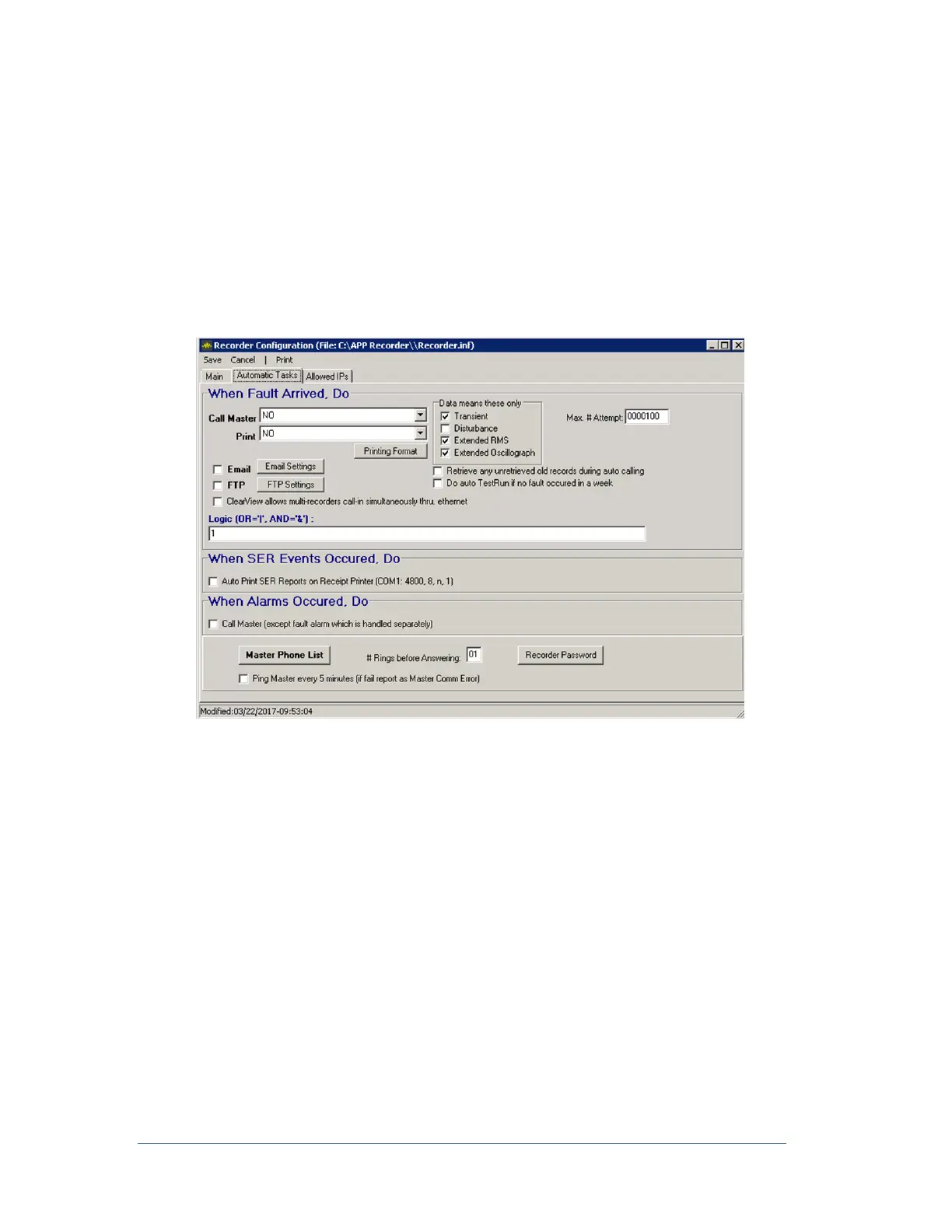
The Automatic Tasks screen appears, as shown in the following figure.
Figure 27: Recorder Configuration Window —Automatic Tasks Tab
6.7.7 Configuring Automatic Tasks that Occur when a Fault Arrives
Call Master, You can configure whether or not the APP Recorder calls the master station, and what type of
data it sends about the fault.
Note: In order for the APP Recorder Program to call the master station and transfer
data, the master station must be running the APP ClearView Program. The
APP ClearView Program must be set to monitor incoming calls
To Configure Whether or Not the APP Recorder Calls the Master Station
1. Open the Automatic Tasks tab of the Recorder Configuration window.
2. In the Call Master drop down menu, select what you want the APP Recorder to do if a fault
occurs. The following table describes the available options.



 To Next Page