Using the APP Recorder 6-32
6.10 Connecting to ClearView
You can manually initiate a phone call connection between the APP Recorder and the master station. The
APP Recorder will call the phone numbers or IP addresses that are entered in the Master Phone List.
The APP Recorder only calls those numbers/IP addresses that have a checkmark beside them. If more than
one number has a checkmark, the recorder will call them in sequential order.
Upon a successful connection to a master station, the APP Recorder uploads the information that you
designated on the Automatic Tasks tab (summary file only, summary file and data, etc.).
After uploading the appropriate information, the APP Recorder automatically disconnects from the master
station.
6.10.1 Connecting to ClearView
To Connect to ClearView
In the APP Recorder window, from the Connect menu, click Connect to ClearView.
Note: The APP ClearView master station program will not receive a call unless it is set to
“monitor incoming calls.”
6.10.2 Disconnecting from ClearView
You can manually break the connection between the recorder and master station.
To Disconnect from ClearView
In the APP Recorder window, from the Connect menu, click Disconnect from ClearView.
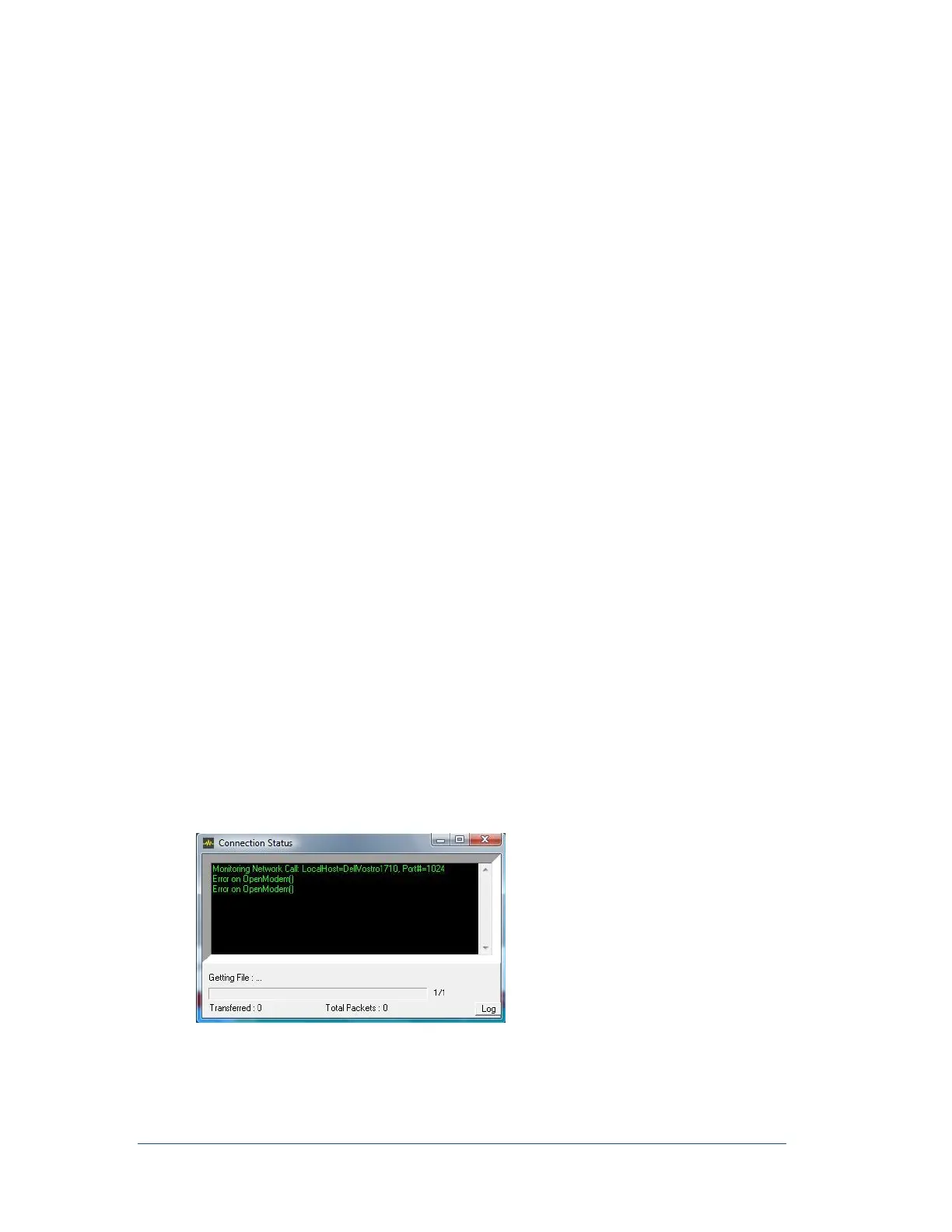
6.10.3 Viewing the Connection Status Window
While the APP Recorder is connected to the master station, you can view real-time messages related to the
communications and data transfer progress between the computers in the Connection Status window. This
window is useful in determining if a successful connection has been established between the master station
and APP Recorder.
To View the Connection Status Window
In the APP Recorder window, from the Connect menu, click Show Status Screen.
The Connection Status screen appears. You can also press (F2) anytime to show Connection Status Screen.
Figure 38: Connection Status Screen
To close the window, click the X button in the upper right hand corner.



 To Next Page