Using the APP Recorder 6-9
To Change Main Configuration Settings
1. In the APP Recorder window, from the Edit menu, click Recorder Config.
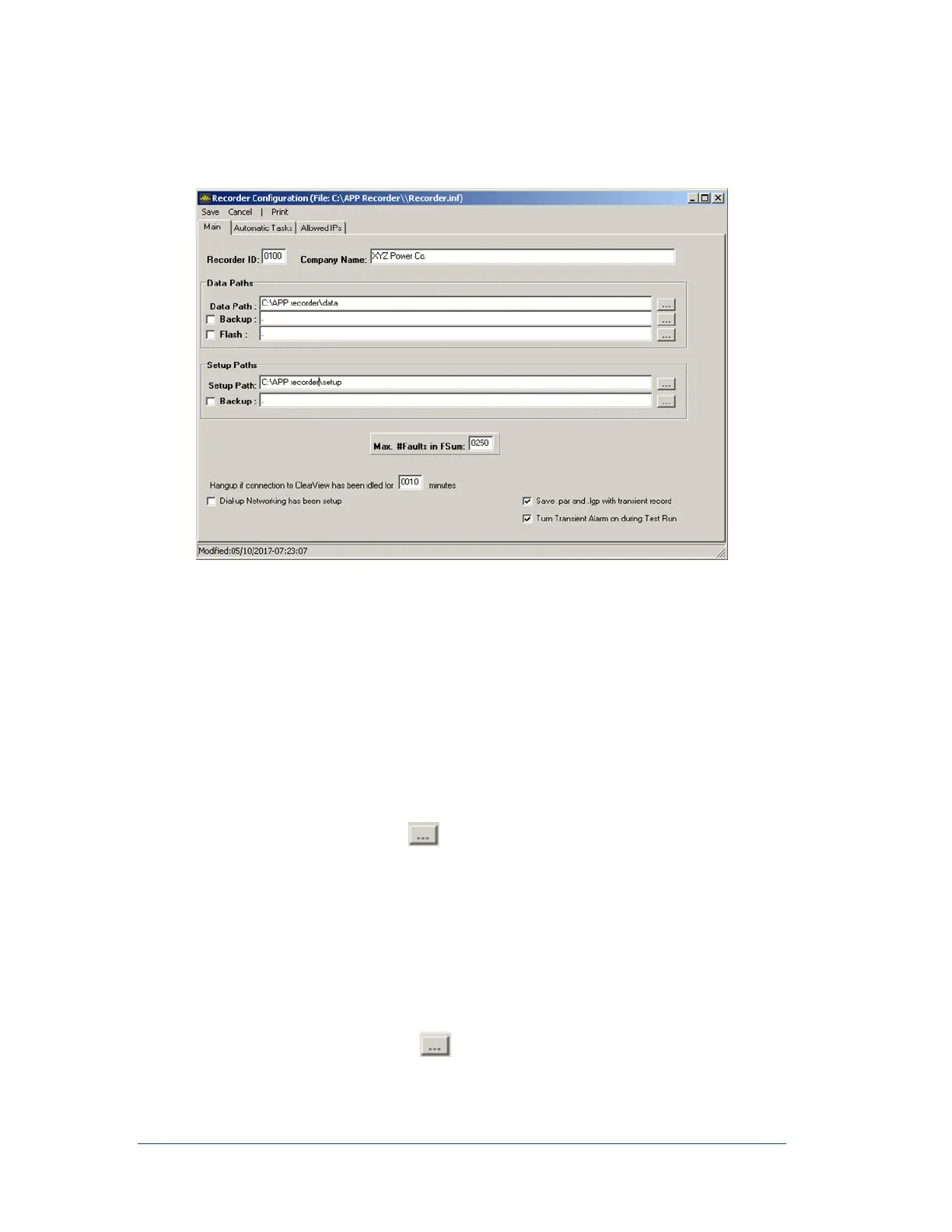
The Recorder Configuration window appears. By default, the Main tab is selected.
Figure 26: Example of APP 601 Recorder Configuration Window—Main Tab
2. (Required) Recorder ID field, specify a unique recorder ID. This allows the master station
program (APP ClearView) to identify the recorder with which it is communicating.
Do not use duplicate Recorder IDs.
Before shipping the Recorders, APP Engineering Inc. will assign
Recorder IDs and configure each of your Recorders accordingly.
Recorders will be numbered sequentially.
3. Company Name field, enter any name you would like. This name will appear at the top of the
APP Recorder Program main page. At the factory, the name of the company who purchased the
system is entered.
4. (Required) Data Path field, click and enter the location of the physical file where transient
and extended recording information will be written. By default, the factory creates the path:
For the 601 computer - D:\APP Recorder\Data
For the 501 computer - C:\APP Recorder\Data
You can change this value to any other path you want. However, you should not change the
path without understanding how the APP Recorder runs. Incorrectly changing the path can
prevent the APP Recorder from running.
5. Transient and extended recording information can be written to more than one path. To create a
second location, next Backup click and enter the desired path.



 To Next Page