Using the APP Recorder 6-54
Before you can configure a PMU, you must configure the following information in the Point Assignment
Record:
Select the PMU check box
Specify the analog channels
To Configure the Point Assignment Record for PMU Data
1. In the APP Recorder window, from the Edit menu, point to Point Assignment Record and then
click Edit Record.
The Point Assignment Record window appears.
2. Click the General Settings tab.
3. Click the Recorder Setup tab.
4. Select the PMU check box.
5. From the menu bar, click Save.
A message window appears confirming the save operation.
6. Click the OK button.
7. Click the Analog Channels tab. For more information on how to set up analog channels, see the
APP ClearView Instruction Manual.
To Configure a PMU
1. From the File menu, click Show Driver then click PMU.
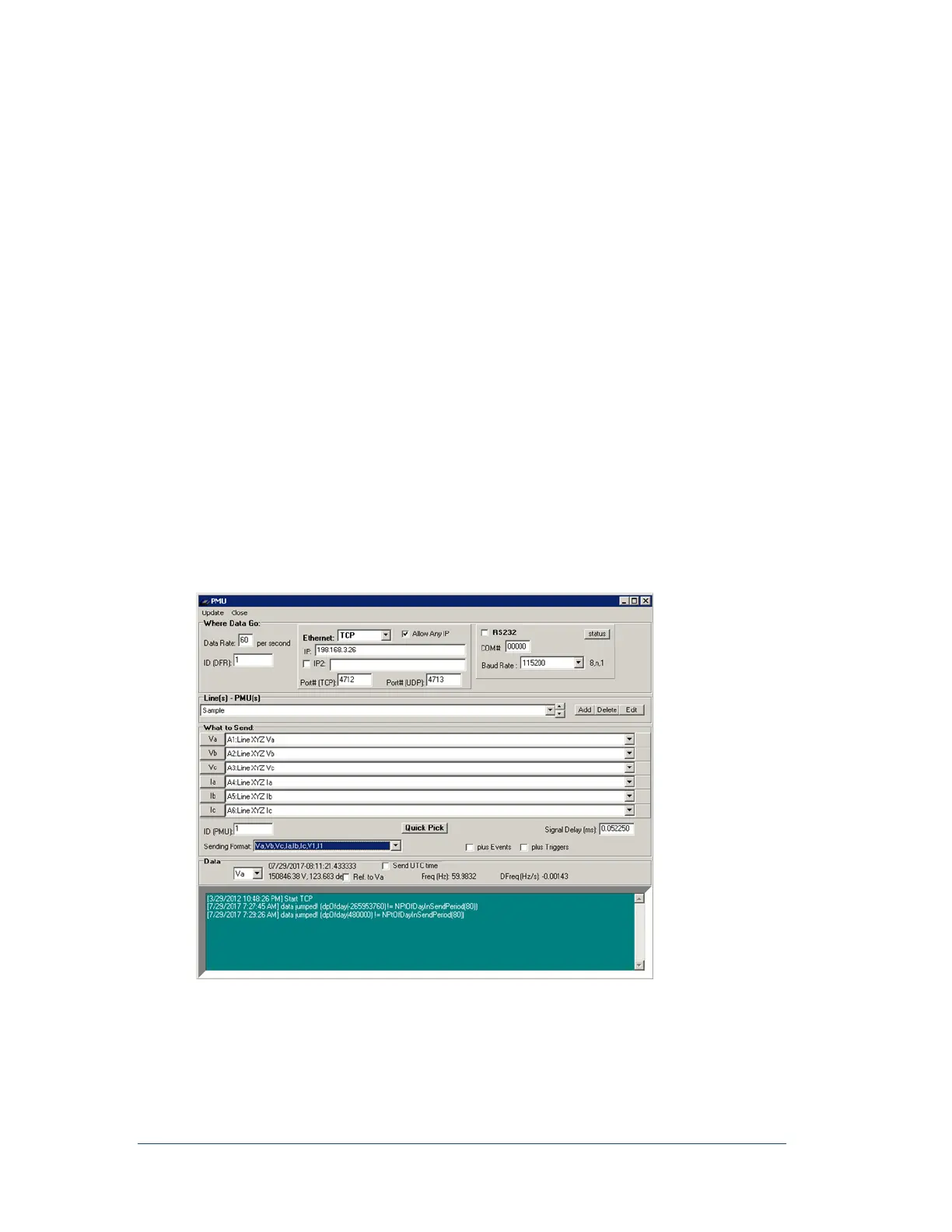
The PMU window appears, as shown in the following figure.
Figure 55: PMU Window
2. Data may be streamed via Ethernet or RS232
3. In the Data Rate box, type the desired data rate. 60 per second is the maximum setting. If you are
streaming many lines and select 60 frames per second, ensure enough network bandwidth is
allocated.



 To Next Page