Using the OScope 8-7
8.7 Viewing Stopped/Abnormal SER Channels
In the APP OScope window, from the Status menu, click Show Stopped/Abnormal SER Channels.
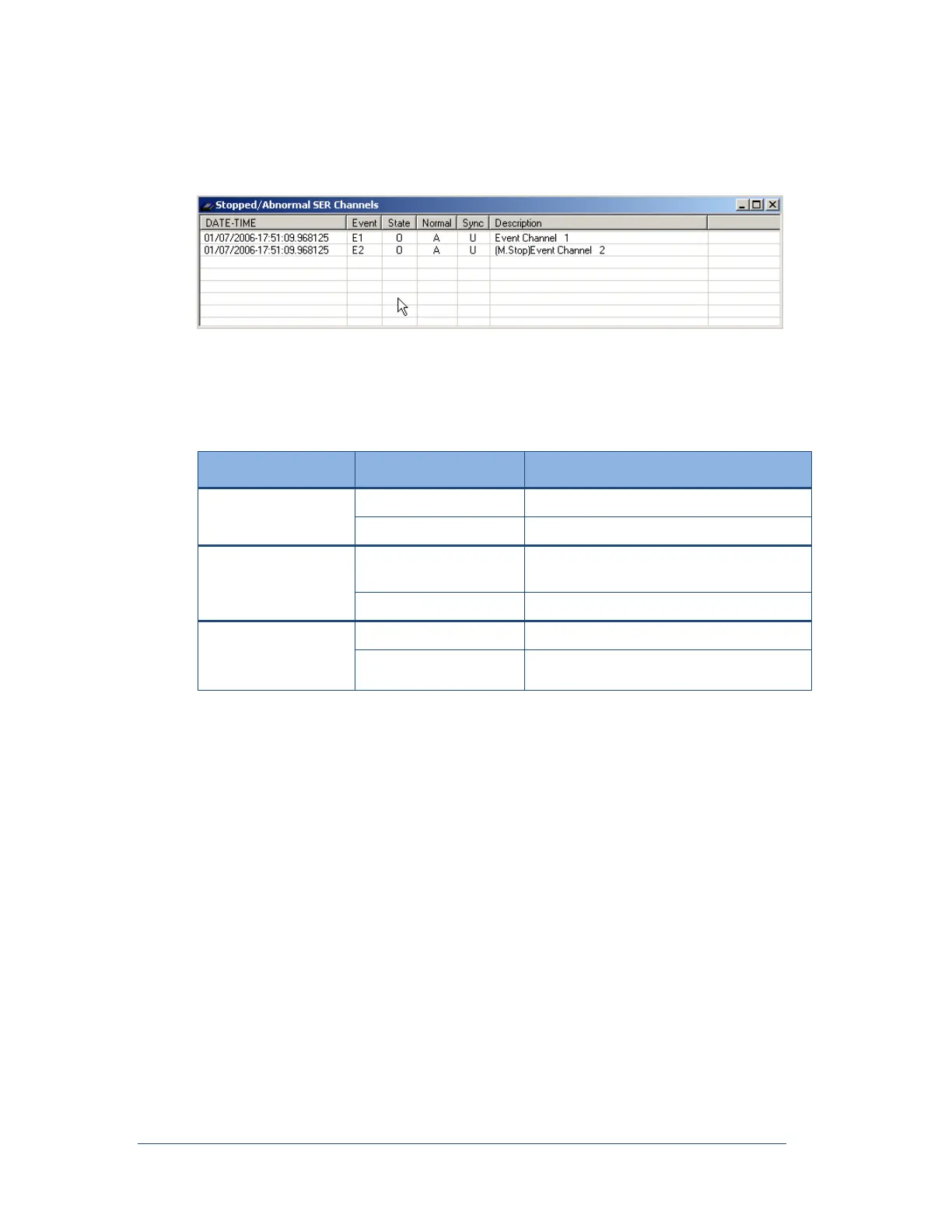
The Stopped/Abnormal SER Channels window appears.
Figure 62: Stopped/Abnormal SER Channels Screen
On the SER Report tab, channels that are in a stopped or abnormal state appear. The following
table explains the letters that appear on this window.
Table 17: SER Report Tab—Letter Values
There is an open contact.
There is a closed contact.
The channel is currently in an abnormal
state.
The channel is currently in a normal state.
There is an unsynchronized time.
There is a synchronized time.
If an SER channel is stopped, the word “Stopped” will appear at the beginning of the channel
description. The letter “M” or “A” will also appear with the stop message:
“M” indicates that the channel has been stopped manually via the Point Assignment Record.
“A” indicates that the channel stopped automatically.
Note: If an SER channel frequently changes its state, you can configure the Point
Assignment Record to automatically address the issue. On the General Settings
tab in the Point Assignment Record, you can specify the threshold of time for
allowable state changes (in other words, the acceptable amount of time between
state changes). If the SER channel changes its state more frequently than the
acceptable amount, you can configure it to automatically shut down and then to
restart itself after the period of time that you define.
8.8 Advanced Menu
8.8.1 Calibrating and Un-Calibrating All Offsets
You can calibrate the DC offset on every analog channel with a single click or it can be done on a per
channel basis. If the scope function is running, it will automatically stop when you calibrate or un-calibrate
all offsets. Typically, the DC offset calibration is done with NO signals applied to the analog channels.



 To Next Page