Using the APP Recorder 6-33
To view the Trace File
From the Connection Status Window, you can view the CTrace file by clicking on the button. The
CTrace file will open.
Note: You can leave this window open while you access other functionality in the APP
Recorder
6.10.4 Choosing a Modem
You can view the currently installed modems and choose which modem the APP Recorder should use.
Note: After choosing your modem, you should not need to configure it; the process is
automated for you. The instructions for accessing the Modem Connection Preferences
window are included in this section in case you need to verify or adjust settings during
troubleshooting.
To Choose the Modem
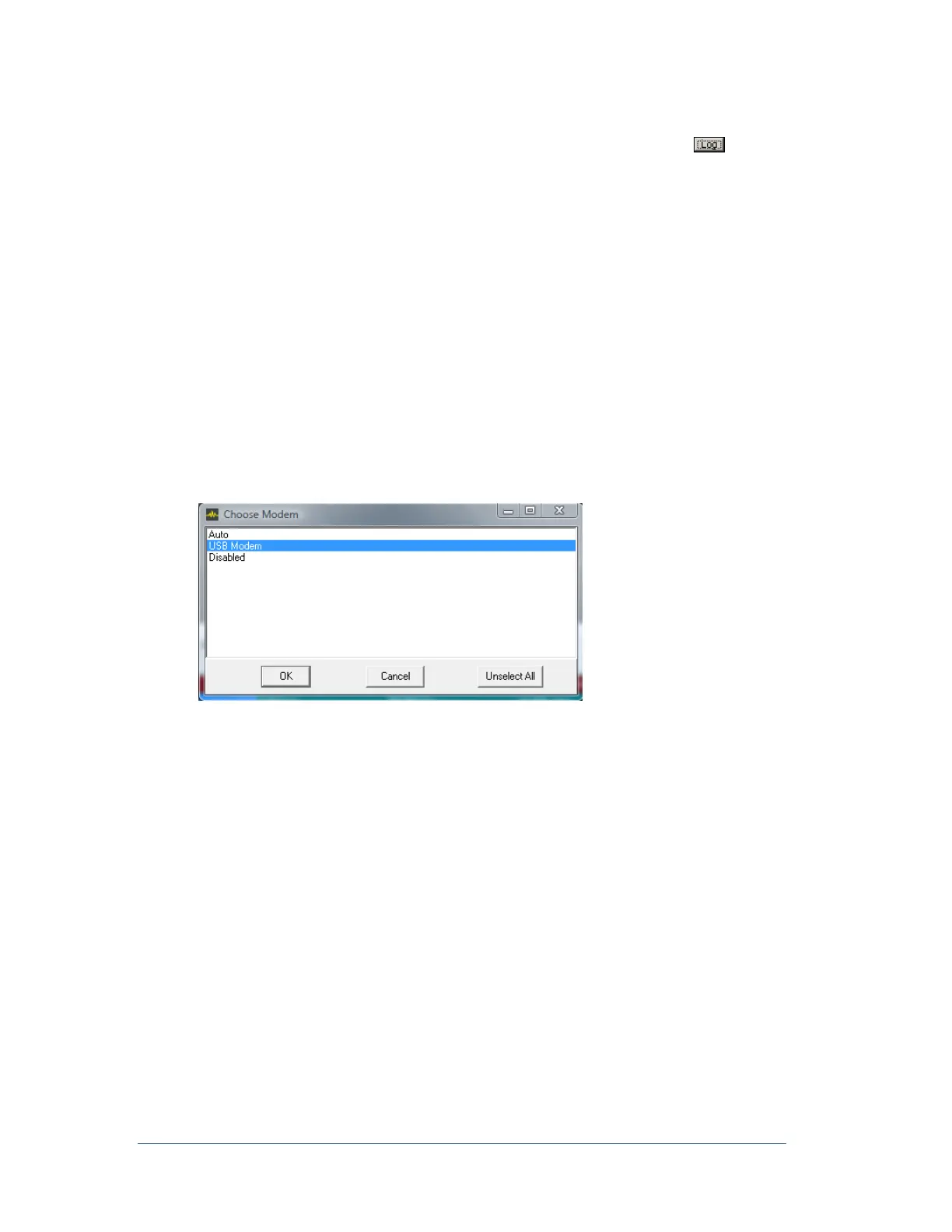
1. In the APP Recorder window, from the Connect menu, point to Modem and then click Choose
Modem. The Choose Modem dialog box appears.
Figure 39: Choose Modem Window
2. Click the modem to use.
3. Click the OK button.
To View the Modem Connection Preferences Window
In the APP Recorder window, from the Connect menu, point to Modem and then click Configure
Modem.
The Modem Connection Preferences window appears.
6.10.5 Setting the Network Port Number
The default network port number of 1024 is automatically configured for the APP Recorder. You can
change the port number, if necessary.
To Set the Network Port Number
1. In the APP Recorder window, from the Connect menu, click Set Network Port#.
The Network Port# dialog box appears.
2. Enter the network port number and click OK.



 To Next Page