Other Information 9-7
9.6 Linux Ubuntu Operating System
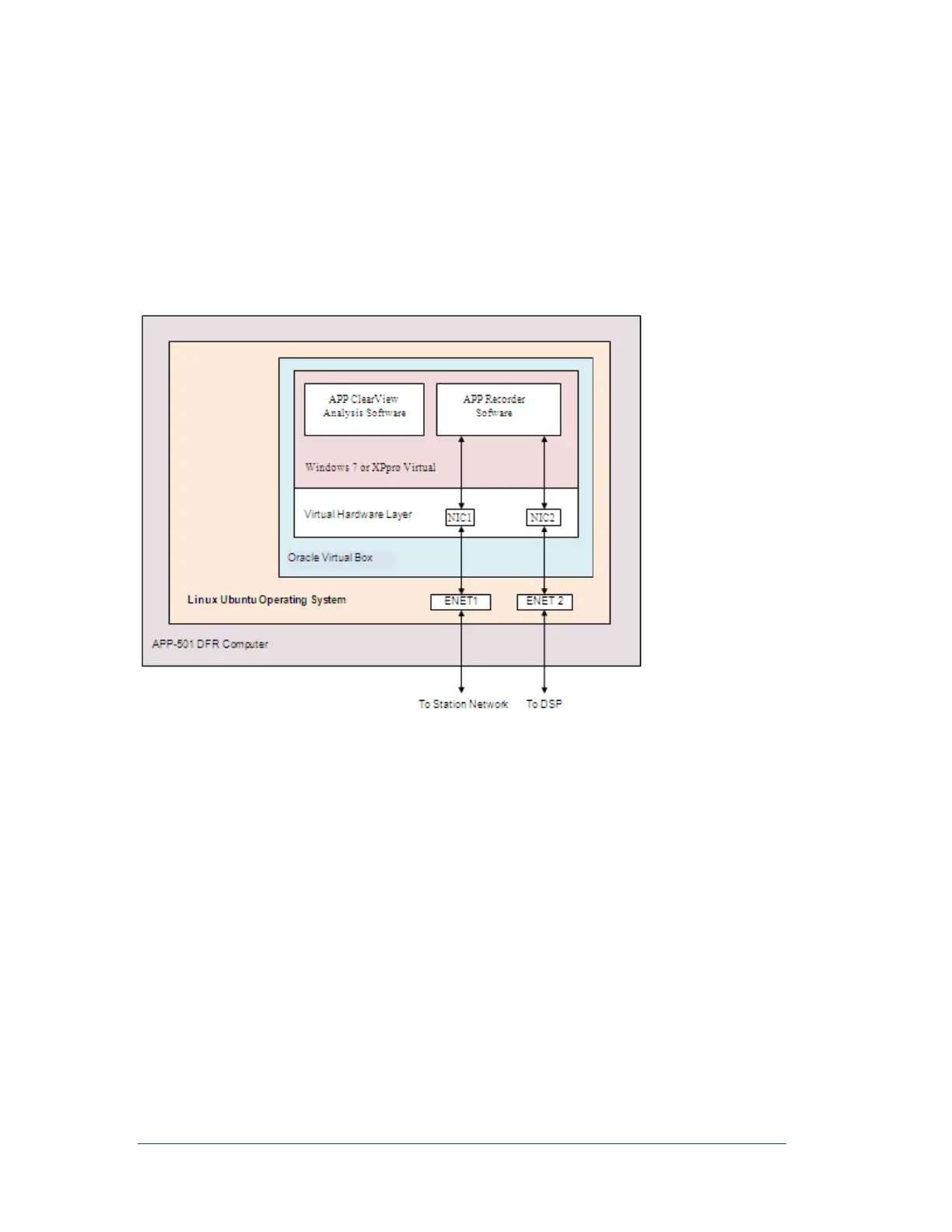
The APP-601 Multifunction Recorder using the optional Linux Ubuntu operating system allows users to
incorporate the system into their Linux based structure. The APP Recorder program and APP ClearView
program run inside a Windows shell. The virtual machine software running on the Linux OS is Oracle
Virtual Box. Even though the system is running a Linux Ubuntu operating system, information provided
through this manual is applicable because the APP programs are running inside a Windows virtual
machine.
Note: Unless you are familiar with the Ubuntu software, we recommend staying within the Windows
virtual machine environment.
9.6.1 Viewing Screens
1. After APP Recorder is powered-on, the Ubuntu Linux OS will automatically start along with the
virtual Windows operating system and APP Recorder program.
2. It will take a few minutes for the recorder to go on-line. It is possible for the APP Recorder
program to start up and display information but the front panel lights indicate an off-line status. In
this case, do not do anything. The recorder program will reinitialize and refresh the front panel
lights (this could take up to 2 minutes.)
3. Minimizing the APP Recorder program will reveal the Windows desktop. As normal, you can
move about the Windows environment as discussed in various sections of this manual.
4. To reveal the Ubuntu desktop move the cursor to the top of the screen. A drop down menu will
appear. From the drop down menu hover over the icons on the right and click the one that
displays “Exit Full Screen or Seamless Mode”. You should see the Windows desktop or APP
Recorder program and Ubuntu desktop with icons and tools. Important, unless you are a
network administrator that is well versed with the Linux Ubuntu OS do not make any
Ubuntu changes unless you first contact our engineering department. An incorrect change
Figure 66: Linux Ubuntu OS and Virtual Machine Diagram



 To Next Page