Installing the Recorder Software 5-6
Configuring APP Recorder and APP Monitor
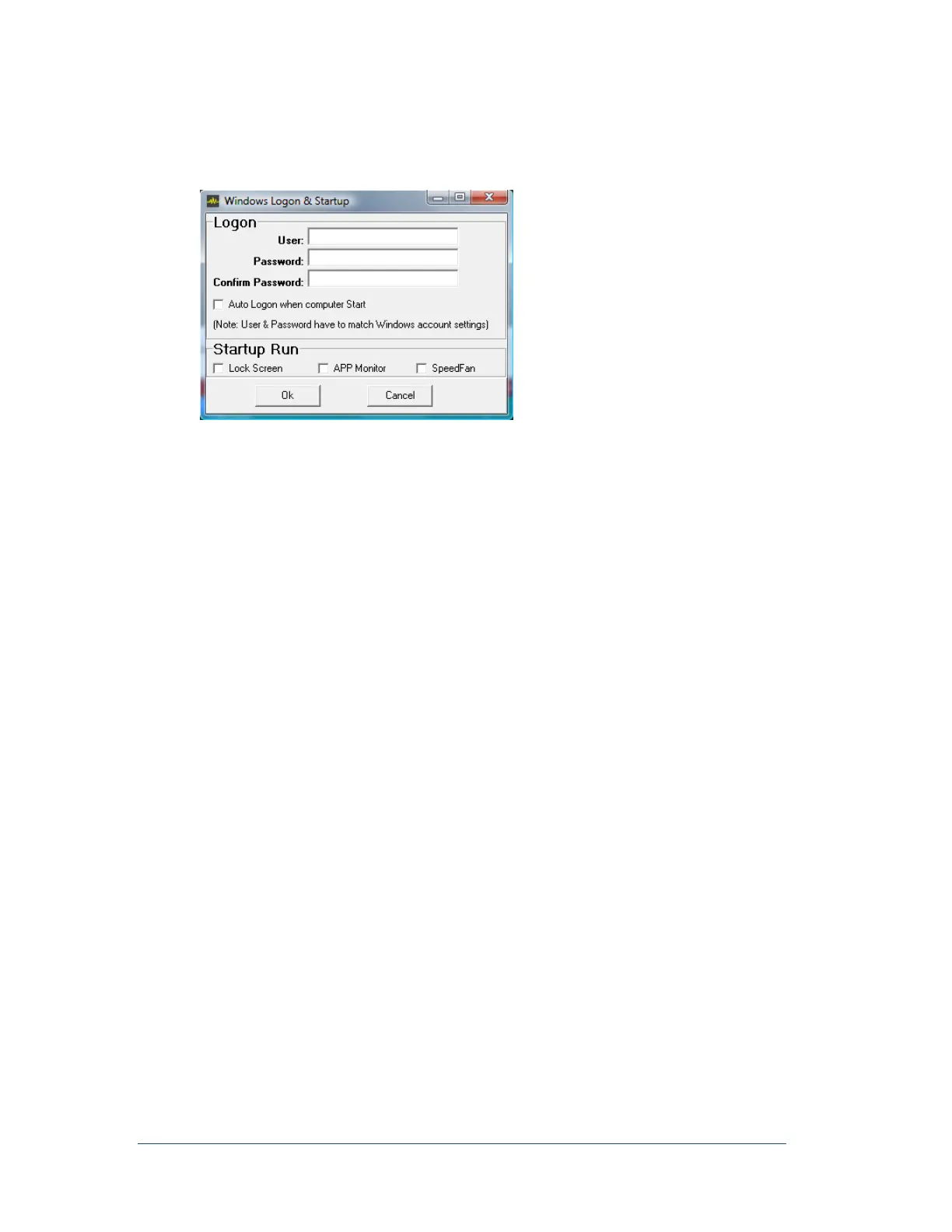
In the APP Recorder window, from the Tools menu, click Windows Logon & Startup
the following window appears.
Figure 19: Windows Logon & Setup Window
1. In the User box, type the user name for the Windows logon of the APP Recorder.
2. In the Password box and the Confirm Password box, type the password for the Windows logon
of the APP Recorder. If no Windows password is set, leave this password blank.
Note: The user name and password must match the Windows account settings.
3. Do you want the APP Recorder to automatically logon to windows when the computer starts?
If yes, then select the Auto Logon check box.
If no, then skip to the next step.
4. Do you want the APP Monitor to automatically start when you run the APP Recorder?
If yes, then select the APP Monitor check box.
If no, then skip to the next step.
Note: If APP Monitor is shut-down using Task Manager for example, when APP
Recorder is started, APP Monitor will NOT automatically start. The best way to
ensure APP monitor is re-initiated properly is to restart the computer (Windows
Restart). This will cause APP Monitor to start if the APP Monitor option was
selected.
5. Do you want the SpeedFan to automatically start when you run the APP Recorder as an
application?
Note: Speedfan is required for the PC Health Alarm to function due to Hard Drive
Temperature and is required for monitoring Drives with a RAID drive
configuration.
If yes, then select the Speedfan check box.
If no, then skip to the next step.
6. Click OK.
7. Shutdown and restart Windows
8. Ensure APP Recorder automatically starts when Windows comes back up



 To Next Page