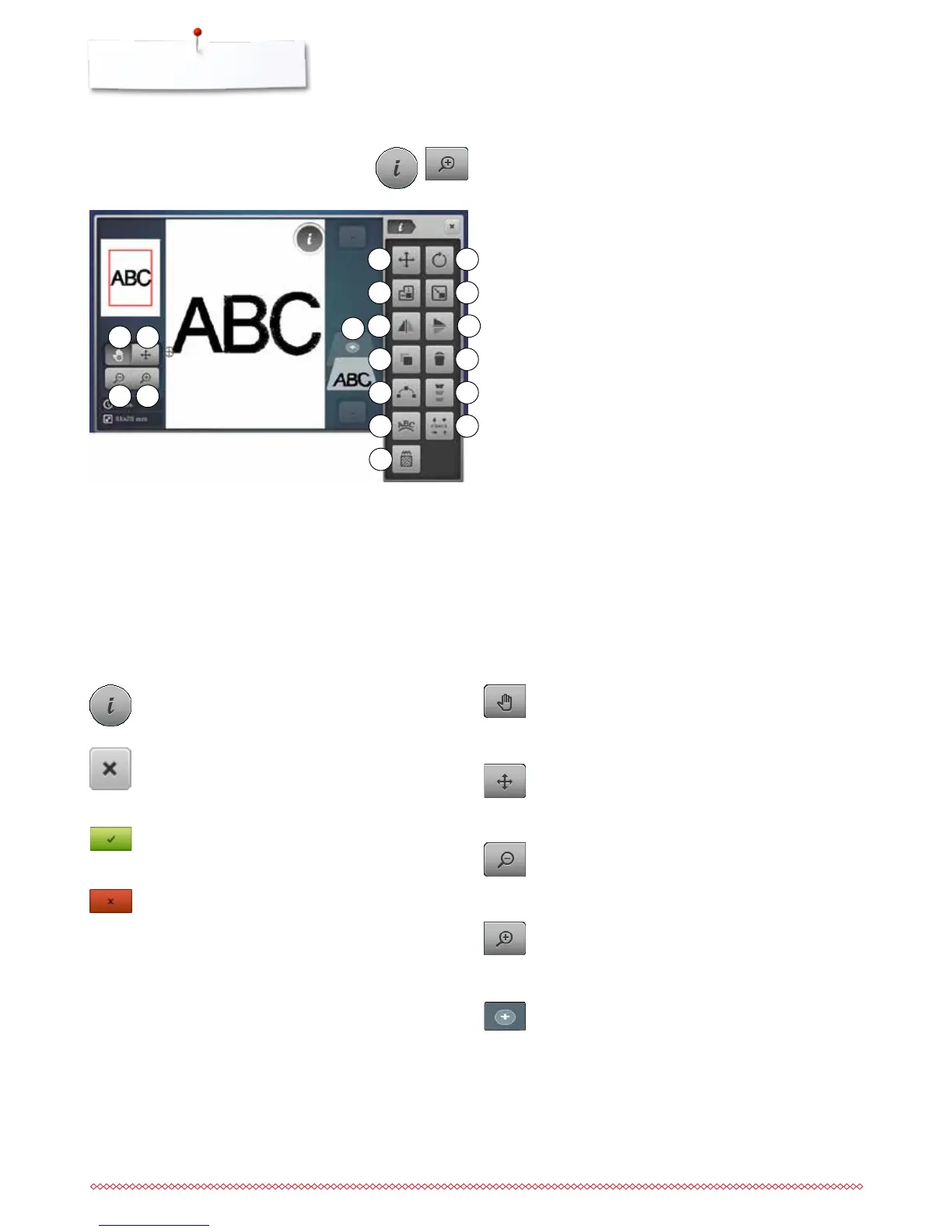
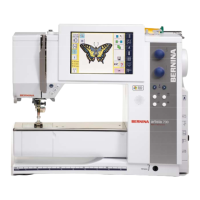
Overview «Edit»-Display
⦁
select alphabet or motif
⦁
touch the «i»-icon
⦁
touch the «Zoom plus»-icon
Some functions feature tips for the operating of the stitch width
and stitch length knobs.
Functions
1 Move the view of the motif
2 Move the view of the motif within the hoop
3 Zoom minus
4 Zoom plus
5 Add a motif
6 Move motif
7 Rotate motif
8 Rescale motif width and height
9 Rescale motif proportionally
10 Mirror Image left/right
11 Mirror Image down/up
12 Duplicate
13 Delete motif
14 Shaping
15 Endless Embroidery
16 Letter manipulation
17 Check motif size
18 Change stitch type
2
4
6
9
10
7
8
1
3
Information
⦁
touch the icon
►
another Display opens
Close
⦁
touch the icon
►
the previous Display appears
►
any alterations are accepted
Confirm selection
⦁
touch the icon
►
alteration/selection is activated or confirmed
Escape Display
⦁
touch the icon
►
the Display closes
►
the previous Display appears
General Functions
Move the view of the motif within the hoop
The embroidery motif can be moved within the hoop to
any direction using finger or the Touchscreen pen
directly in the Display.
Zoom plus
⦁
touch the icon 1-5x
►
the view of the embroidery motif is enlarged by one
step
Zoom minus
⦁
touch the icon 1-5x
►
the view of the enlarged motif is reduced by one
step
Add a a motif
►
the overview of the previous Display is opened
(Alphabet, Motifs, Stitch patterns, My Designs)
⦁
select the desired motif
11
12
14
16
18
13
15
17
Move the view of the motif
The view of the embroidery motif can be moved to any
direction using finger or the Touchscreen pen directly in
the Display. The embroidery position won't be changed.
5
Scrolling Functions
When not all the functions are displayed directly,
proceed as follows:
⦁
touch the «Function»-Display with the finger or the
Touchscreen pen, keep it touched and scroll upwards
►
additional functions appear


 To Next Page