Combinations
Creating combinations
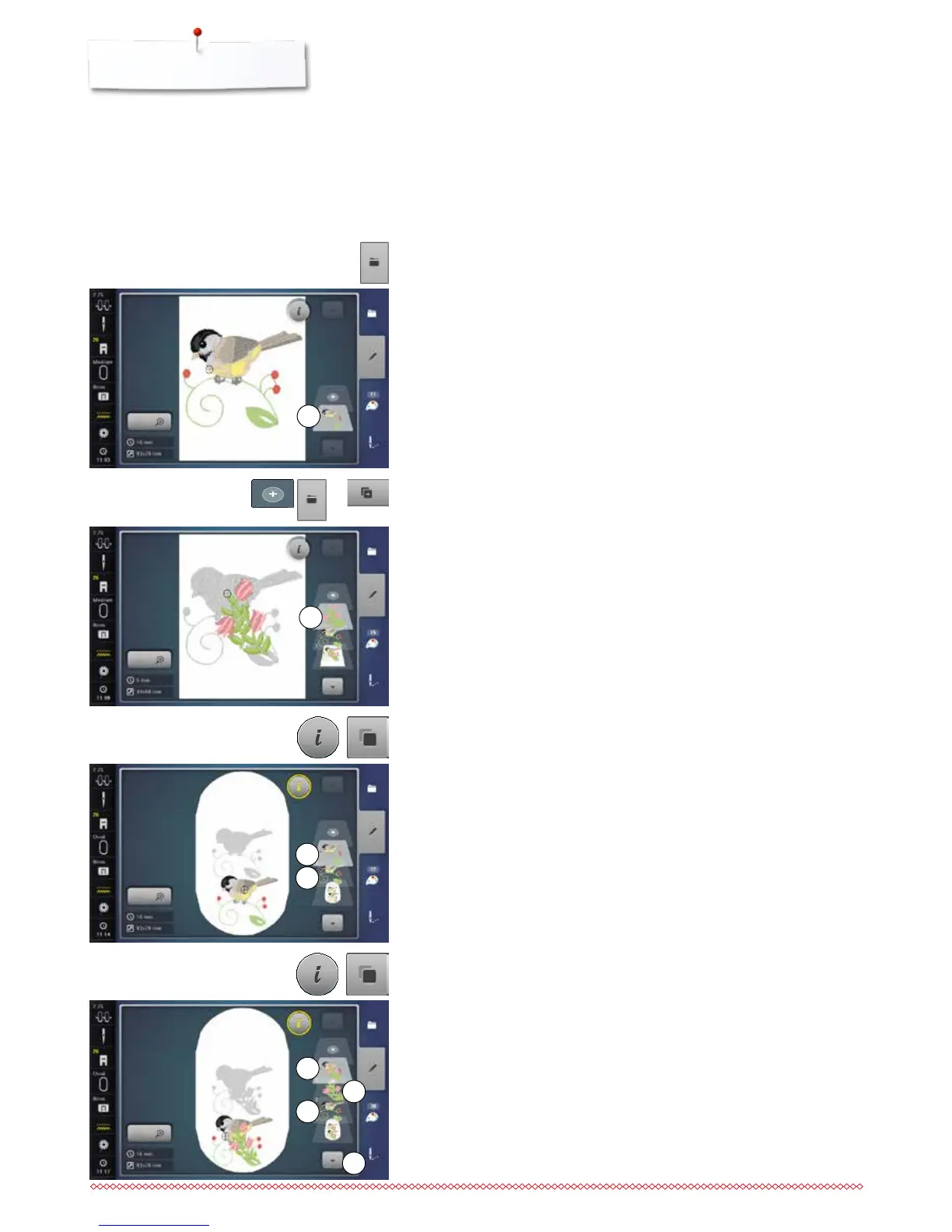
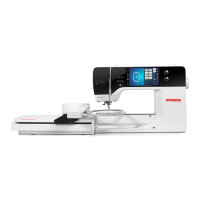
Adding a motif
⦁
touch the «Add embroidery motif»-icon or
⦁
press the «Selection»-button
⦁
touch the «Add motif»-icon
⦁
select the desired motif or alphabet character from the selection menu
►
the selected motif 2 is added
⦁
select the desired motif from the selection menu of the embroidery
computer
►
the motif 1 appears in the «Edit»-Display
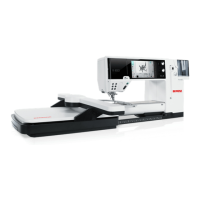
Duplicating a motif
⦁
touch the «i»-icon
⦁
touch the «Duplicate motif»-icon
►
the active motif 3 is duplicated 4
2
4
3
1
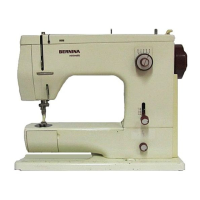
Duplicating a combination
⦁
activate a combination 5
►
touch the «i»-icon
⦁
touch the «Duplicate motif»-icon
►
the active combination 6+7 is duplicated 8
Within in a duplicated combination the single motifs cannot be selected
individually, contrary to the initial combination.
5
8
6
7
As combinations are created, layers appear to the right of the hoop. They show
the order of the motif as it is created. The layers can be used to select motifs
for editing. Deleting is also possible from the layers, by touching and holding
and moving to the right/left.


 To Next Page