!
Biodex Medical Systems, Inc. © 2016 109
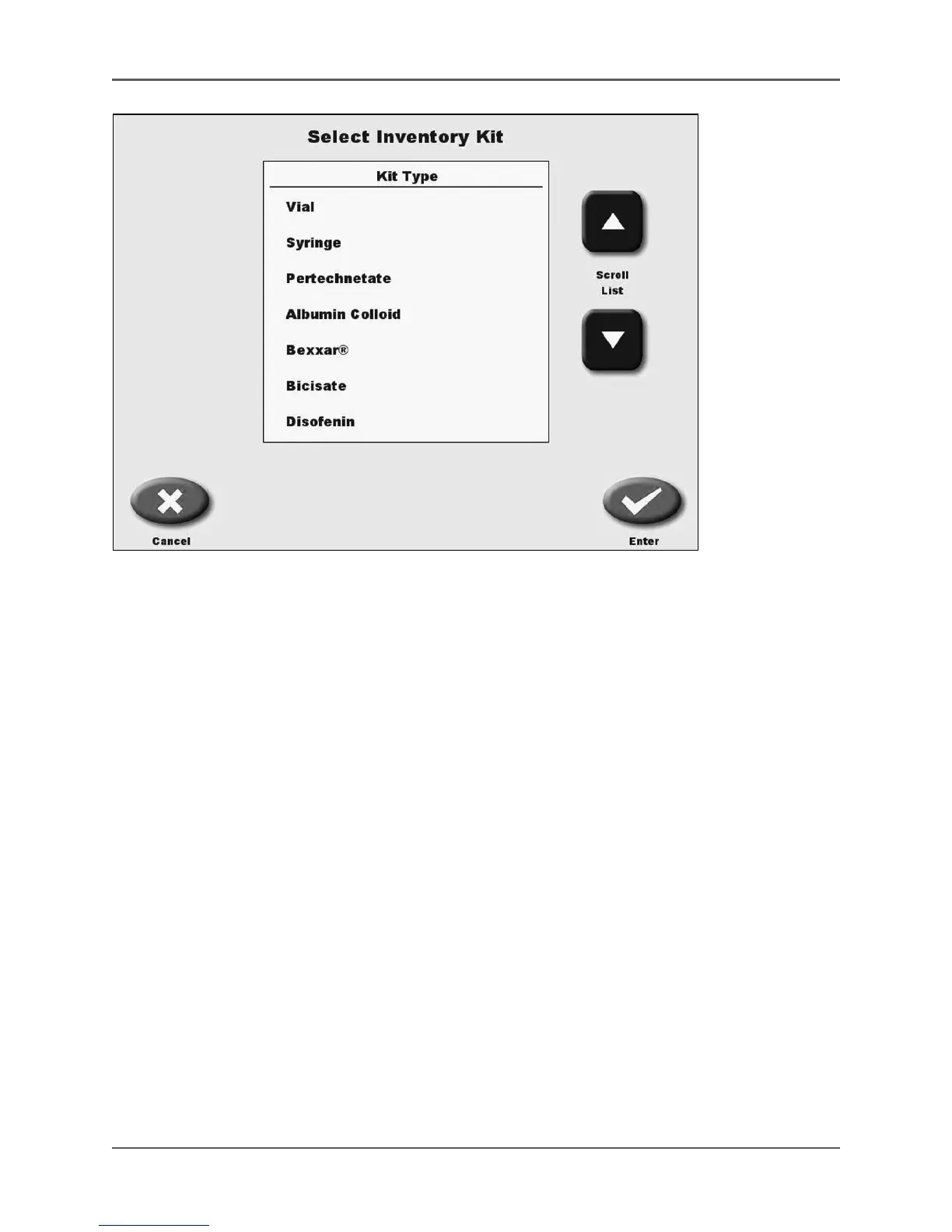
Figure 5.32. The Select Inventory Kit screen.
4. Select <Enter> to return to the Enter Kit # Preparation screen with the new kit selected.
5. Select <Enter Lot Number> to display the keyboard. Now enter the cold kit’s lot
number. Select <Enter> to return to the Kit # Preparation screen.
6. Select <Enter Kit Activity> to display the keypad. Enter the desired activity of the kit
you are making and press <Enter>.
NOTE: Make sure the unit of measure is correct. Press the displayed µCi to change to
mCi and vice versa.
7. The system now displays the volume of activity to draw to make a kit of the desired
activity. Draw the activity and place in the dose calibrator. The display shows the
current activity in red. When the activity is correct, put it into the kit and bring the new
kit to the total desired volume by adding sterile saline.
8. Select <Enter Kit Total Volume> and using the keypad enter the total volume of the kit
created. Select <Enter>.
9. Select <Record Reading>. The new kit information is now displayed. The kit
concentration is now shown, along with the new kit just created information.
10. Select <Save Data>, then touch <OK> to save the kit just created into inventory. The
Saving a Kit From Another Kit screen is displayed. To save and update the new kit
data, select <OK>, or select <Cancel> to discard.
11. The Kit # Data screen is now displayed. Select <Print Labels> to print this screen if
desired, or <Back> to return to the Kit # Preparation screen to create a new kit.
12. To draw a patient dose from this kit, select <Draw Patient Dose>. You can now draw a
dose from the kit just created as described in the following section.



 To Next Page