Using ATEM Television StudioProSwitchers
Multiple heads can be controlled from an ATEM Television Studio Pro model switcher by
daisy chaining the heads together via the RS-422 inputs and outputs on each head
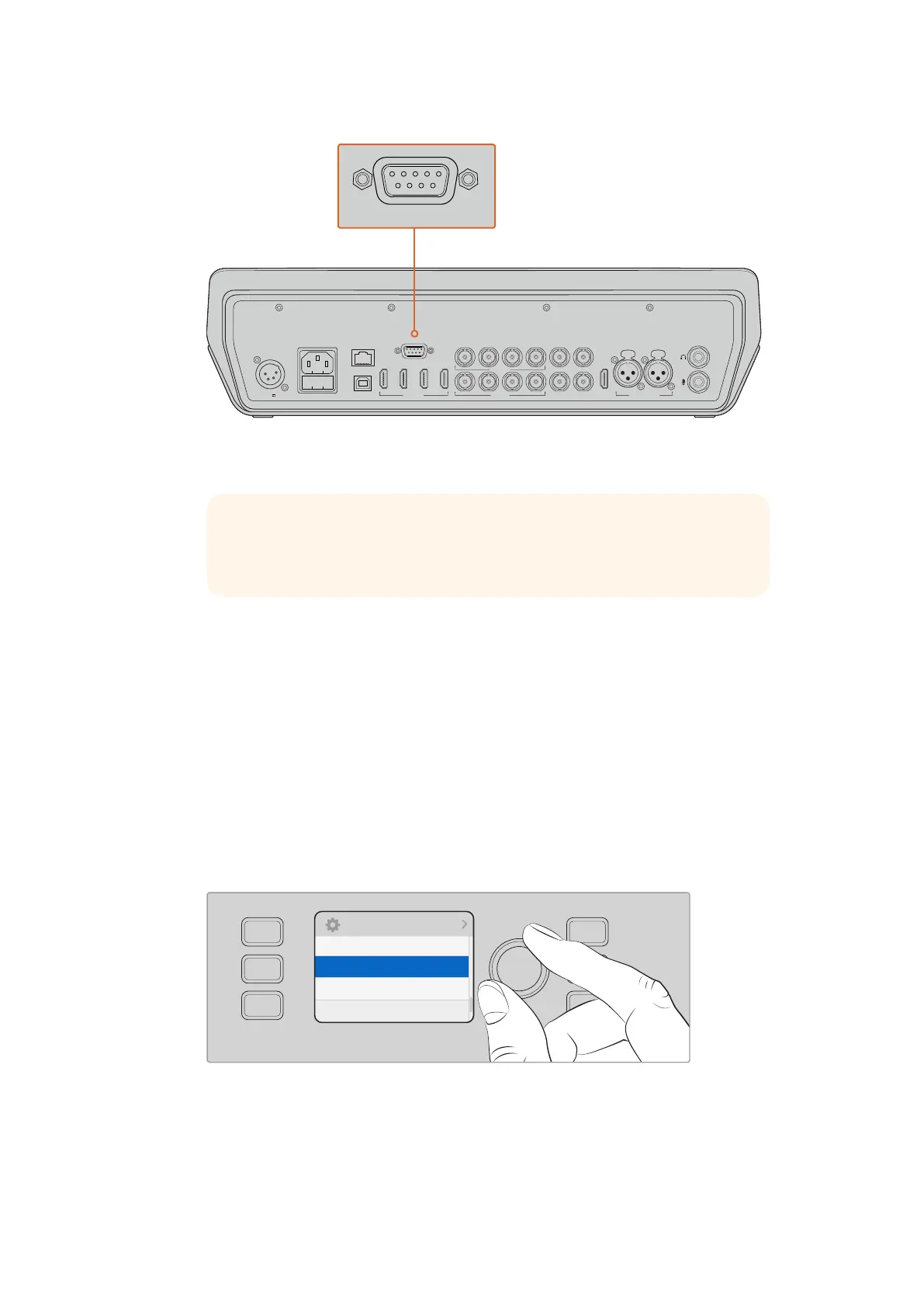
PTZ Setup for Remote Heads
All PTZ setup options are accessed through the “Settings” menu in your switcher's LCD menu.
To setup remote heads for PTZ control:
1 Press the menu button to display the menus.
2 Scroll through the menus to the “Settings” menu using the rotary knob.
3 Press the set button and you will see the settings menu page will be selected.
4 Scroll down the list of items in the settings menu until you get to the “Remote
Port” section.
5 Press the set button to select the setting, use the rotary knob to select “VISCA”
andpress the set button to confirm this setting.
6 Press the “menu” to return to the settings menu and scroll down to the “VISCA” section.
7 Select the “Baud Rate” setting and use the set button and rotary knob to select the
proper baud rate for your remote head.
CONTROL
USB 2.0
1 2 3 4
REMOTE
5 6 7 8
5 6 7 8
SDI INPUTSHDMI INPUTS REF IN PGM
SDI OUTPUTS AUX MULTI-VIEW
MULTI-VIEW
PUSH PUSH
CH 1 CH 2
12-30V 3A
CONTROL
USB 2.0
1 2 3 4
REMOTE
5 6 7 8
5 6 7 8
SDI INPUTSHDMI INPUTS REF IN PGM
SDI OUTPUTS AUX MULTI-VIEW
MULTI-VIEW
PUSH PUSH
CH 1 CH 2
12-30V 3A
TIP When daisy chaining remote heads, make sure you set the remote head’s
identity to “auto.” Check the manual for your particular remote head for
information on how to change this setting for that model.
Settings
Function
Remote Port
PTZ
Tilt
VISCA
Normal
RESET
RGB
RESET
ALL
RESET
ALL
AUX
MENU
SET
101










 To Next Page