Using the ATEM Television Studio HD Front Panel
Front Panel Aux Switching
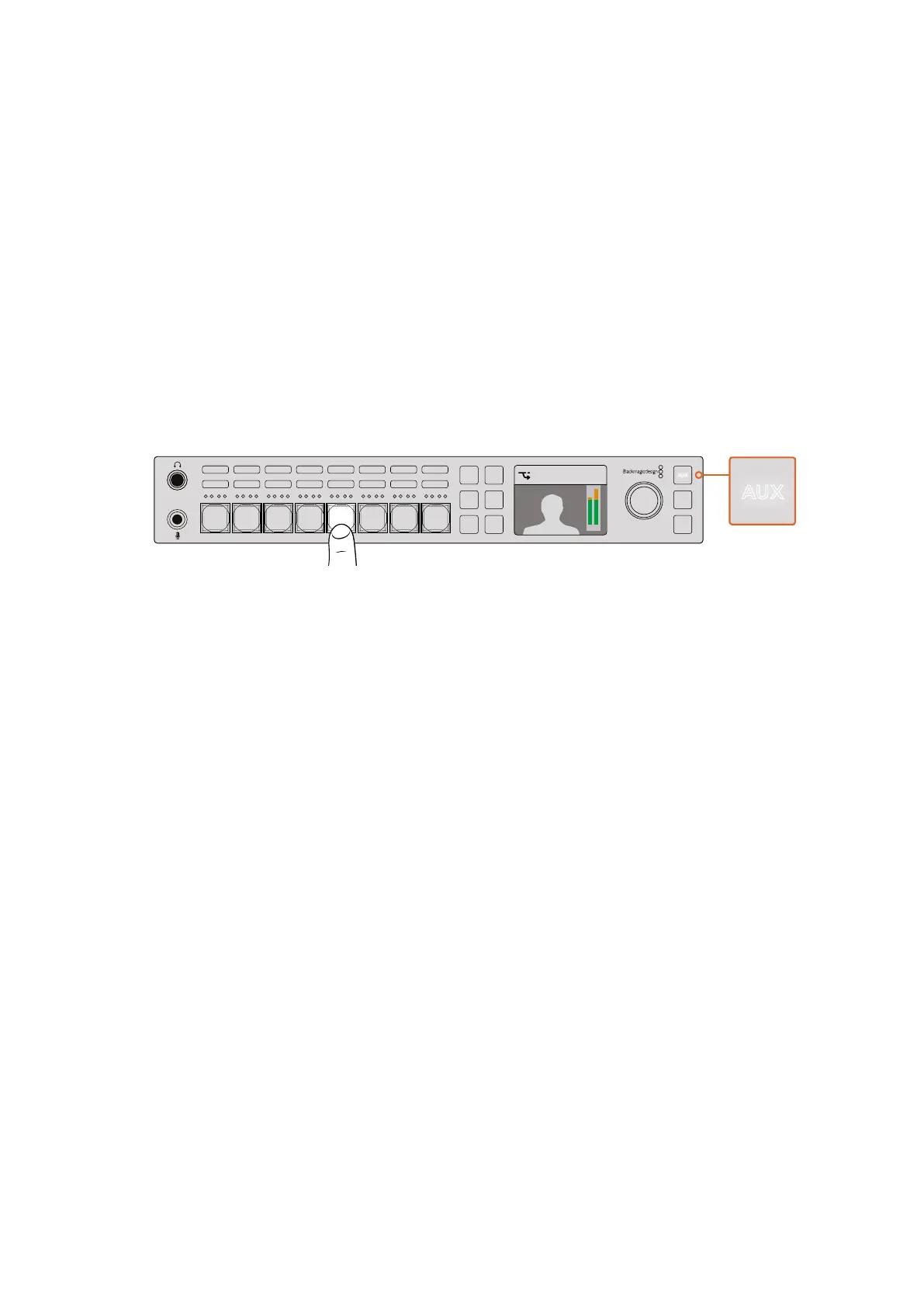
If you want to live switch the aux output of the switcher then press the AUX button to go into
aux mode. Once in aux mode you will notice that the source buttons have now changed to
white and the aux button is illuminated white also. This means that any source button you select
will send that output to the aux SDI output of the switcher. While in aux mode, you won’t be
controlling the switcher anymore and you are only changing the aux output, not the program
output. To go back to normal switcher operation, just select the aux button again.
If you select aux and you don’t see any front panel buttons illuminated, then it could be that
there is a source selected to the aux output that does not have a button on the front panel.
Forexample if you had color bars selected to the aux output, when you go into aux mode,
noneof the front panel buttons would be illuminated.
You can change aux sources in the LCD menus or on a software or hardware control panel.
There are more options for aux sources than available on the buttons on the front panel and
please check out the LCD menus for all the options.
Press the auxiliary or aux button to go into aux mode and
press an input button to select it on the auxiliary output
Using the LCD Menus
The LCD Menus make the entire operation of the switcher available. In the examples above,
we used the menus and it’s a good idea to explore the menus to see what’s available. If you
have used the software control panel on an ATEM switcher in the past, then you will see that
each menu is like a palette on the software control panel and each palette on the software
control panel has a menu page on the LCD. However, there are a few extra LCD menus and
these include program, preview and aux source, the audio mixer, and there is also a settings
page for setting up your ATEM Television Studio HD.
To use the menus:
1 Press the menu button to display the menus.
2 Scroll with the knob through the menus to the menu you want.
3 Press the set button and you will see the menu page will be selected to use.
4 Now scroll down the list to the specific menu setting you want to change.
5 Select it by pressing the set button.
6 Now scroll through the list of options for this menu item.
7 Press set when you want to make the desired setting active.
8 Press menu a few times to go back to the main video preview screen.
Camera 5
+2.3dB
MENU
SET
FTB
MP 2
AUTO
DSK 1
MIX
MP 1
CUT
ON ON ON ON ON ON ON ON
AFV AFV AFV AFV AFV AFV AFV AFV
1 2 876543
AUXAUX
Camera 5
+2.3dB
MENU
SET
FTB
MP 2
AUTO
DSK 1
MIX
MP 1
CUT
ON ON ON ON ON ON ON ON
AFV AFV AFV AFV AFV AFV AFV AFV
1 2 876543
AUXAUX
91










 To Next Page