5-16
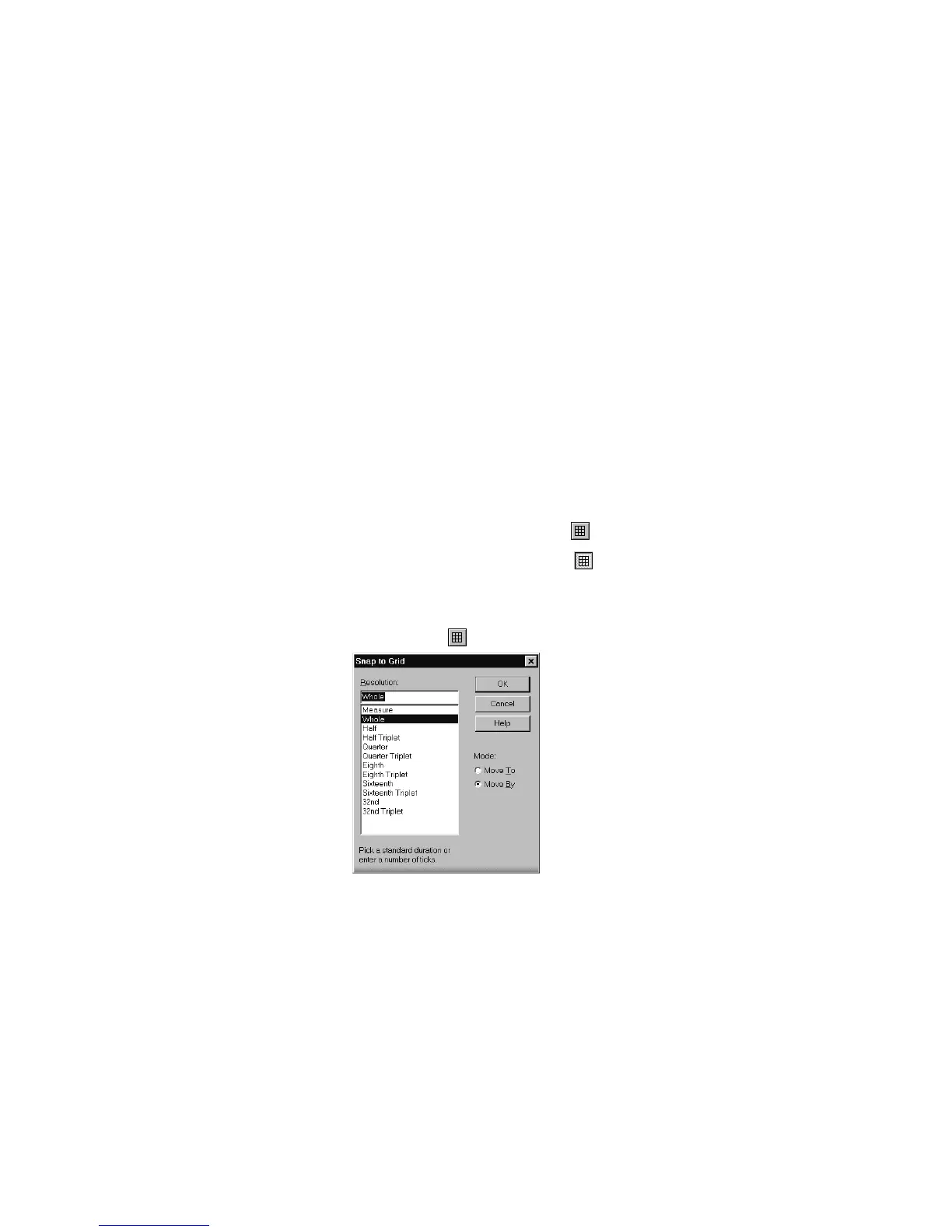
You can also use the grid to move clips by a certain interval, rather than
snap them to the interval. Moving by an interval can be useful during
drag-and-drop operations, if your events are not exactly aligned with
measure or note boundaries.
In addition to choosing a standard note duration for the snap interval,
you can also enter a number of clock ticks. For example, at the default
timebase of 120 PPQ, a sixteenth note snap interval represents 30 ticks.
If you change the timebase, the grid interval will be updated
automatically. In the preceding example, if you update the timebase to
240 PPQ, the snap interval will be changed to 60.
The snap grid in each view is independent. For example, you can enable
the snap grid in the Track view without enabling it in the Piano Roll,
Audio, or Staff views. You can also enable the grid in several different
views, with different grid intervals in each one.
To Enable or Disable the Snap Grid…
1. To enable the snap grid, click the button.
2. To disable the snap grid, click the button once again.
To Change the Snap Options…
1. Right-click the button to display the Snap to Grid dialog box.
2. Choose the note duration you want, or enter a number of ticks.
3. Select Move To to align selections and clips to the grid, or Move
By to move clips by the grid interval.
4. Click OK.
All time selections and drag-and-drop editing operations use the new
snap grid interval.



 To Next Page