6-14
Reversing Notes in a Clip
The Edit-Retrograde command reverses the order of events in a
selection. If one or more clips are selected, then the events within each
clip are reversed. If several clips are selected from the same track, then
the order of the clips is also reversed. You could use this command, for
example, to take a scale or other long run of notes and reverse the order
in which they are played. The Edit-Retrograde command does not
reverse the contents of audio events. It only changes their start times.
You can use the Edit-Audio-Reverse command to reverse audio events.
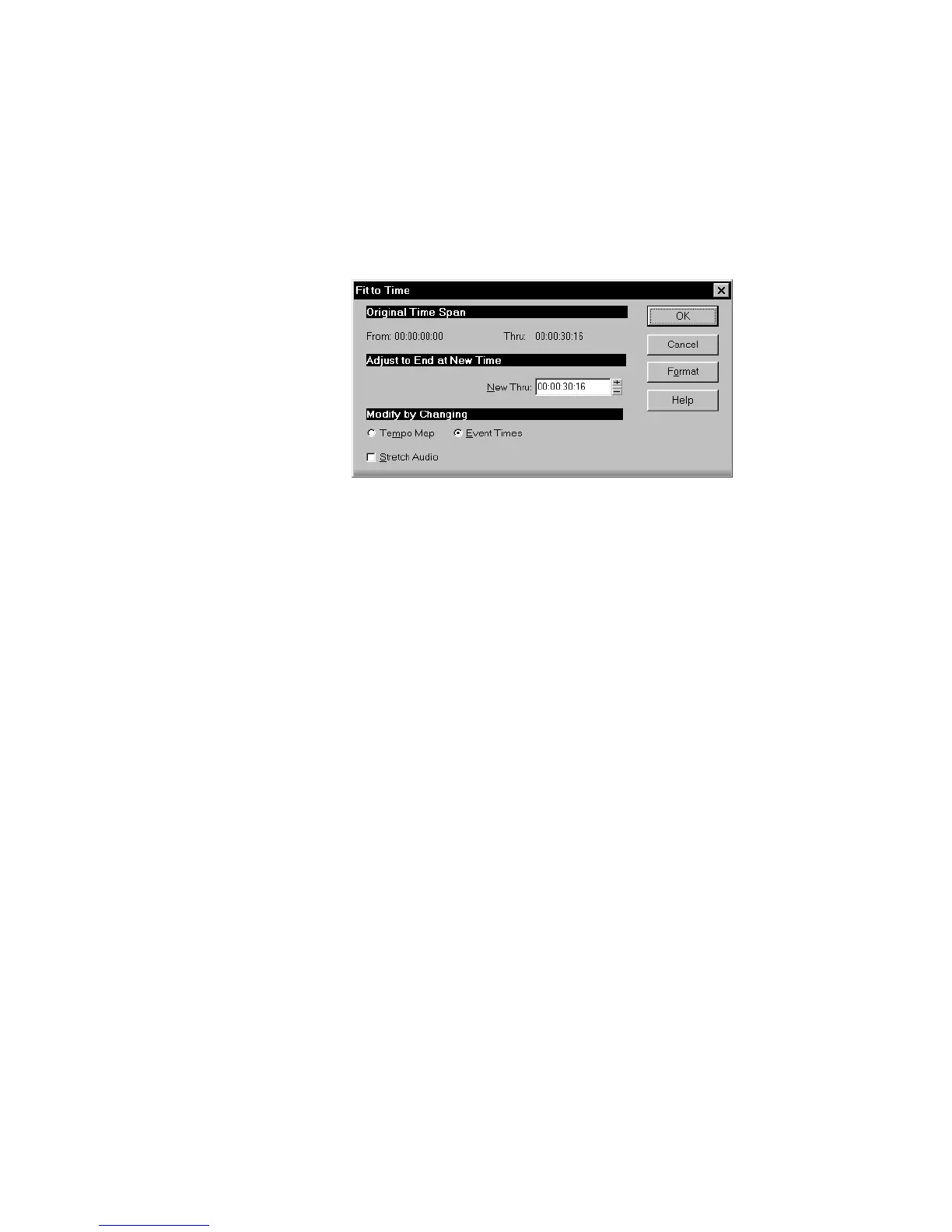
To Stretch or Shrink to a Specific Length...
1. Select the events you want to change.
2. Choose
Edit-Fit to Time
to display the Fit to Time dialog box.
3. Enter the desired end time in the New Thru box. Click Format to
switch between MBT and SMPTE format.
4. Choose to change either the underlying tempo map or the actual
event times.
5. If you want to stretch selected audio events, check the Stretch
Audio box.
6. Click OK when you are done.
Pro Audio modifies the length of selected events or changes the tempo
map, as you requested.
To Reverse the Sequence of Notes or Other Events...
1. Select the notes you want to reverse.
2. Choose
Edit-Retrograde
.
Pro Audio reverses the order of the selected events.



 To Next Page