7-12
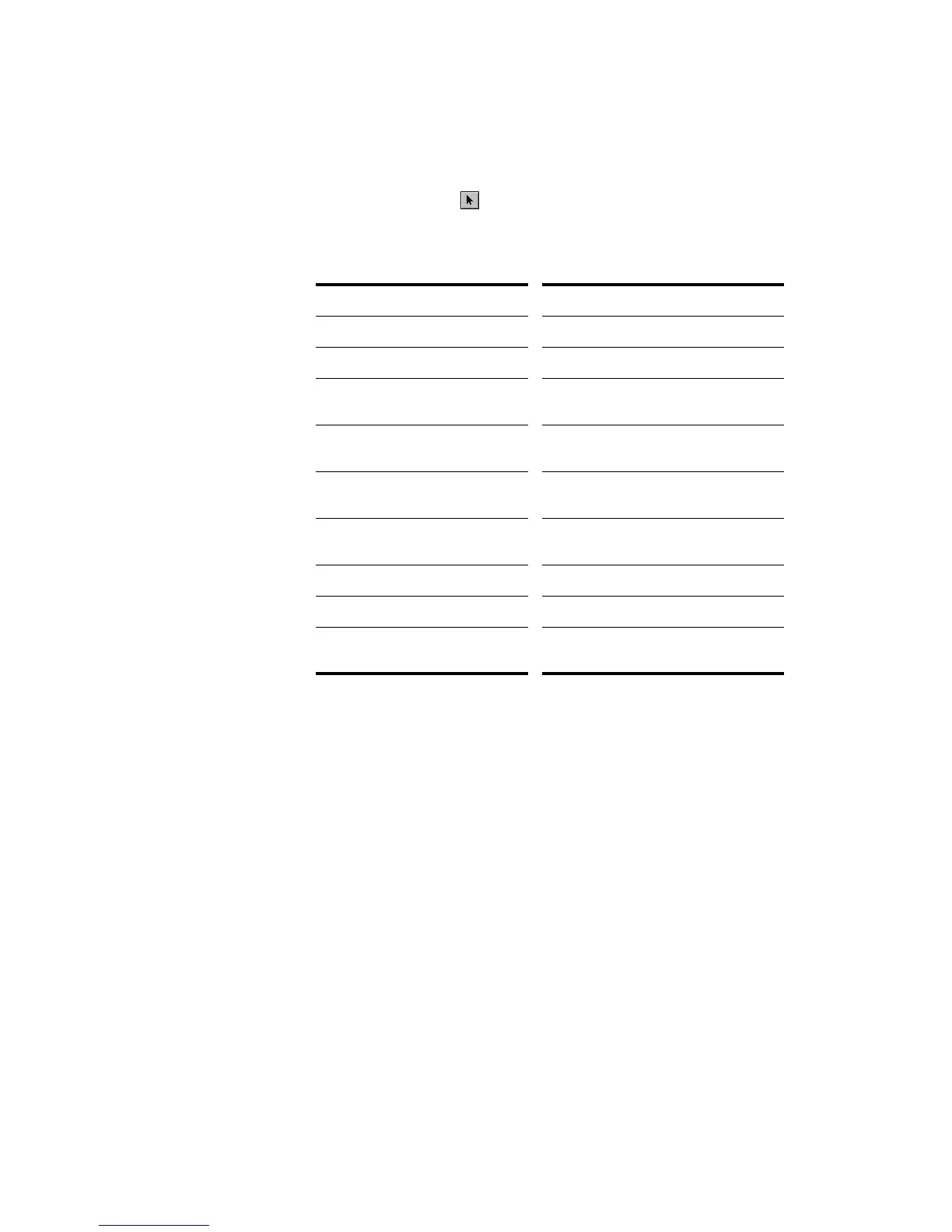
Use the Selection tool to make selections. Selection methods in the
Audio view are similar to those in other views.
Here is a summary:
Editing Event Properties
Audio events have four properties that you can change: a name, a time,
an anchor, and a velocity.
The name of an event is used in the Audio view and Event List view. You
can assign any name to help you remember the contents of the event.
The time and the anchor determine when the sample is played. The time
is the time of the anchor, relative to the start of the project. The anchor is
a reference point within the event that you use for aligning the event. By
default, the anchor is at the starting point of the event (sample 0), but
you can move it anywhere within the event. The anchor time is used as
the event time when you move the event (with drag-and-drop, copy/
paste, quantize, etc.) and obeys the snap setting. A red triangle along the
bottom border of the event indicates the anchor.
The term velocity is borrowed from MIDI, where it indicates the speed
with which a key was struck, and thus its loudness. Pro Audio assigns a
velocity to each audio event as a means of letting you control and adjust
To do this... Do this...
Select a single event Click the event
Select several events at once Drag a rectangle around them
Select part of an event Press Alt and drag over a portion of one
or more events
Add events to the selection Press Shift and either click the events or
drag a rectangle around the events
Add or remove events from the
selection
Press Ctrl and either click the events or
drag a rectangle around the events
Add or remove events in a track
from the selection
Click the track number
Select events in a time range Drag in the time ruler
Select events between two markers Click between the markers
Remove all selections Click in an empty area outside of any
event



 To Next Page