B-12
Undo, Redo, and the Undo History
Pro Audio provides very powerful Undo and Redo commands that let
you move forward or backward through any portion of an editing session.
Every project has its own independent undo history. This means you can
return to any open project and use the Undo and Redo commands, even
if youÕve spent the last hour working on a different project.
Remembering everything that is necessary to undo the changes you have
made can use a lot of memory. If a change you are about to make
requires too much memory and cannot be undone, you will be advised
that the operation is too big to undo later and asked if you want to go
ahead anyway. If you do choose to perform the operation, you will not be
able to undo it. Therefore, you may want to save your project Þrst.
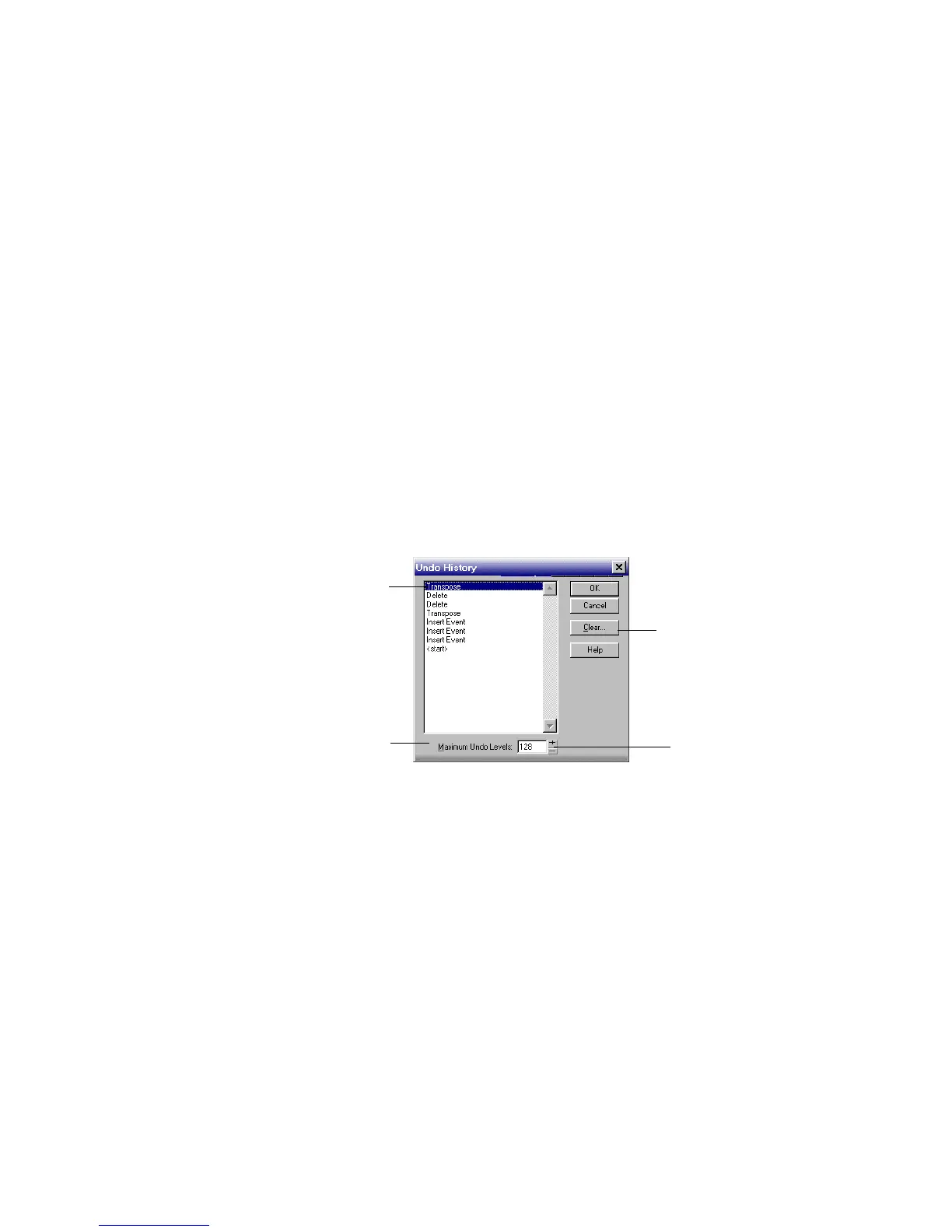
The Edit-History command displays a complete history of the
commands and actions you can undo for the current project. The Undo
History dialog box looks like this:
The History command is grayed out until you make a change to the
current project that can be undone.
The History list is updated every time you make a change to a project.
For example, if you insert a new note into a project using the Piano Roll
view, that action is added to the History list. This entry remains on the
listÑeven if you undo the changeÑso that you can redo the change later
on. If you use the Erase tool to delete the note, this change is added to
the History list.
You can click the Clear button in the Undo History dialog box to erase
the undo history for the current project and free up some memory. If Pro
Audio is low on memory, it may offer to erase the History list.
Click to clear the
undo history
Adjust the number
of steps you can
undo
Earliest change
Most recent
change



 To Next Page