5-29
Arranging
Using the Tempo Commands
The Insert-Tempo Change and Insert-Series of Tempos commands
can be used to change the existing tempo of a project or to introduce one
or more tempo changes at various points in a project. You can enter
tempo values directly, introduce smooth increase or decreases in tempo,
or even use your mouse to tap out the tempo you want for some portion
of a project.
To Insert a Tempo Change…
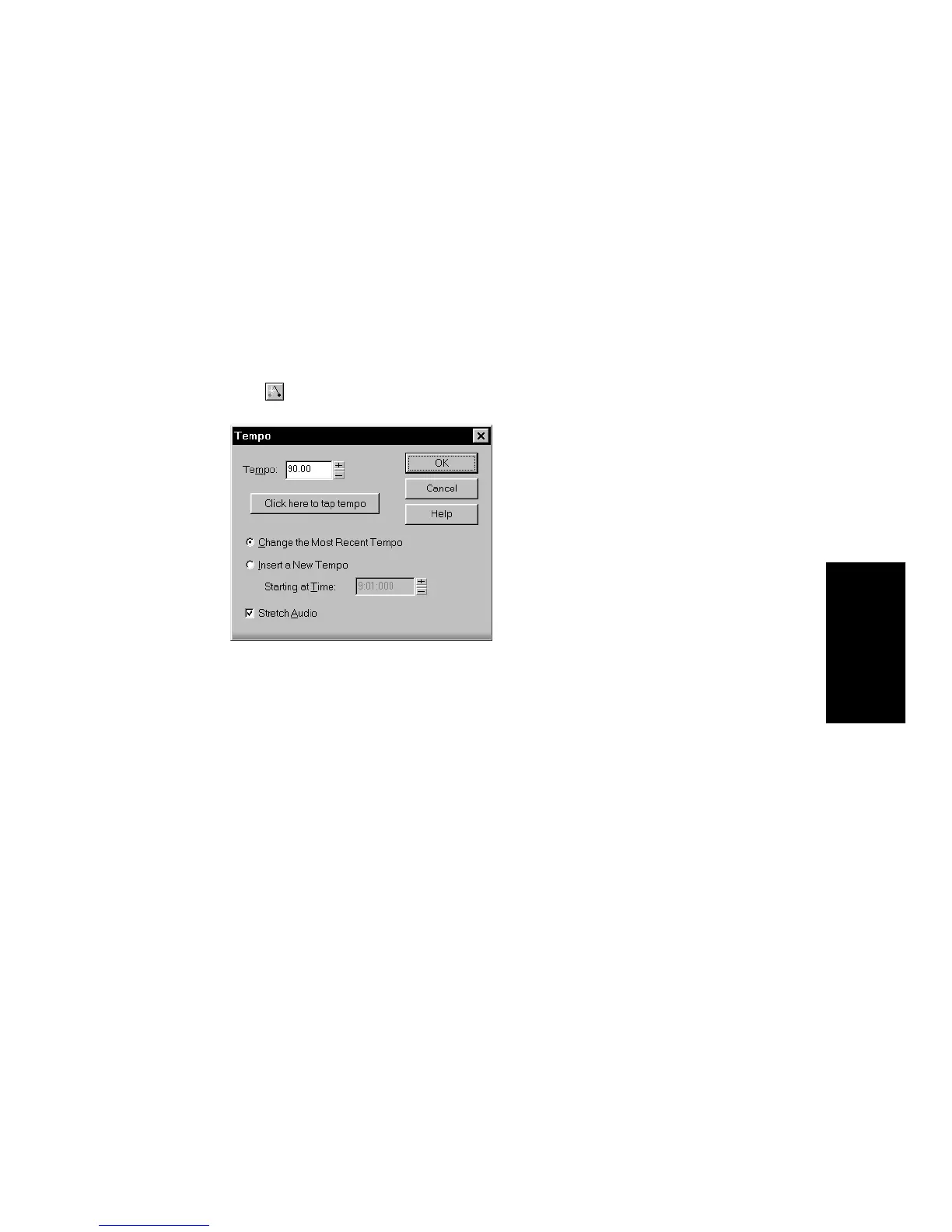
1. Click in the toolbar or choose
Insert-Tempo Change
to display
the Tempo dialog box.
2. Check the Insert a New Tempo box.
3. Enter a new tempo in one of the following ways:
• Type a value in the Tempo field.
• Click the arrows to change the value.
• Tap a new tempo in the space indicated in the dialog box.
4. Enter a starting time for the new tempo.
5. Check the Stretch Audio option if you want audio to be modified.
6. Click OK.
Pro Audio inserts a tempo change at the designated time.



 To Next Page