6-8
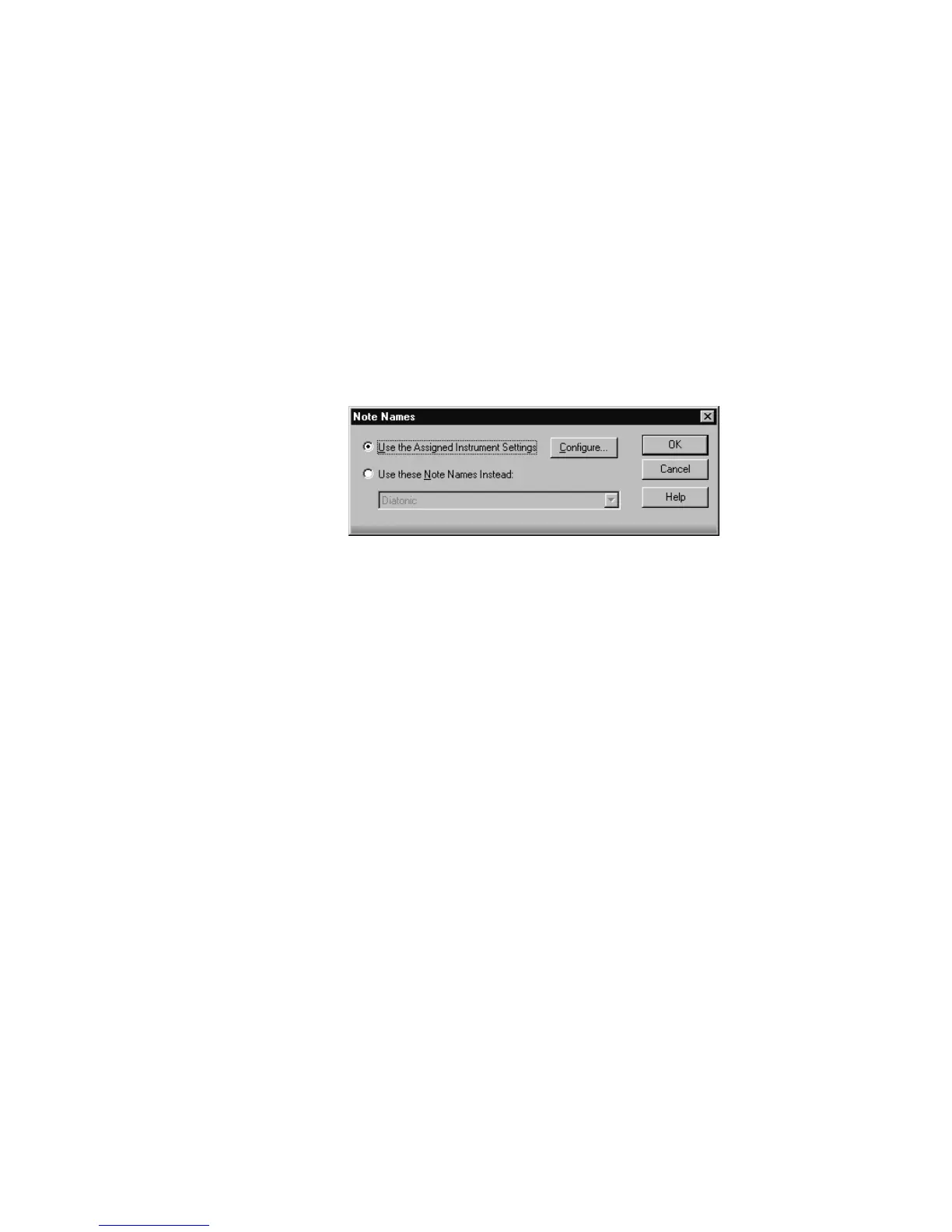
Note Names
You can change the instrument deÞnition for the active track in the
Piano Roll view. Right-click in the left side of the Note pane to open the
Note Names dialog where you can use note names that are deÞned as
part of any instrument deÞnition. For more information about
instrument deÞnitions, see Chapter 10, Using Instrument DeÞnitions.
Selecting and Editing Events
Pro Audio has many other editing commands that you can use to modify
the events that make up your project. Here are some of the things you
can do:
¥ Transpose events, clips, tracks, or an entire project to a different key
¥ Shift events to an earlier or later time
¥ Stretch or shrink material to a different length
¥ Reverse the notes in a clip to create new arrangements
¥ Modify the note velocities
The following sections describe these editing commands and how to use
them. Pro Audio also has some special commands you can use to modify
To Change the Active Track’s Instrument Definition...
1. Right-click the left side of the Note pane (where the piano keys or
note names are displayed) to display the Note Names dialog box.
2. To use the note names from the assigned instrument (the default),
click Use the Assigned Instrument Settings. Click Configure to
change the instrument definitions.
3. To override the default setting, click Use These Settings Instead,
and choose the note names and mode you want to work with.
4. Click OK when you are done
The Piano Roll view is updated with the settings you request.



 To Next Page