5-27
Arranging
The Edit-Fit to Time and Edit-Fit Improvisation commands can also
be used to introduce tempo changes into your work Þle. For more
information, see ÒStretching and Shrinking EventsÓ on page 6-12 and
ÒFit ImprovisationÓ on page 6-26.
When you change the tempo of a project that contains audio, Pro Audio
will, at your option, stretch or shrink the audio wave to Þt the new
tempo. Otherwise, the MIDI tracks will speed up or slow down while the
audio tracks will play at the same speed.
Sometimes you donÕt want to adjust the speed of your audio. Here are
some examples:
¥ If your project contains background music and a voice-over, you
might want to change the tempo of the background music without
altering the voice-over.
¥ If youÕre trying to modify the speed of some MIDI tracks to match a
sampled drum groove, you want to leave the audio unchanged.
When you insert a tempo change using a dialog box, the Stretch Audio
checkbox lets you choose whether to stretch or shrink the audio portions
of your project. You can also prevent an audio clip from ever being
stretched by setting the track patch to be Unstretchable.
You cannot set tempos when the clock source is set to MIDI Sync,
because Pro Audio follows the external tempo. For more information, see
Chapter 15, Synchronizing Your Gear.
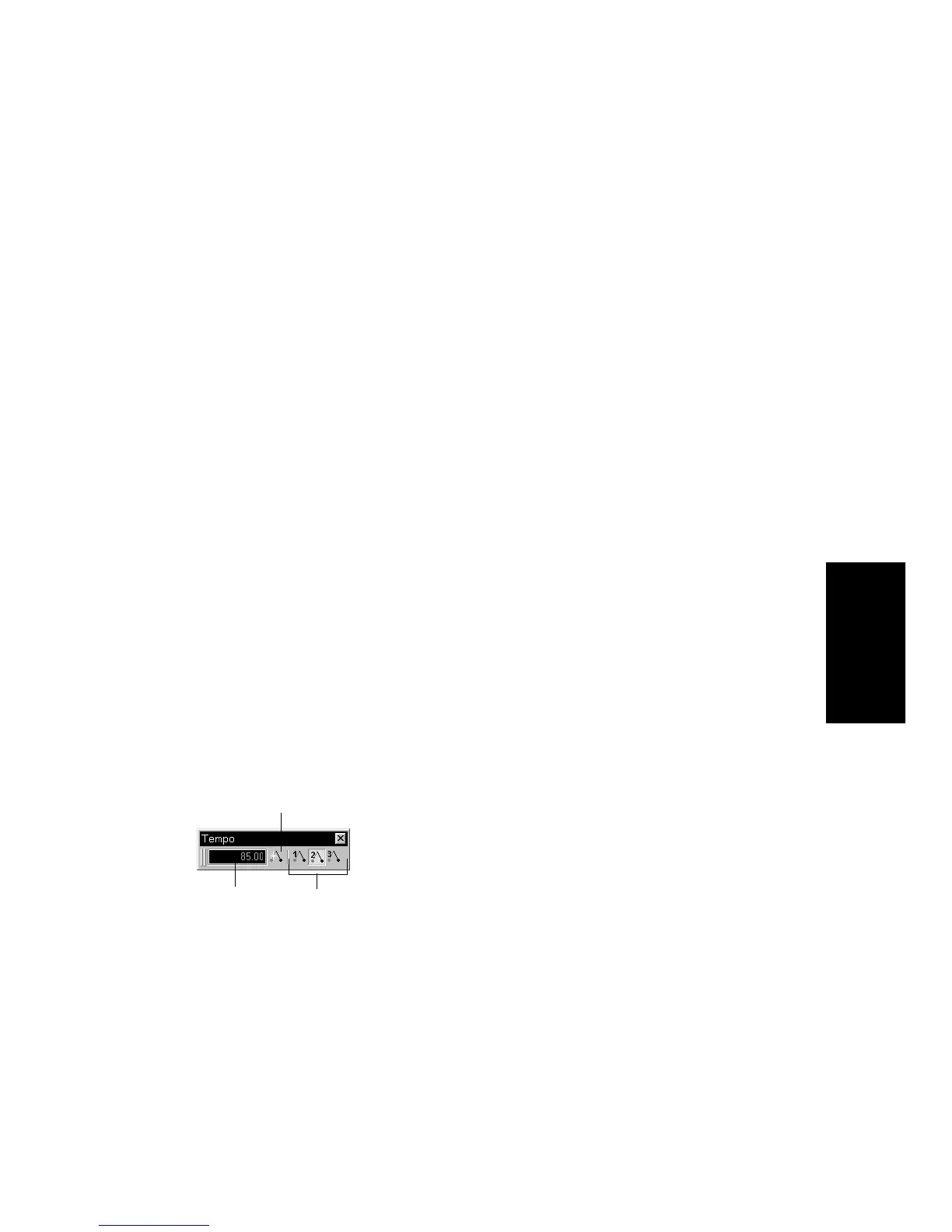
Using the Tempo Toolbar
The Tempo toolbar displays the current tempo and lets you change the
tempo as shown below:
When you enter a new tempo directly in the toolbar, you change the most
recent tempo setting in the project.
Click to insert a
tempo change
Tempo ratio
buttons
Click to enter
a new tempo



 To Next Page