11-38
Starting Out
First, letÕs create a standard panel and then remove all of its widgets.
Adding a Pop-Up Cluster
Next, letÕs place one of each type of widget in our new panel. WeÕll start
with a cluster widget, and then place other widgets insider the cluster.
1. With the one General MIDI assigned track selected, create a new
panel (choose
File-New
, pick StudioWare Panel from the list, and
click OK).
2. Click to enter Design Mode.
3. All five visible widgets are part of a single cluster. To select the
cluster, click on the track name at the top of the cluster.
4. Press the Del key to delete the cluster.
This will give us a starting point for our new panel.
All the widgets are deleted, leaving only a shaded rectangle behind.
That rectangle is the main workspace of the panel, which can be
resized in the same way as any other widget. It will automatically
resize to include any widgets you add.
1. Click in the StudioWare toolbar to select the Cluster tool.
2. Click the mouse anywhere within the panel window to add a
cluster widget.
3. Drag the corners or edges of the cluster widget to adjust its size.
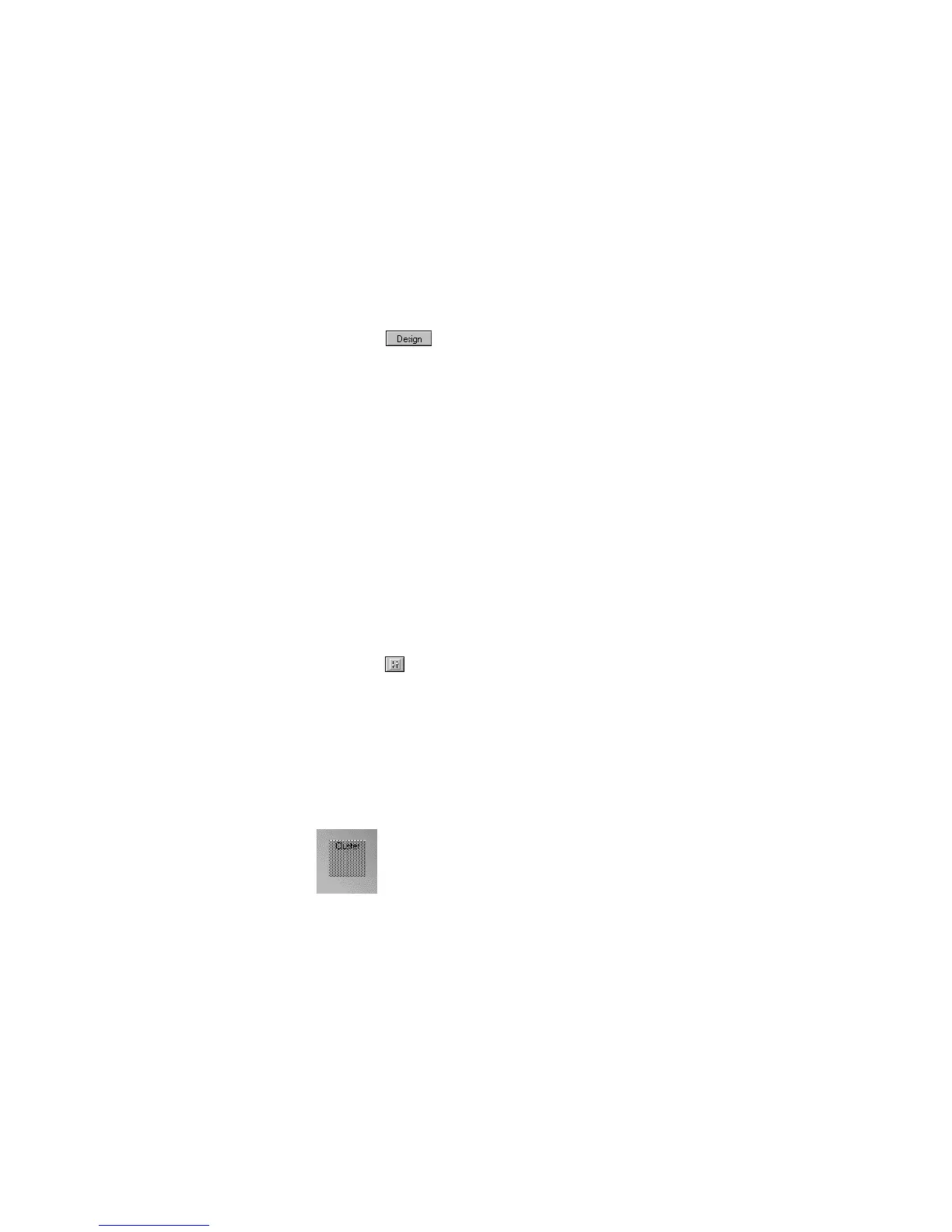
The new cluster widget should look something like this:



 To Next Page