2-12
channel 10, which in General MIDI is dedicated to percussion. The note
determines the instrument, and the patch is irrelevant.
Changing the Patch in the Console View
ItÕs easier to change a trackÕs patch in the Console view. For example, to
change the Piano trackÕs patch, click the Patch button in the Piano
module and choose a new patch from the menu.
Playing Music on a Keyboard
If you've connected a MIDI keyboard (or another instrument) to your
external MIDI interface or the MIDI interface of your sound card, you
can play one or more parts of the song on the keyboard instead of the
sound cardÕs internal synthesizer. For instructions on connecting a
keyboard to your computer, see ÒTo Connect a MIDI Keyboard to Your
ComputerÉÓ on page 1-16. For this tutorial, we assume that you want to
connect the keyboard to the MIDI in and out of your sound card.
Checking Your MIDI Device Settings
First, letÕs make sure that Pro Audio is set up to send MIDI output to
your keyboard.
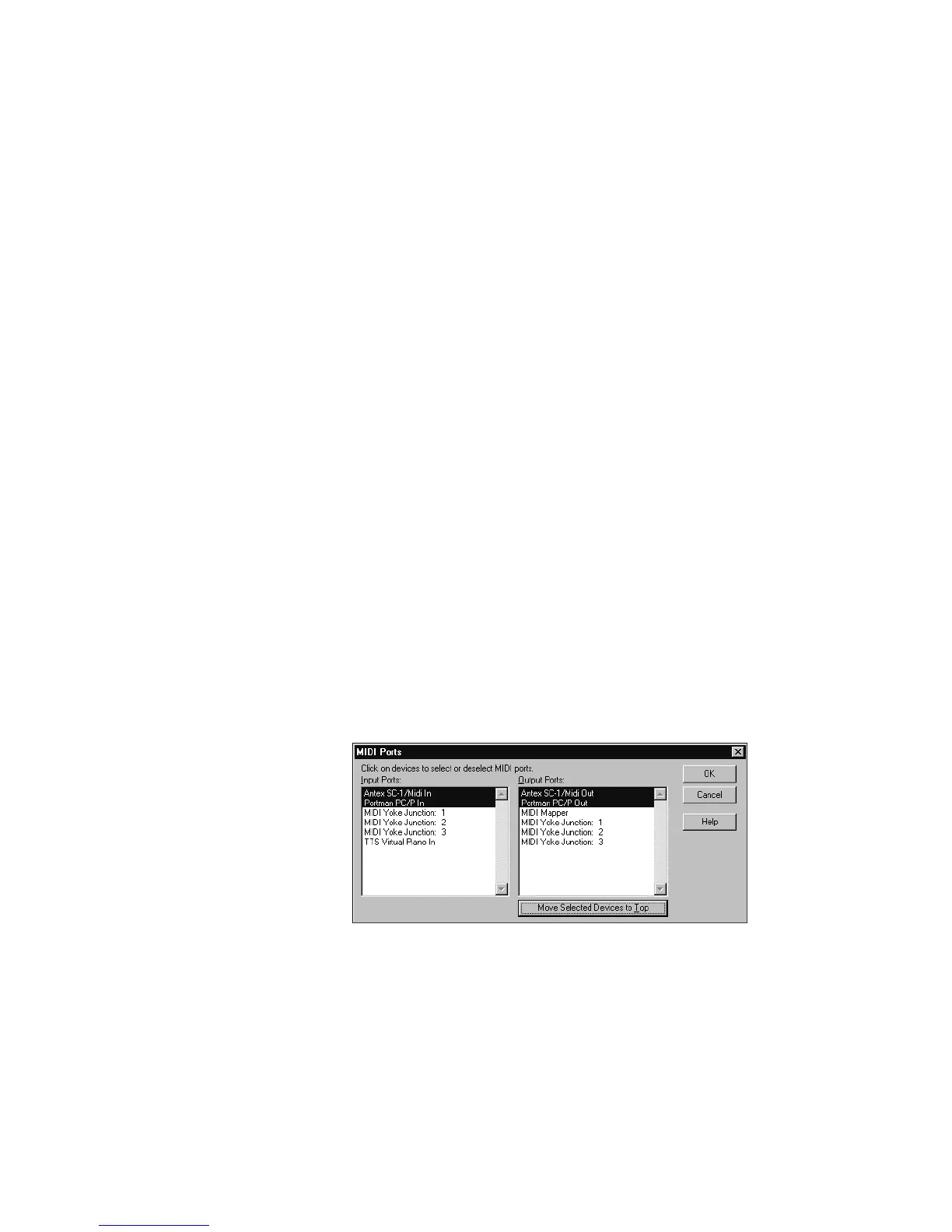
1. Choose
Options-MIDI Devices
to open the MIDI Ports dialog box.
2. In the Output Ports column, two devices should be selected. The
first should be your sound card synthesizer device; the second
should be your MIDI out device. The uppermost selected device
will correspond to Port 1, the second device to Port 2, and so on.
For help with these settings, see “Setting Up Output Devices” on
page 3-17.
3. Click OK.



 To Next Page